

Prerequisites
- At least one theme backup version in your backup storage
Find the asset
Open BackupMaster from your Shopify admin and go to Backup Storage > Themes. Select the theme that contains the asset. Scroll below the theme card to see individual assets, then select the one you want to restore.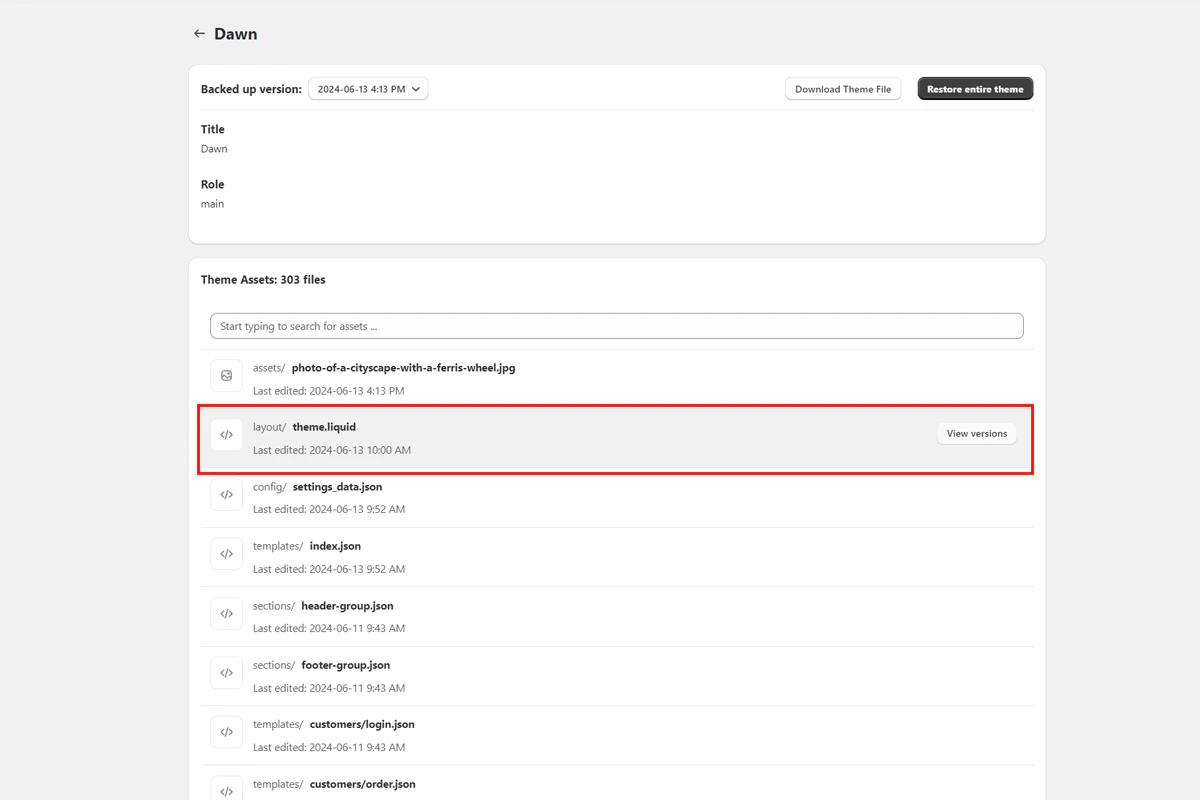
List of individual theme assets
Compare and restore
BackupMaster shows all versions of the selected asset. For code files, it highlights the differences between versions so you can see exactly what changed.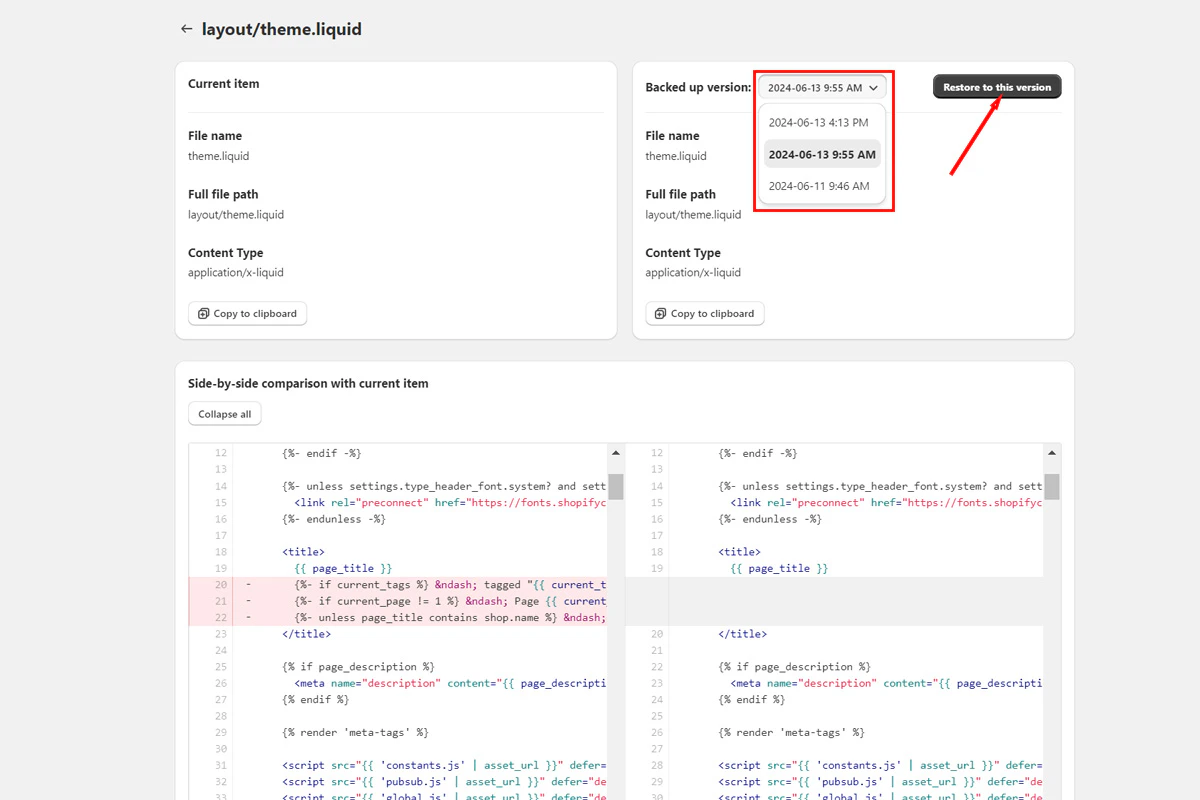
Comparing theme asset versions with highlighted differences
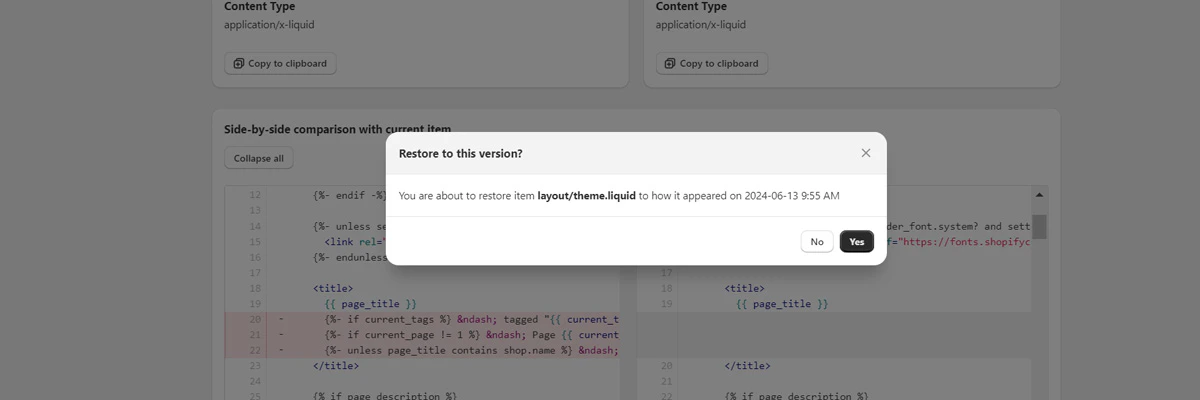
Confirming theme asset restoration
Troubleshooting
Asset not listed
Asset not listed
The asset might not have existed when the backup ran. Check whether it was added after the most recent backup. Contact support at support@backupmaster.io if you need help.