

When to use cloning
- Staging or development — clone production data to a test store to try theme changes, app integrations, or bulk edits.
- Regional expansion — duplicate your catalog and content to a store targeting a different market or currency.
- New brand setup — use an existing store as a template for a new brand.
Supported data types
Clone your store
- BackupMaster installed on both stores
- A Pro plan or higher on the source store (the destination can be on any plan)
- A completed initial backup on both stores
On the source store
Open Clone store
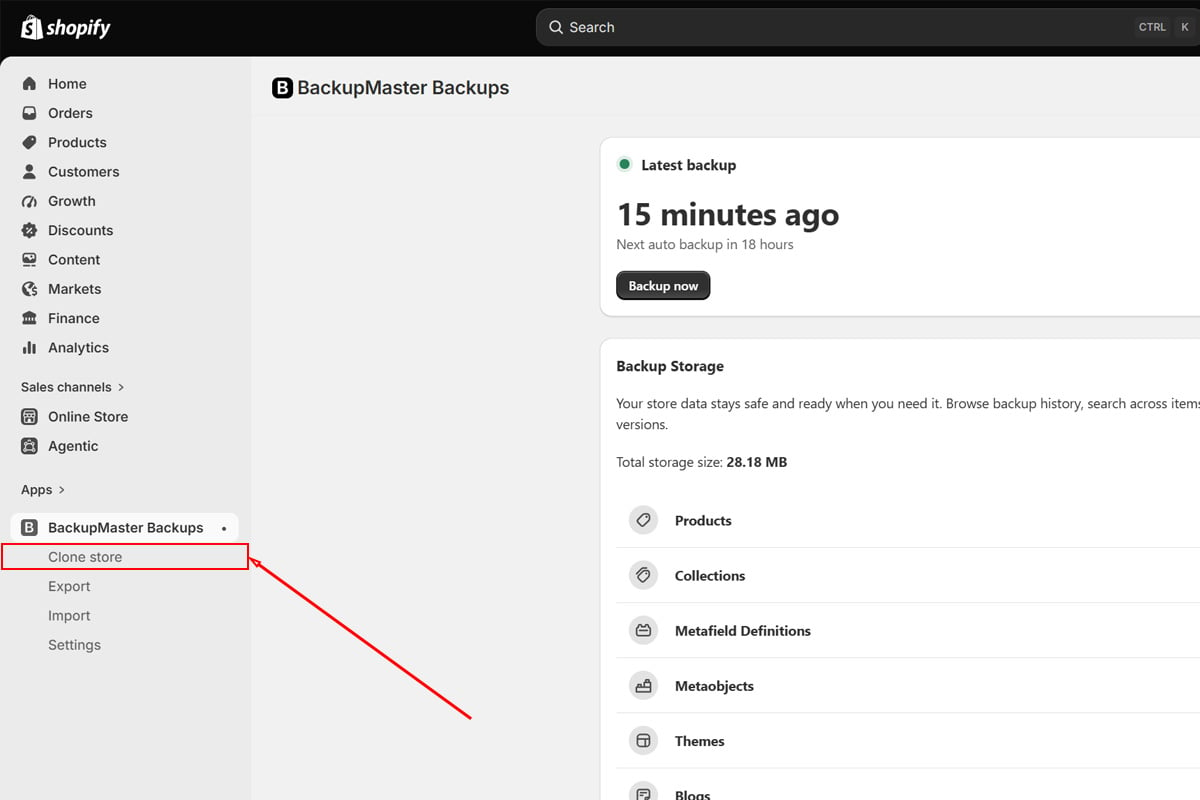
Clone store button on the BackupMaster dashboard
Confirm the source store
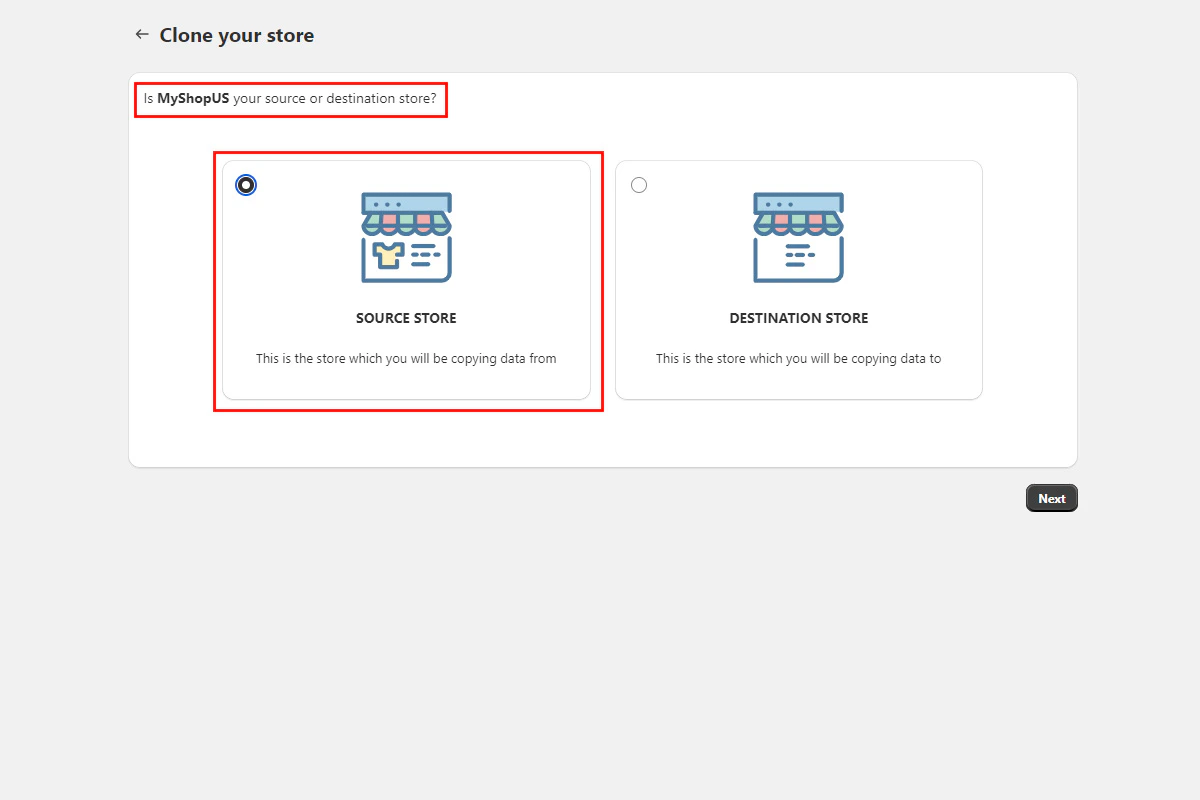
Confirm source store screen
Enter the destination store name
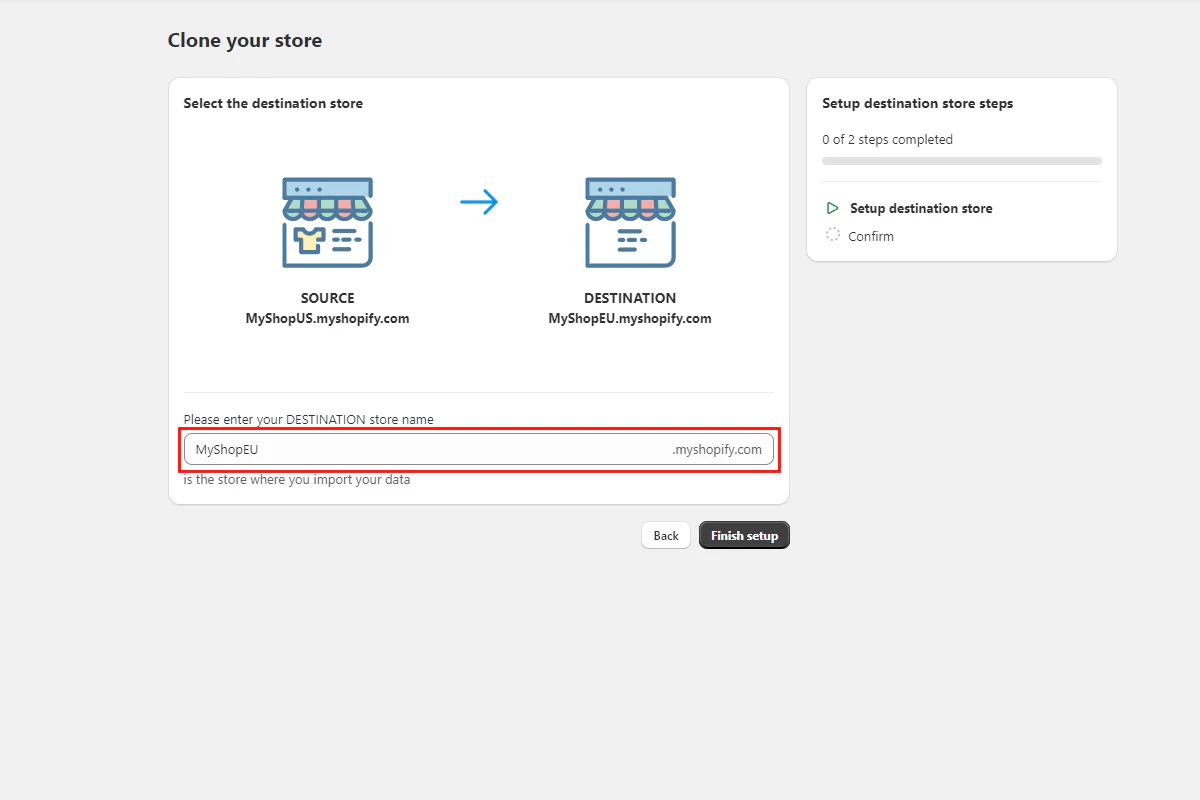
Enter destination store name field
Copy the clone code
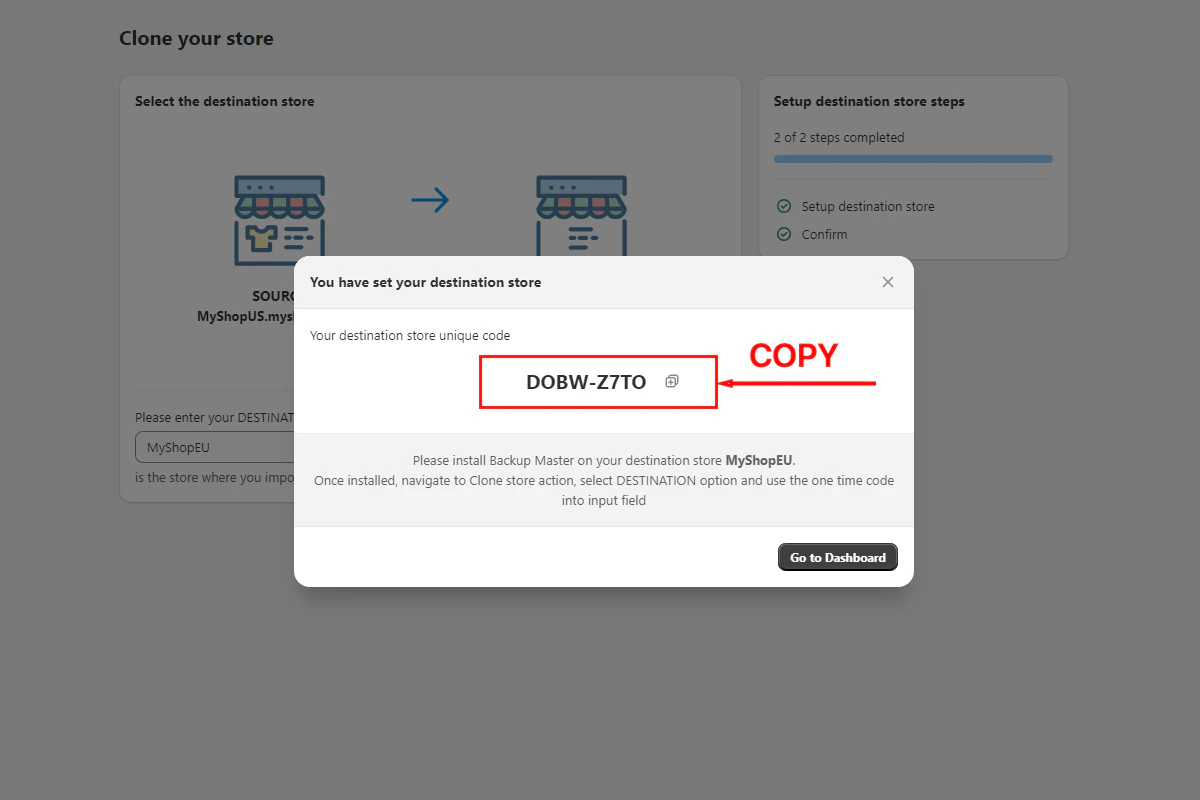
Generated clone code to copy
On the destination store
Open Clone store
Clone store button on the BackupMaster dashboard
Confirm the destination store
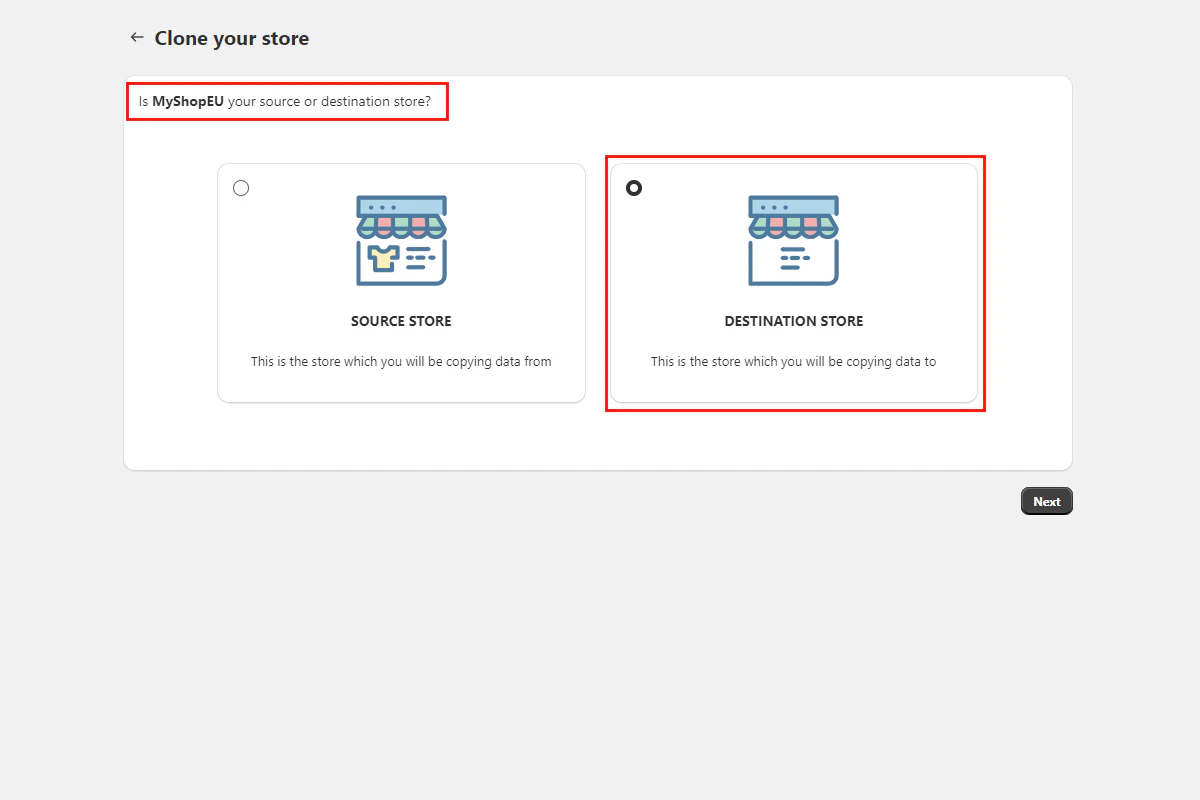
Confirm destination store screen
Paste the clone code
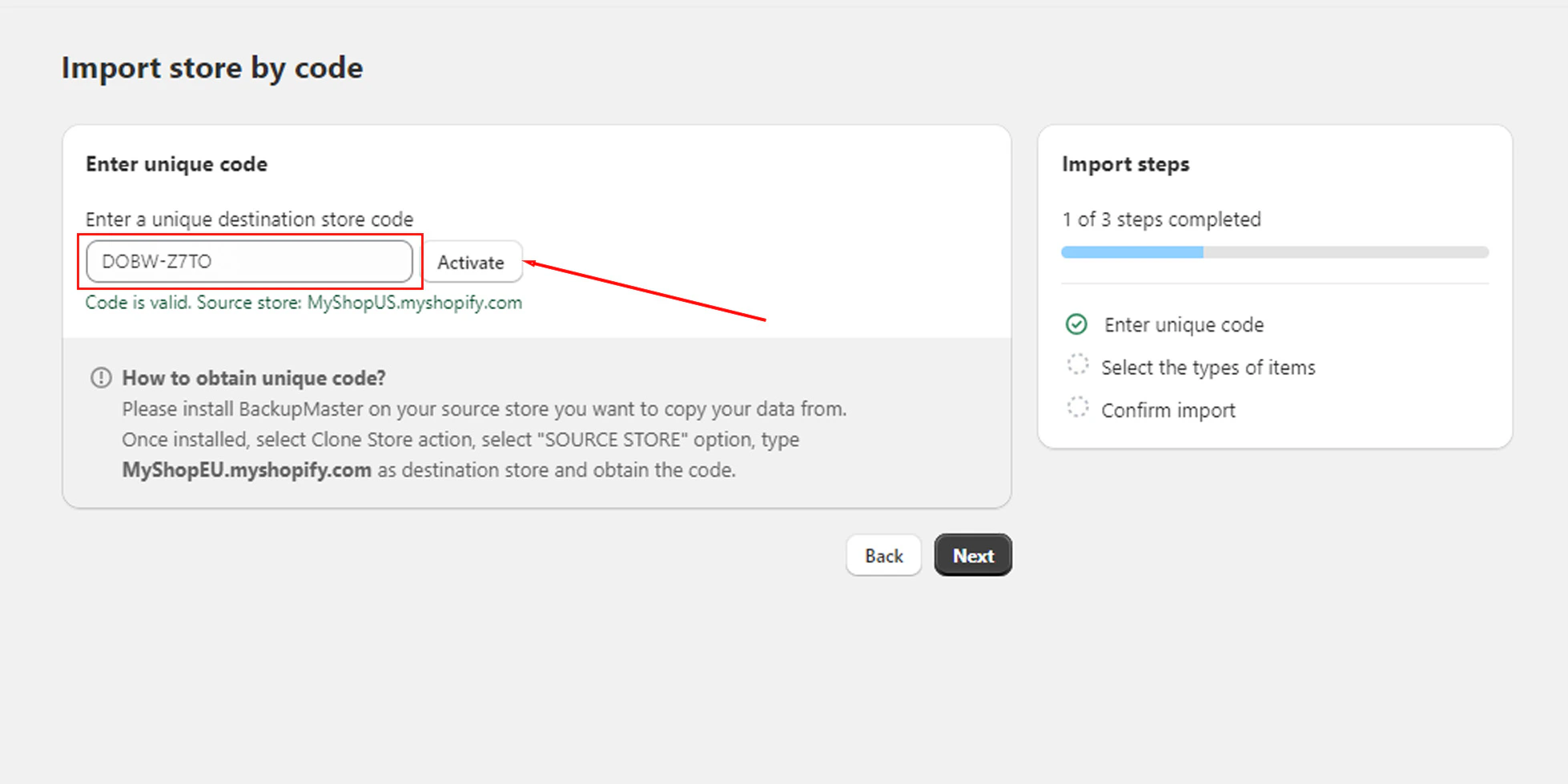
Activate clone code field and button
Select data types
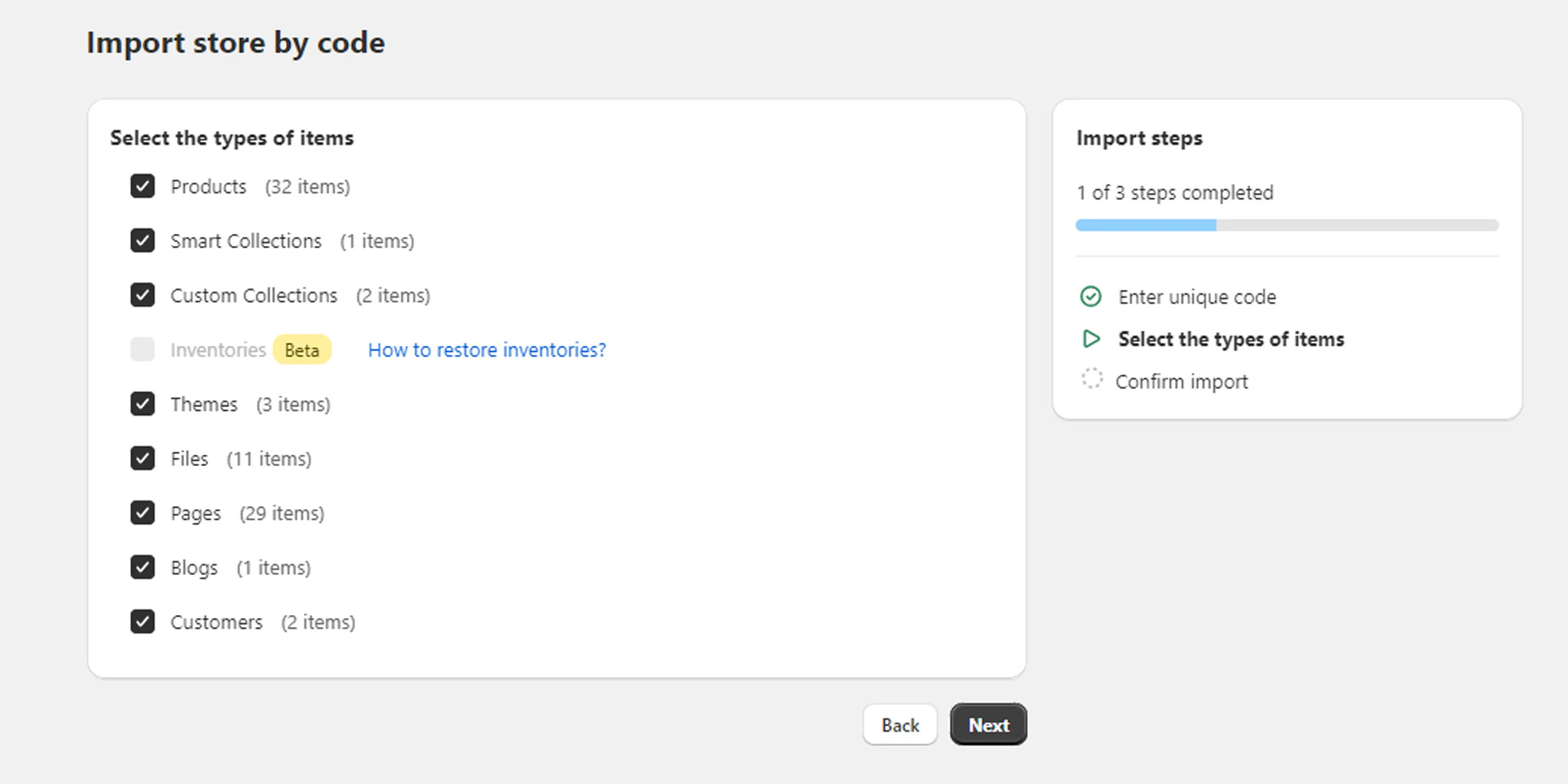
Data type selection screen for cloning
Start the import
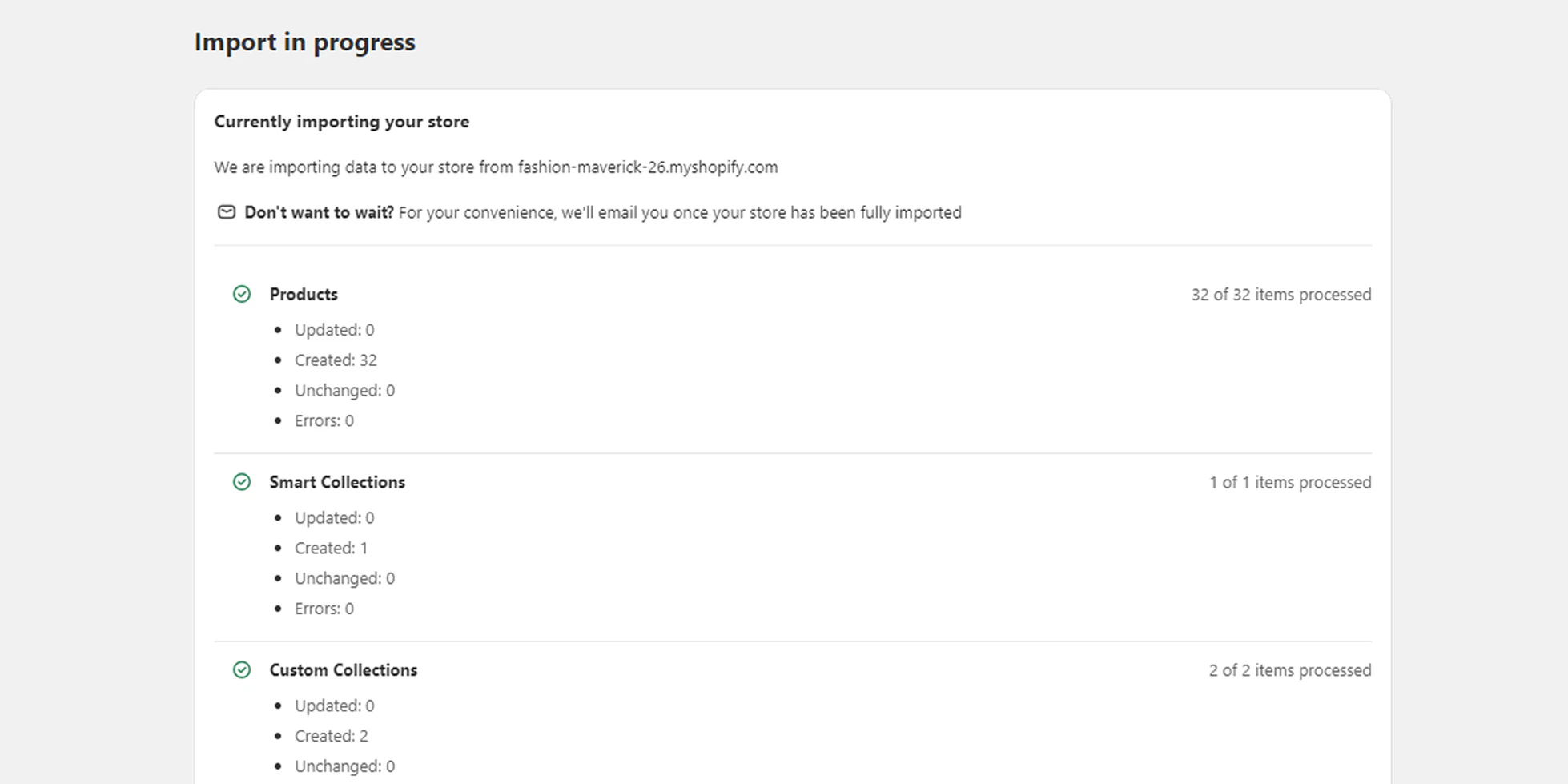
Clone progress indicator showing transfer status
How items are matched
BackupMaster matches each item by handle in the destination store. If a match exists, the destination item is updated with the source version. If no match is found, a new item is created. Cloning the same data twice doesn’t create duplicates. Items that exist only on the destination are left untouched. Newly created items always receive new Shopify IDs on the destination store, because Shopify generates IDs per store — they aren’t portable across stores. Handles, content fields, metafields, and all other backed-up data are preserved.How themes are handled
When you include themes, you can transfer only the currently published theme or all themes from the source store. Themes are matched by name — if a theme with the same name exists on the destination, it’s updated; otherwise a new theme is created.How dependencies are resolved
BackupMaster resolves dependencies between objects automatically. Before the transfer begins, it creates matching metafield and metaobject definitions and any missing languages in the destination store. When an item transfers, its metafields, metaobjects, and translations transfer with it — for example, a product is cloned together with all of its metafields and translations. References between objects — products in collections, metafields that reference products, files, collections, or blog posts — are resolved by matching handles in the destination store.Errors during cloning
Errors can occur for a variety of reasons — temporary Shopify outages, store plan limits, missing data types, or edge cases. BackupMaster shows a View details link next to any affected item so you can see what went wrong.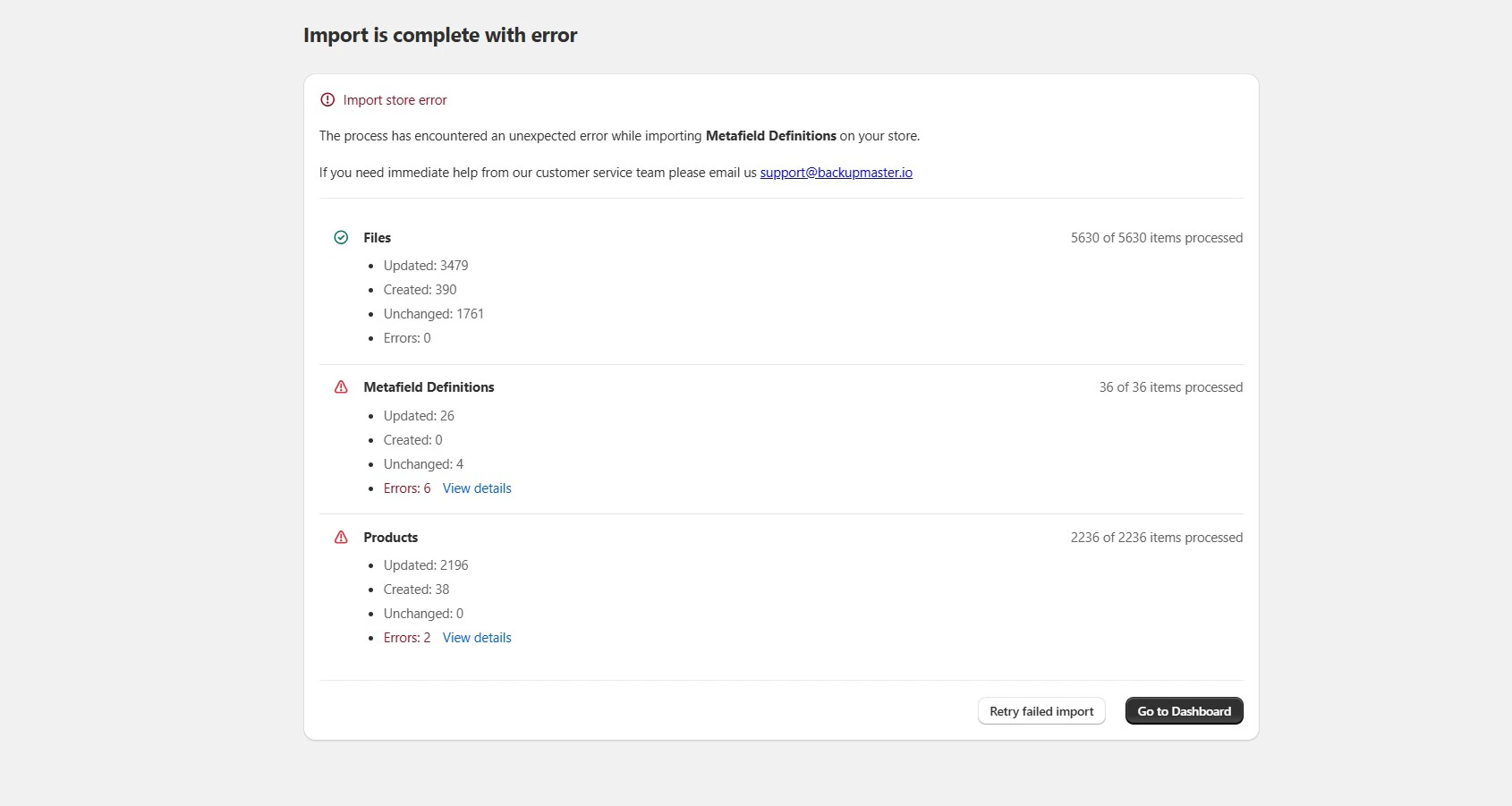
Clone errors with View details link
How to transfer inventories
Inventory quantities are transferred separately using a CSV file. In the source store, open BackupMaster, go to Backup Storage, select the Inventory category, choose the location and backup version you want, and download the CSV. Then import that CSV into the destination store using Shopify’s built-in inventory import. For the full step-by-step process, see Restore Shopify inventory.Troubleshooting
Metafield or metaobject definition errors
Metafield or metaobject definition errors
single_line_text vs. multi_line_text), the transfer for that definition fails. Remove the conflicting definition from the destination store or update it to match the source, then select Retry Only Failed.Some items failed but most transferred successfully
Some items failed but most transferred successfully
Cloned theme not appearing on the storefront
Cloned theme not appearing on the storefront
Frequently asked questions
Does cloning delete existing data on the destination store?
Does cloning delete existing data on the destination store?
Can I clone the same data twice?
Can I clone the same data twice?
Does cloning transfer orders?
Does cloning transfer orders?
Can I clone to multiple destination stores?
Can I clone to multiple destination stores?
Do I need to keep the browser open during the transfer?
Do I need to keep the browser open during the transfer?