Browse, search, and compare backed-up versions of your Shopify store data.
Browse, search, and compare backed-up versions of your Shopify store data. BackupMaster stores every version of your backed-up items so you can compare them against your live store, track changes over time, or find the right version before restoring.
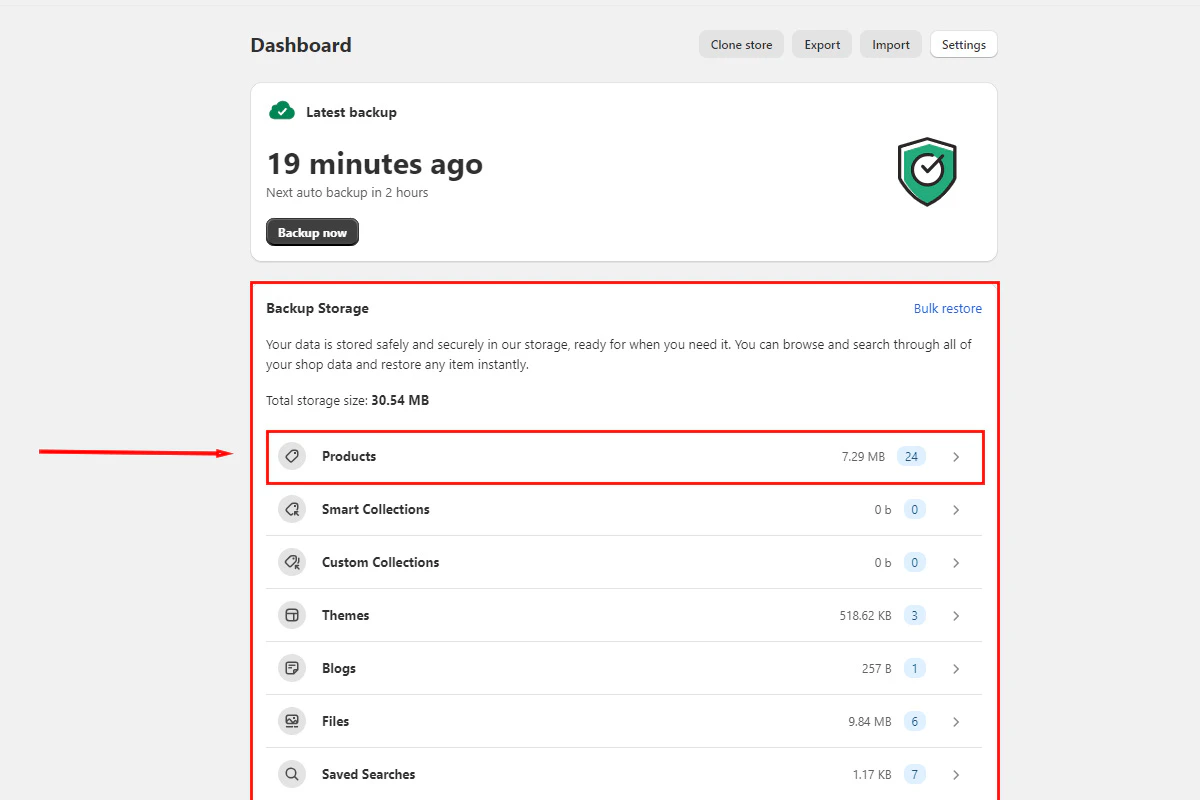
Open BackupMaster from your Shopify admin and find the Backup Storage section on the dashboard. The dashboard shows each data category with its item count.
Backup storage dashboard showing data categories
2
Search and browse items
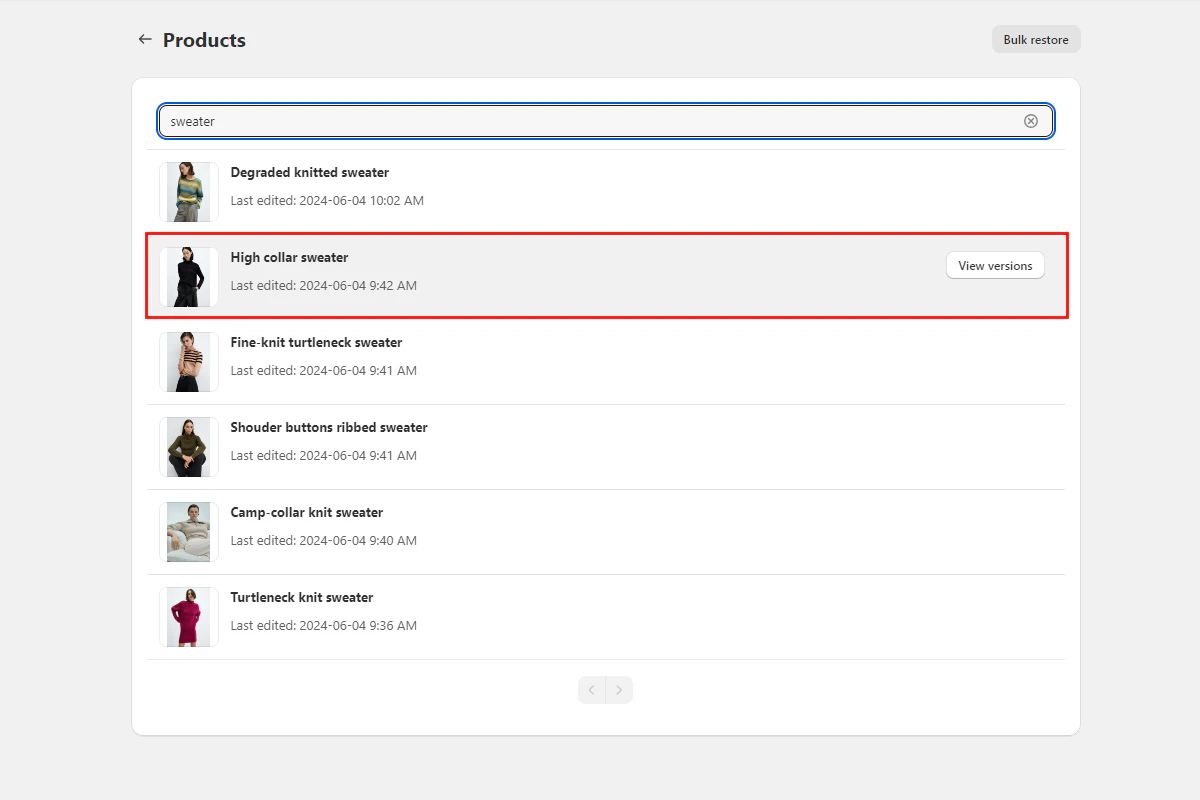
Select a category such as Products or Themes, then type a search term in the search bar to find a specific item. Select an item to view its backed-up versions.
Selecting a product from the backed-up items list
3
Compare versions
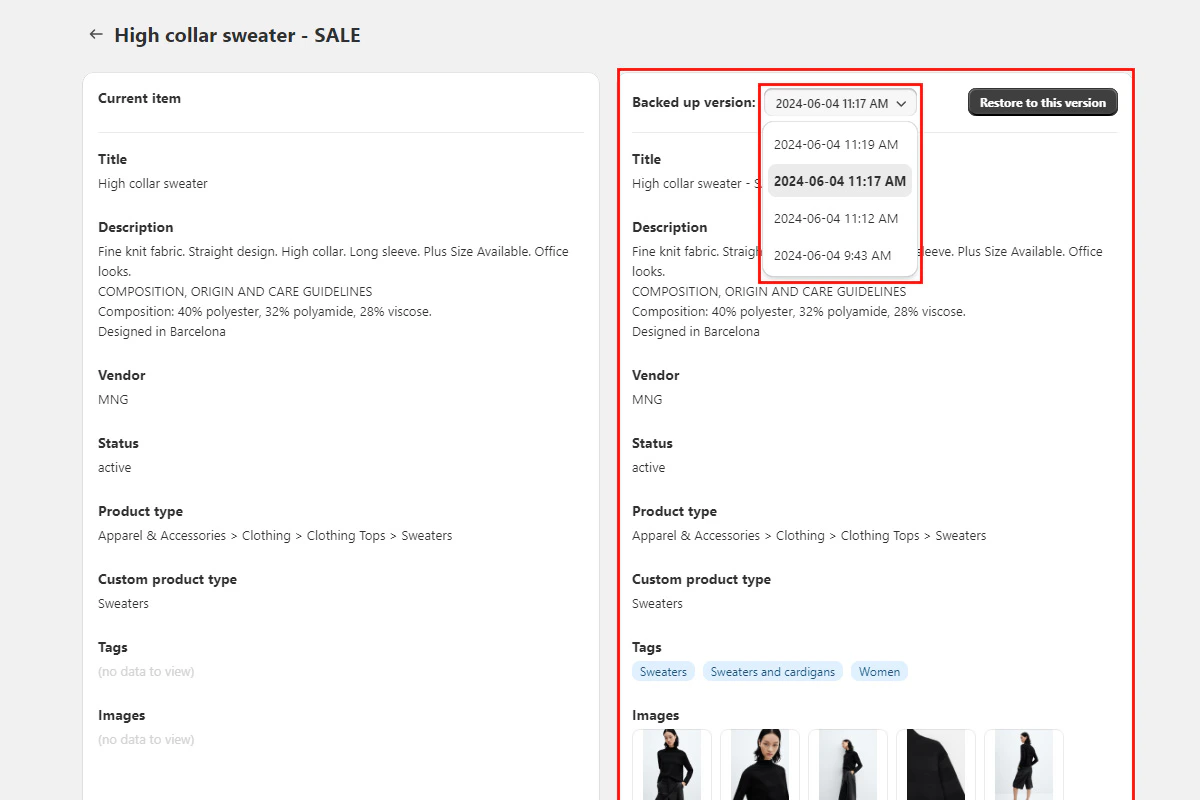
When you select an item, the comparison view opens. The live store version appears on the left, and the backed-up version appears on the right. Review the differences, choose the version you want to restore, and select Restore to this version.
Comparison view showing differences between current and backed-up versions