Export your backed-up Shopify data and download it as a ZIP archive to your computer or external storage.
Export your backed-up Shopify data as a ZIP archive and download it to your computer or external storage. BackupMaster stores your data in secure backup storage — that’s your primary backup. Exporting creates an extra copy on your local drive, following the 3-2-1 backup rule (three copies of your data, on two different storage types, with one stored offsite). It’s also useful if you plan to pause or close your store temporarily.
To transfer data between stores, use the clone feature instead — no need to download and re-import files.
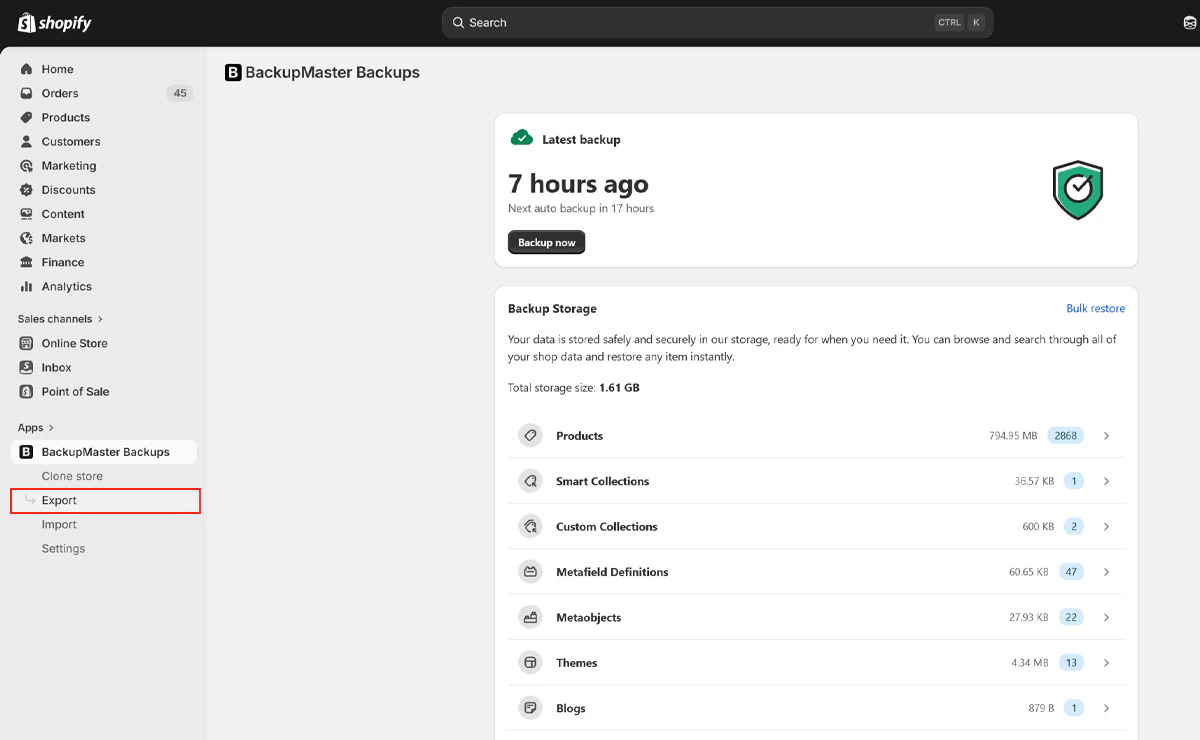
Open BackupMaster from your Shopify admin and select Export on the dashboard.
Export button on the BackupMaster dashboard
2
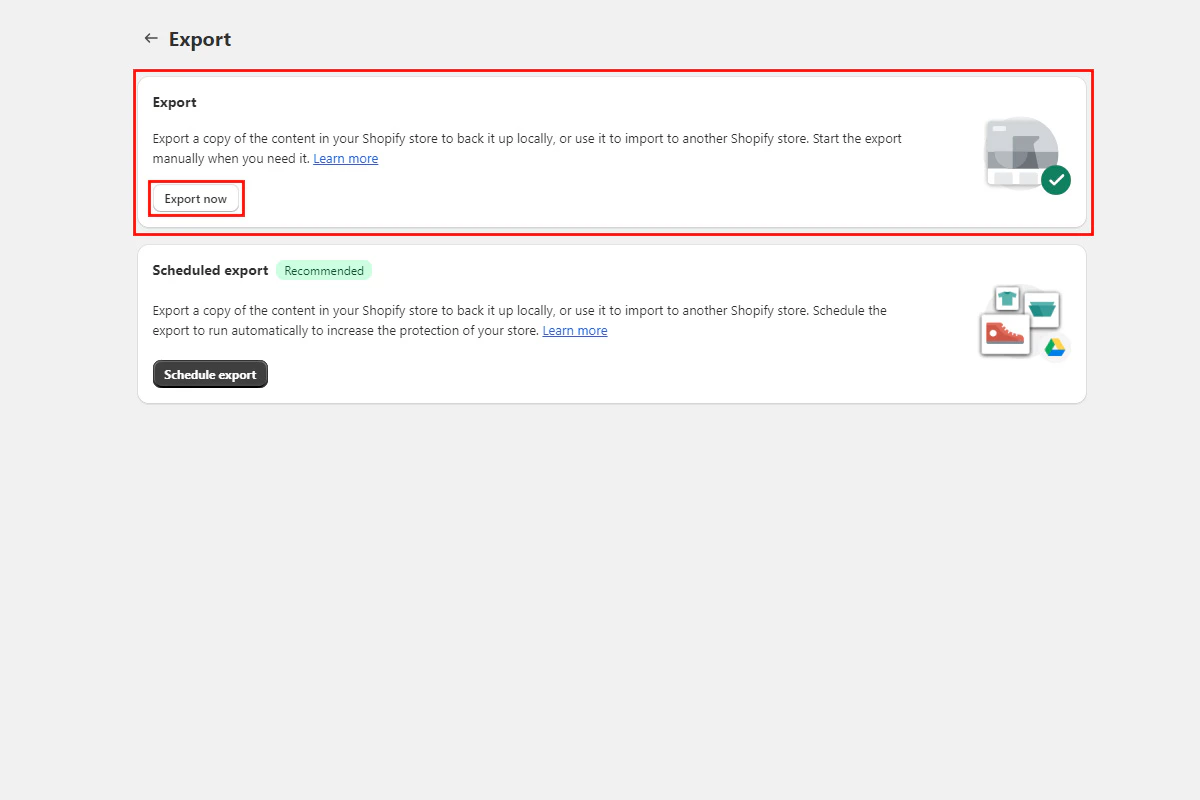
Select Export Now
Select Export Now.
Export now option in the export menu
3
Choose what to export and start
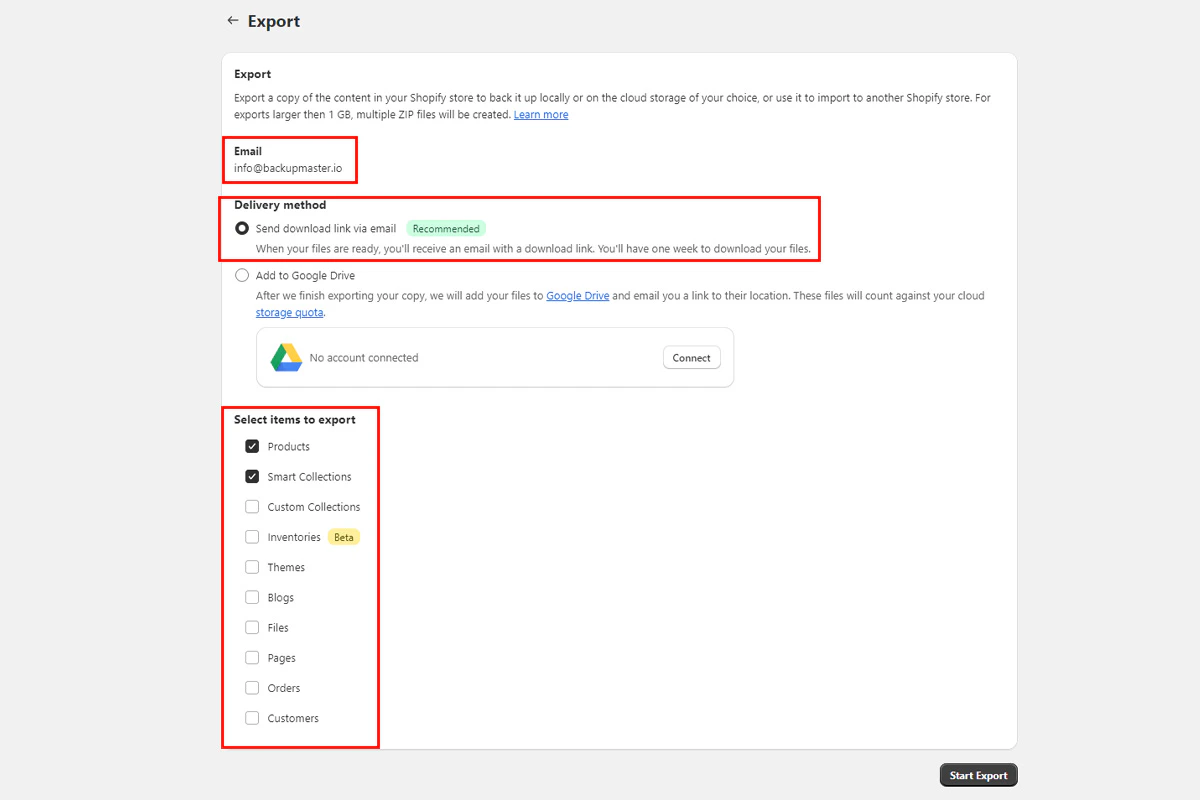
Select the data types to include, choose Send download link via email, and select Start Export.
Export settings with email download option
4
Monitor progress
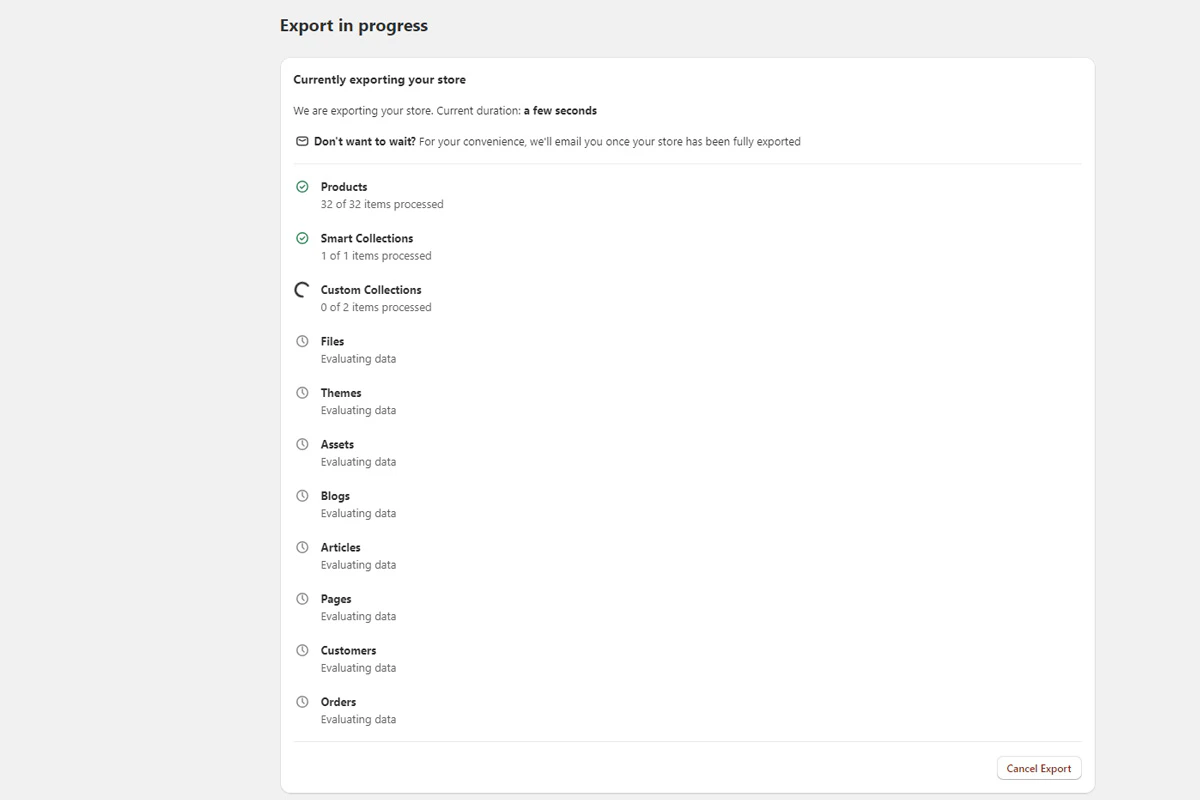
Track progress on your dashboard. You don’t need to keep the app open — BackupMaster processes the export in the background and notifies you when it finishes.
Export progress indicator on the dashboard
5
Download from email
Check your email for the download link and save the ZIP file to your computer or external storage. The link expires after seven days.
Exports arrive as ZIP archives in BackupMaster’s internal format and include the data types you selected. Large exports are split into multiple volumes of approximately 500 MB each. All volumes arrive in the same email.