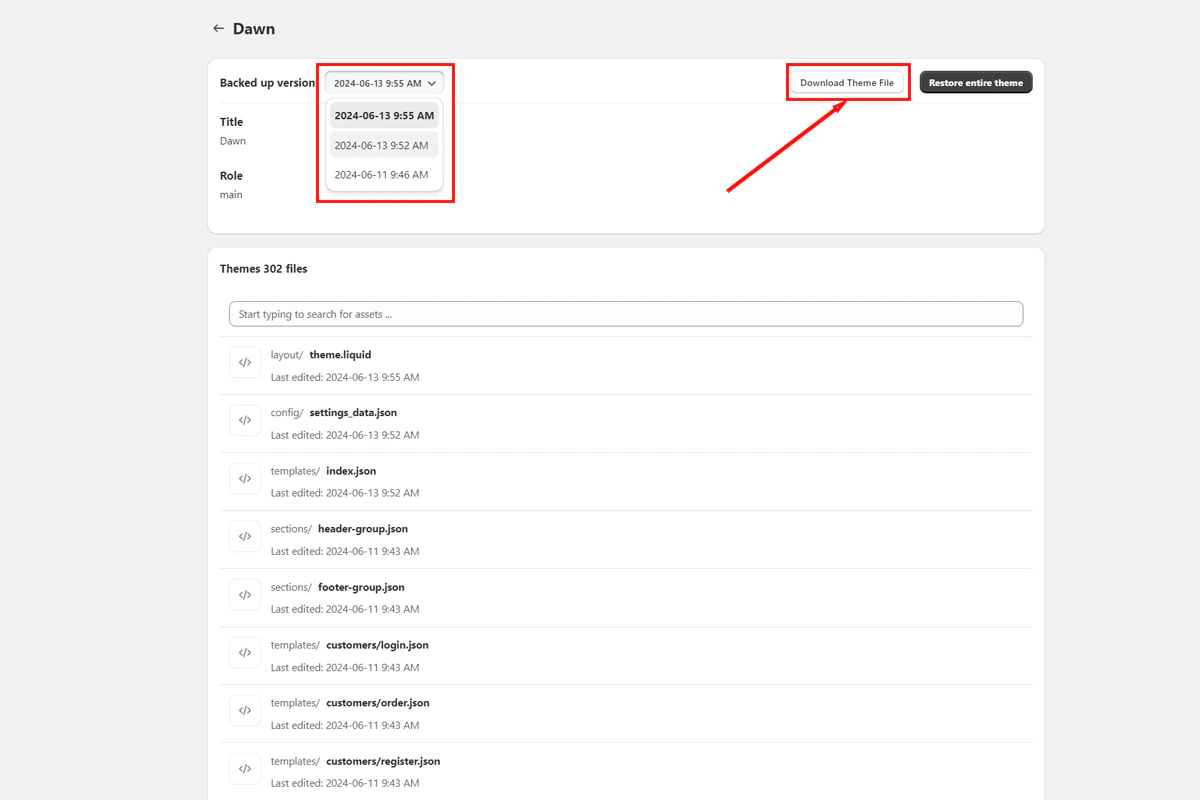
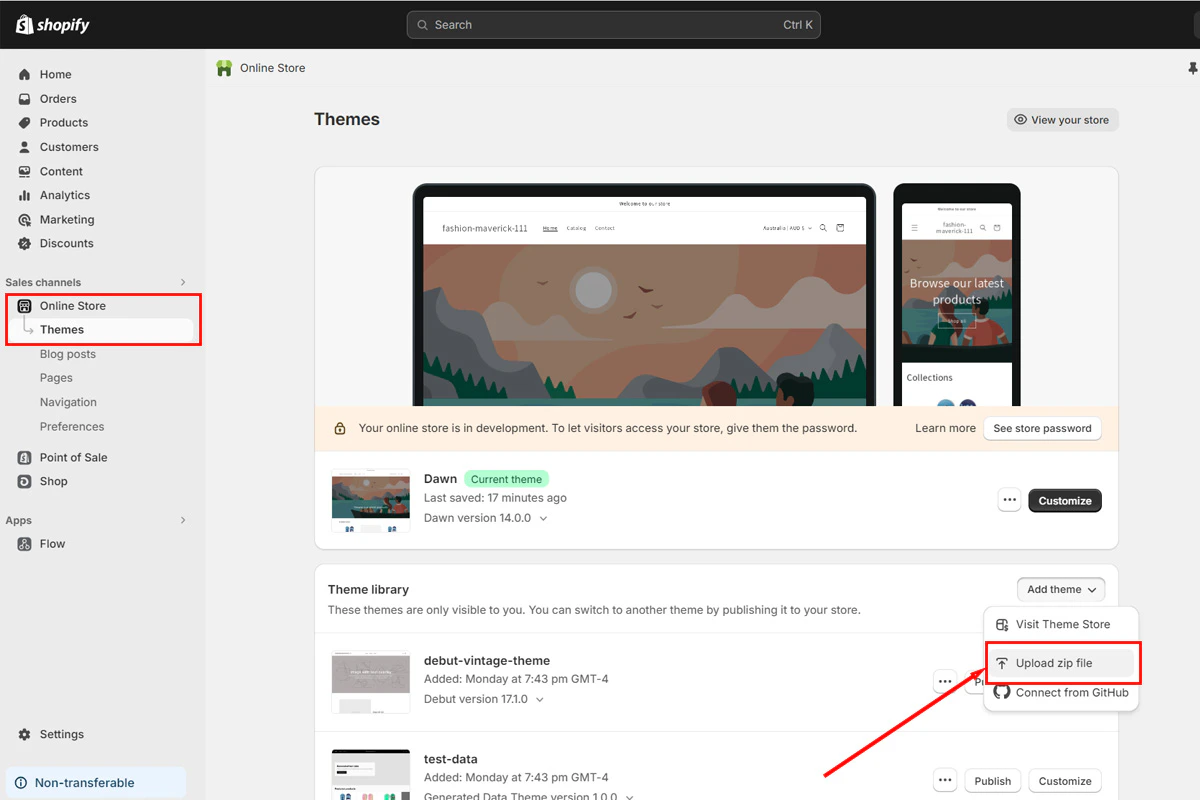
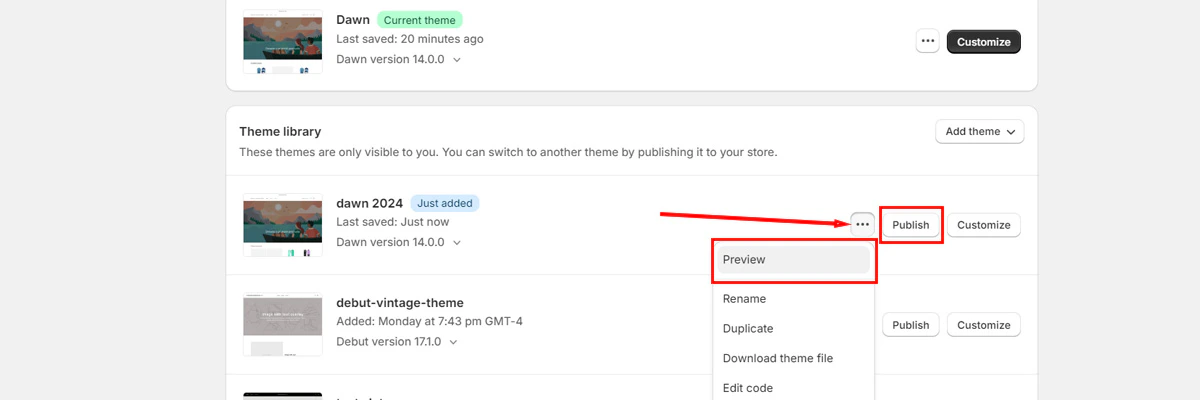
Restore a full theme directly or download it as a ZIP to preview before publishing.
Restore a full theme directly to your store or download it as a ZIP to preview before publishing. Theme customizations are stored in theme settings files and are included in backups. Images used in theme customizations live in Shopify Files, which BackupMaster backs up separately under the Files category — to fully restore a theme’s appearance, you might need to restore both.
Prerequisites
At least one theme backup version in your backup storage
Access to your Shopify admin for uploading and previewing downloaded themes
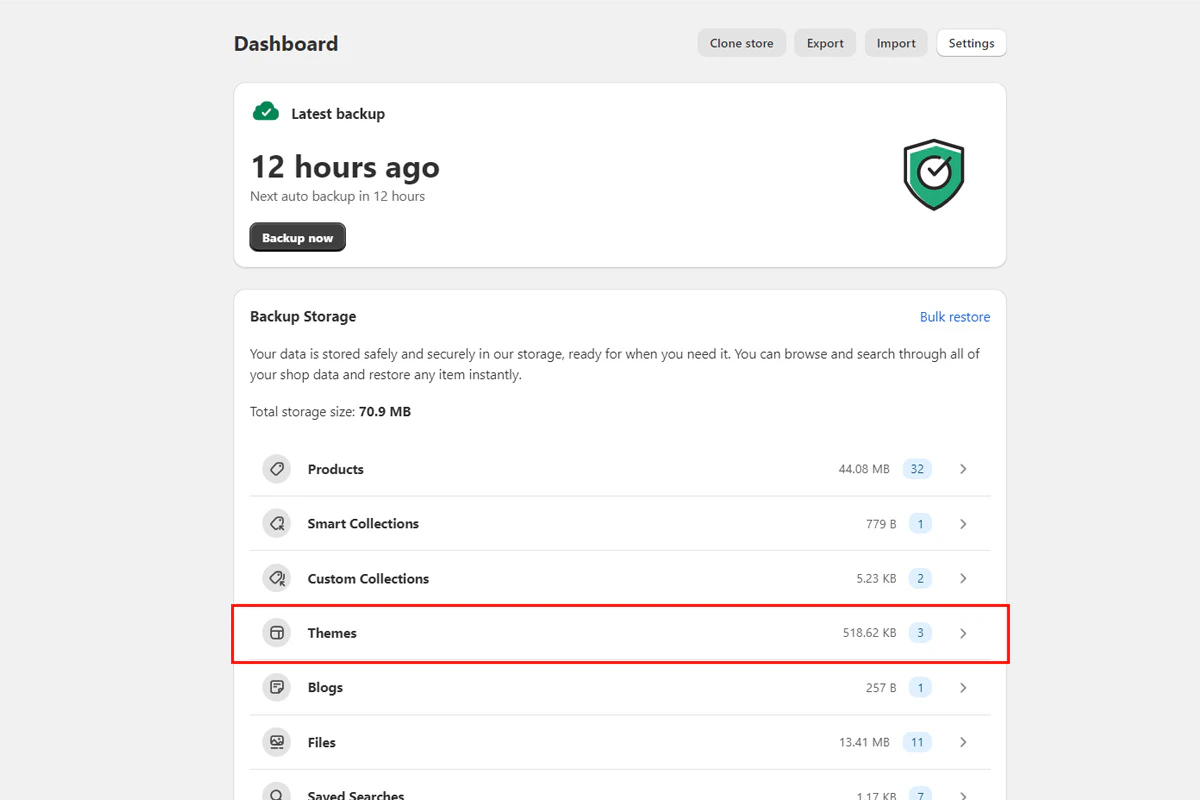
Open BackupMaster from your Shopify admin and go to Backup Storage > Themes.
Themes backup section in backup storage
2
Select the theme
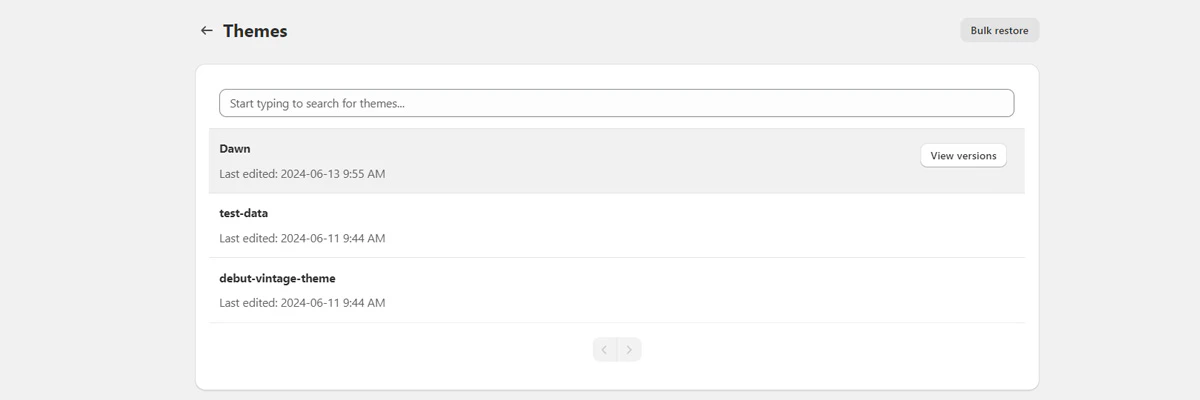
Select the theme you want to restore.
List of backed-up themes available for restoration
3
Choose the version
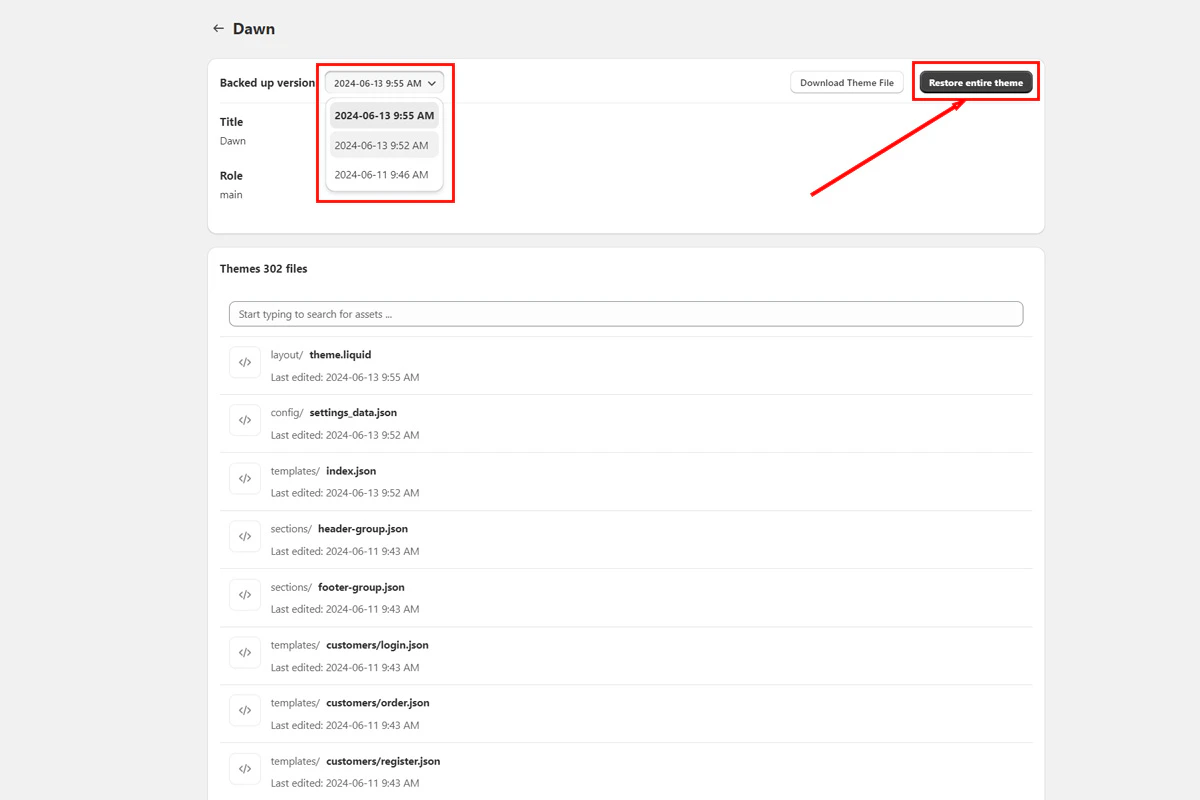
Select the version you want, then select Restore Entire Theme. Confirm when prompted.
If you restore the currently published theme, changes go live immediately. To test first, use the download and preview method instead.
Restore entire theme button
4
Monitor progress
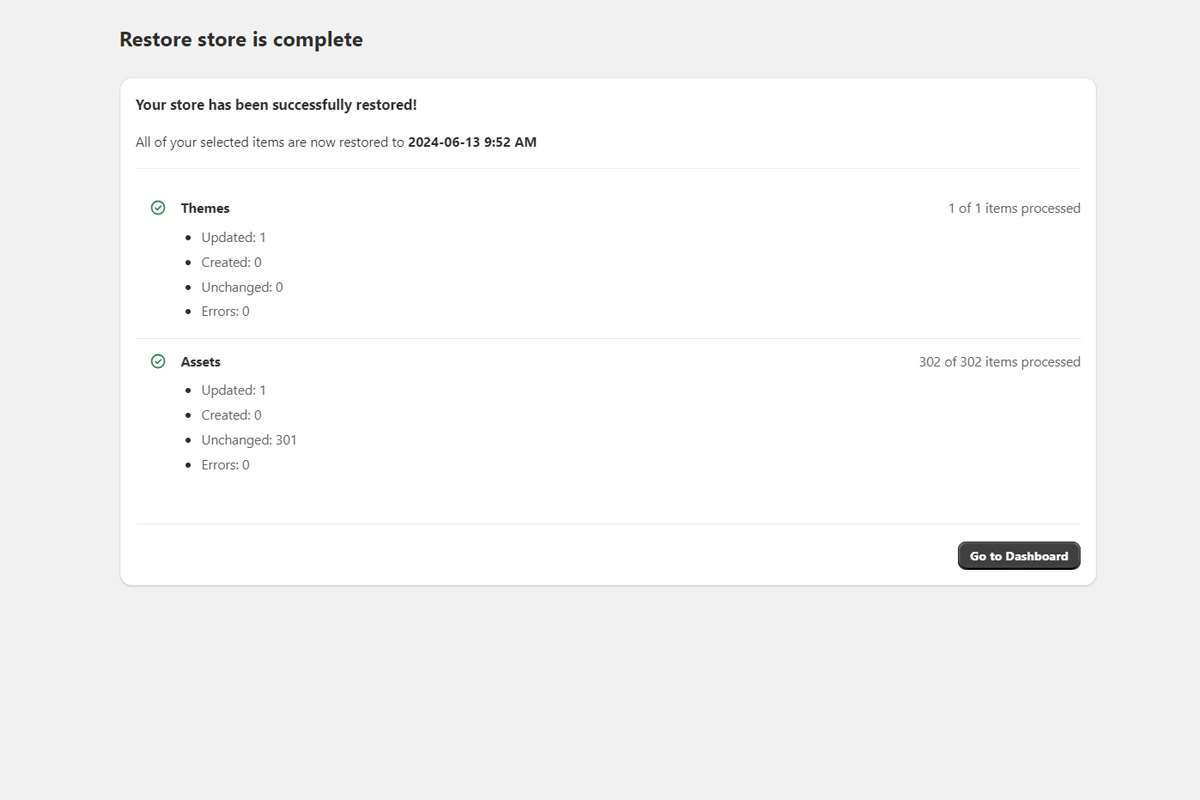
BackupMaster shows restore progress on the dashboard and displays a result page when it finishes. If any errors occur, check the error details in the app. Contact support at support@backupmaster.io if you need help.
Check the error details in the app. Contact support at support@backupmaster.io if you need help.
ZIP upload rejected by Shopify
The file might not have downloaded completely. Re-download and try again. Contact support at support@backupmaster.io if the issue continues.
Logo or images missing after theme restore
Images used in theme customizations are stored in Shopify Files, not in the theme itself. Restore the Files category as well, or re-upload the images through the theme editor.
Menu or navigation missing after restore
Menus are managed through Shopify’s Navigation settings, not theme files. Theme restores don’t affect navigation menus. Restore menus separately from Backup Storage.
Assistant
Responses are generated using AI and may contain mistakes.