Export your backed-up Shopify data and upload it directly to Google Drive for cloud storage.
Export your backed-up Shopify data and upload it straight to Google Drive for cloud storage. BackupMaster stores your data in secure backup storage — that’s your primary backup. Uploading to Google Drive creates an extra cloud copy, following the 3-2-1 backup rule (three copies of your data, on two different storage types, with one stored offsite). It’s also useful if you plan to pause or close your store temporarily.
To transfer data between stores, use the clone feature instead — no need to download and re-import files.
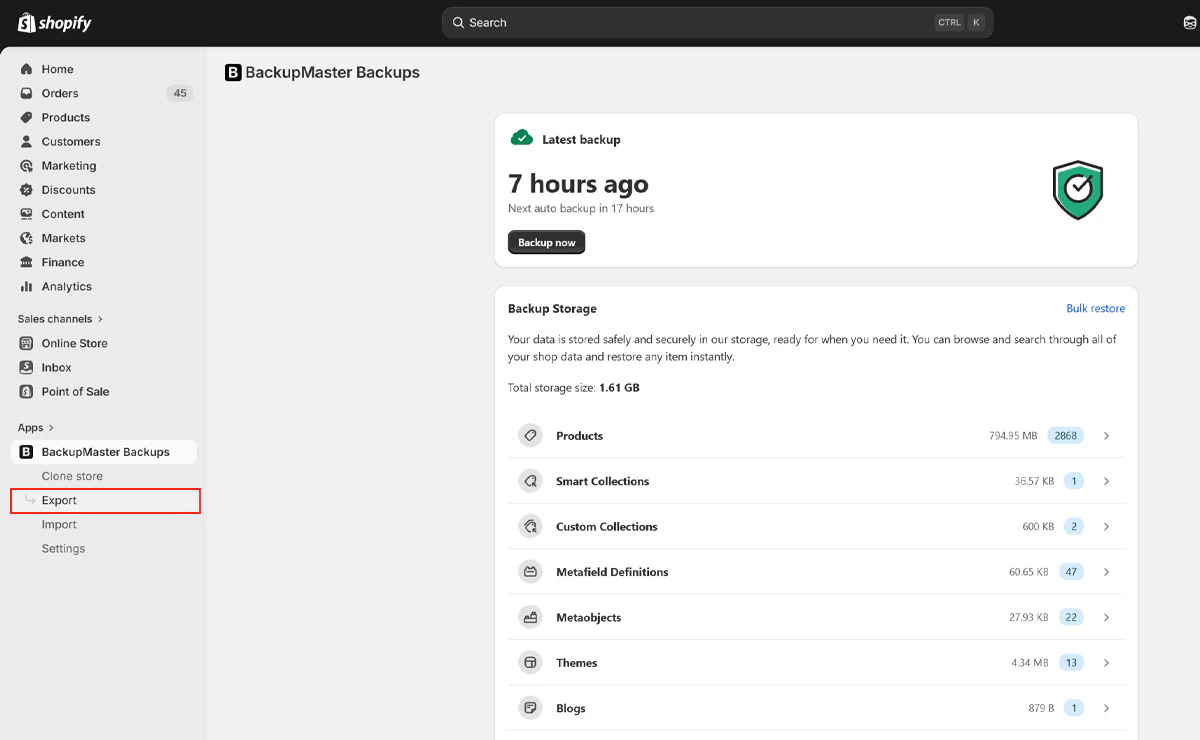
Open BackupMaster from your Shopify admin and select Export on the dashboard.
Export button on the BackupMaster dashboard
2
Select Export Now
Select Export Now.
3
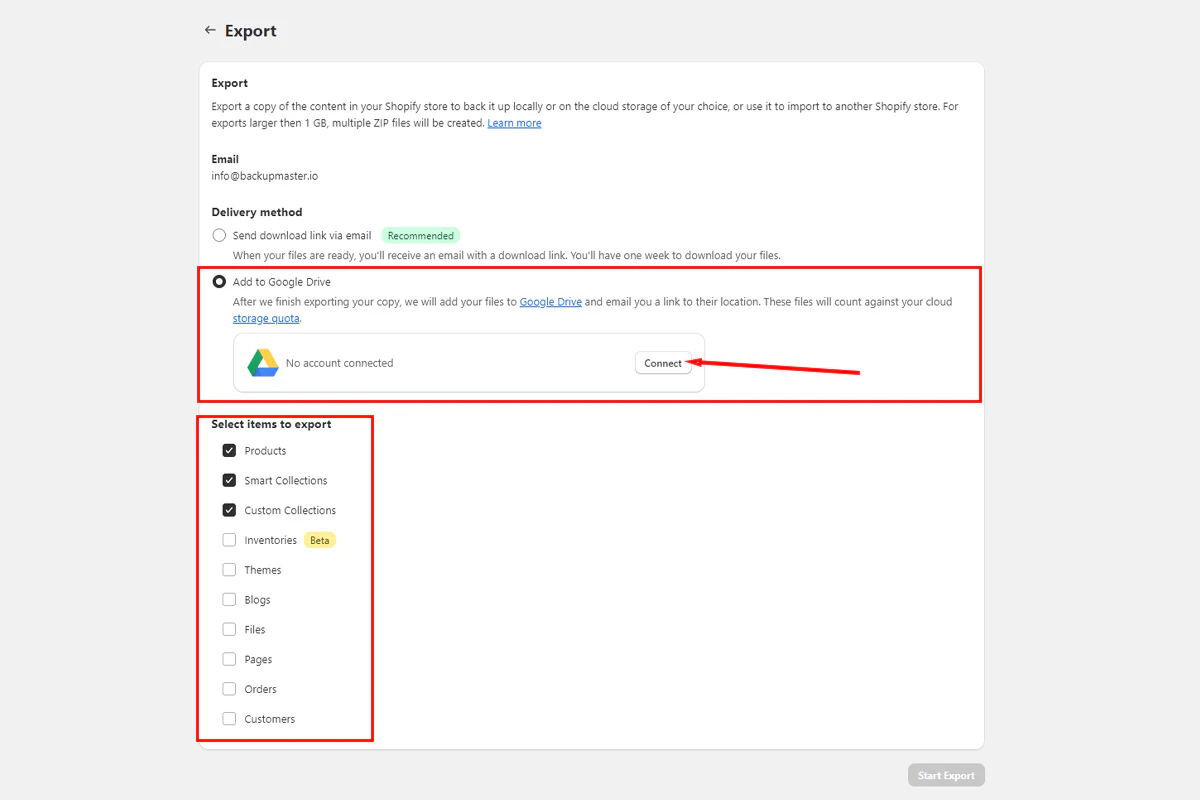
Choose what to export and select Google Drive
Select the data types to include and choose Add to Google Drive as the delivery method.
Upload to Google Drive option
4
Connect your Google Drive account
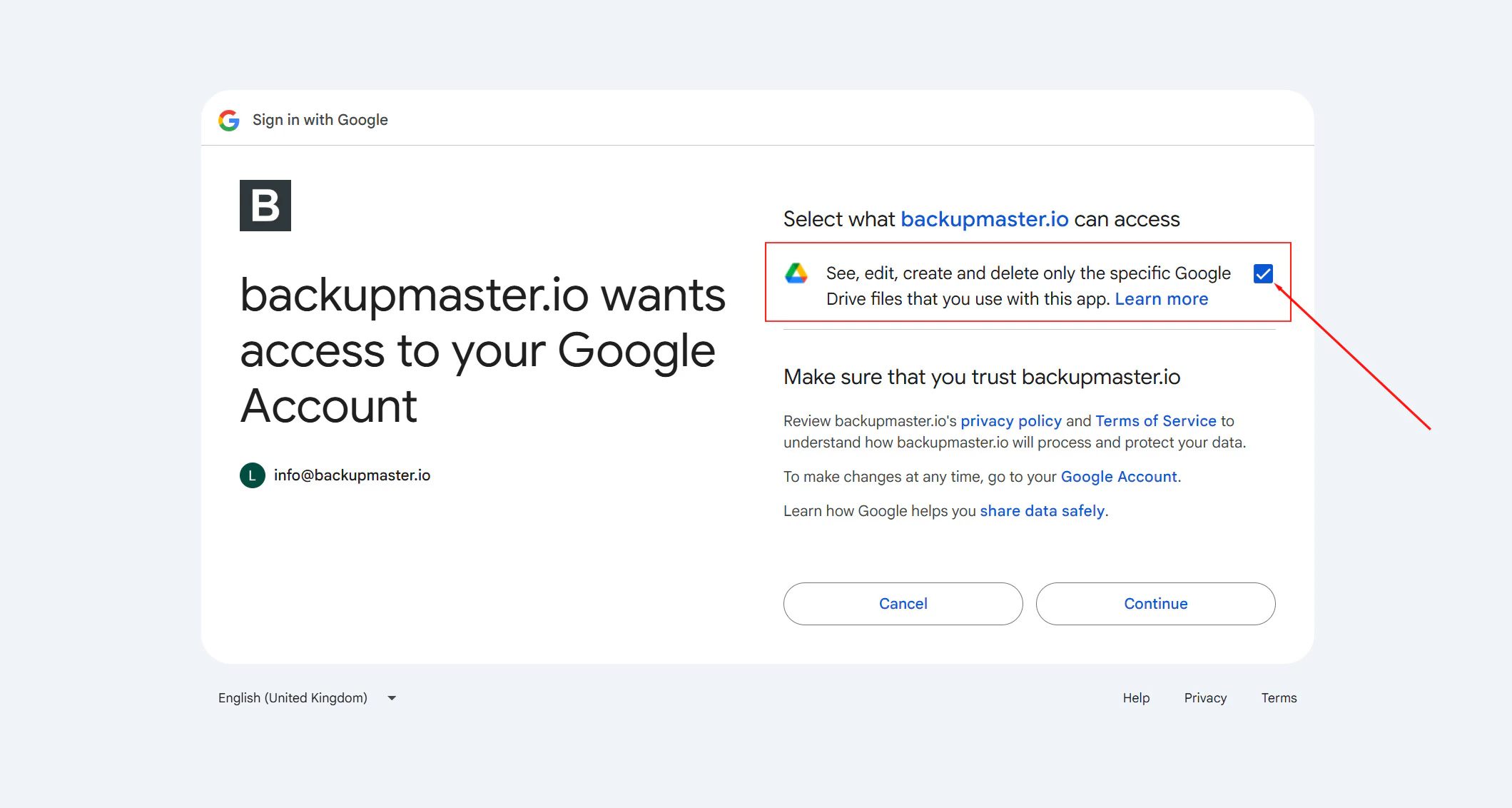
Connect your Google Drive account when prompted. Select the permission checkbox so BackupMaster can create and upload files to your Drive.
Google Drive access permissions
5
Start and monitor the export
Select Start Export. Track progress on your dashboard — you don’t need to keep the app open. After the upload finishes, confirm that the backup file appears in your Google Drive.
You can download the file from Google Drive to local or external storage at any time.
To switch to a different Google Drive account, open the export settings in BackupMaster and disconnect the current account. Then reconnect with the new Google account and grant the required permission.
BackupMaster requests permission to create and manage files in your Drive. It can only access the folder it creates — it can’t read or modify your other files. The connection uses Google’s OAuth 2.0 authentication, and you can revoke access at any time from your Google account settings.