Restore entire data categories at once instead of recovering items one by one. Bulk restore is the fastest way to roll back large amounts of store data to a previous state.
Restore entire data categories at once instead of recovering items one by one. Bulk restore is the fastest way to roll back large amounts of store data to a previous state.
Prerequisites
At least one completed backup in your backup storage
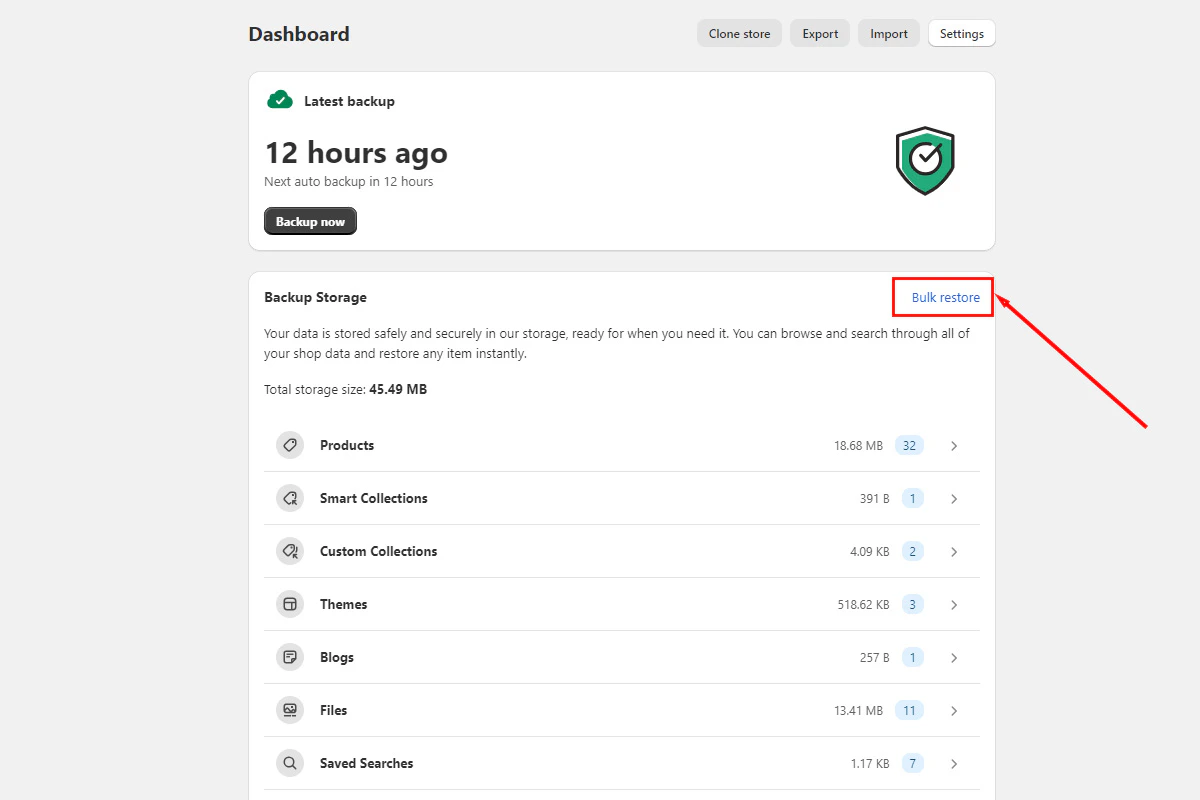
Open BackupMaster from your BigCommerce admin, go to Backup Storage, and select Bulk Restore.
Bulk restore button on the backup storage dashboard
2
Select a restore point
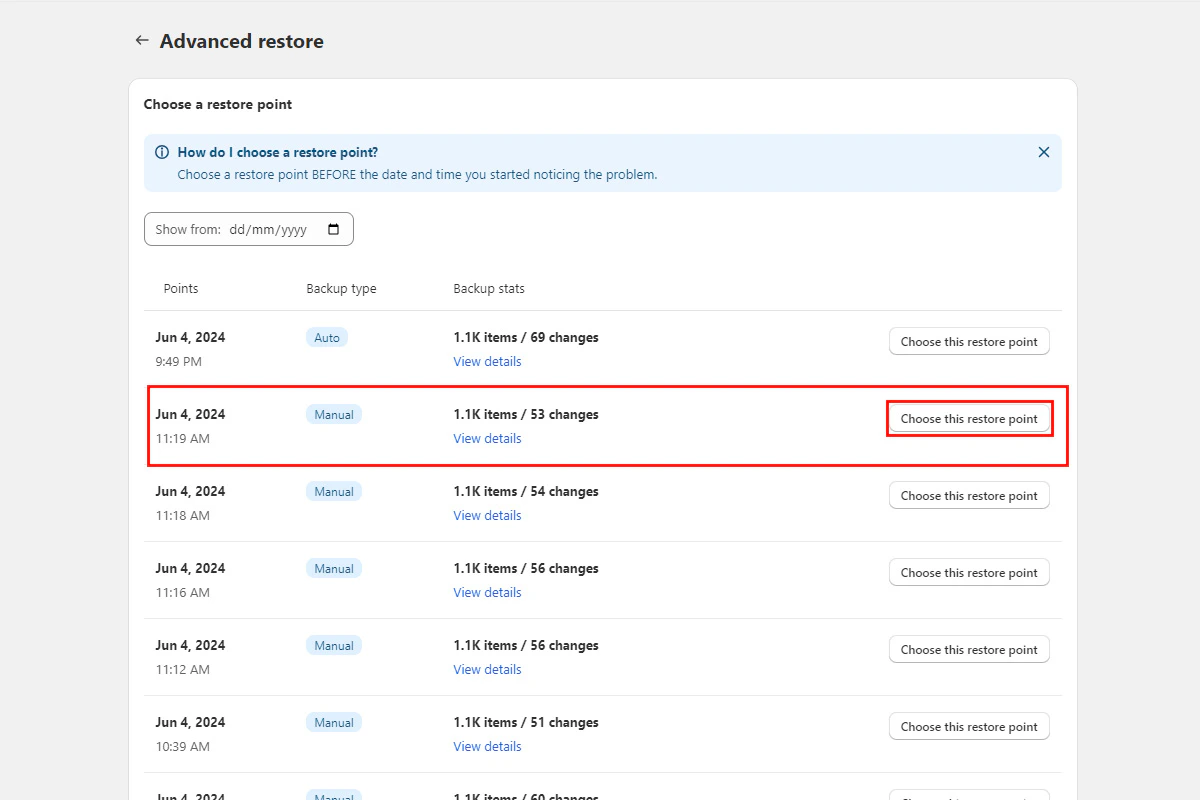
Review the available backup versions — each one shows its capture date and time. Pick a restore point that falls before the issue occurred, choosing the version closest to the incident to minimize lost changes.If you’re not sure when the problem started, check individual items in Backup Storage first. The comparison view lets you browse versions to identify when the unwanted change happened.
Choosing a restore point from available backup versions
3
Choose categories
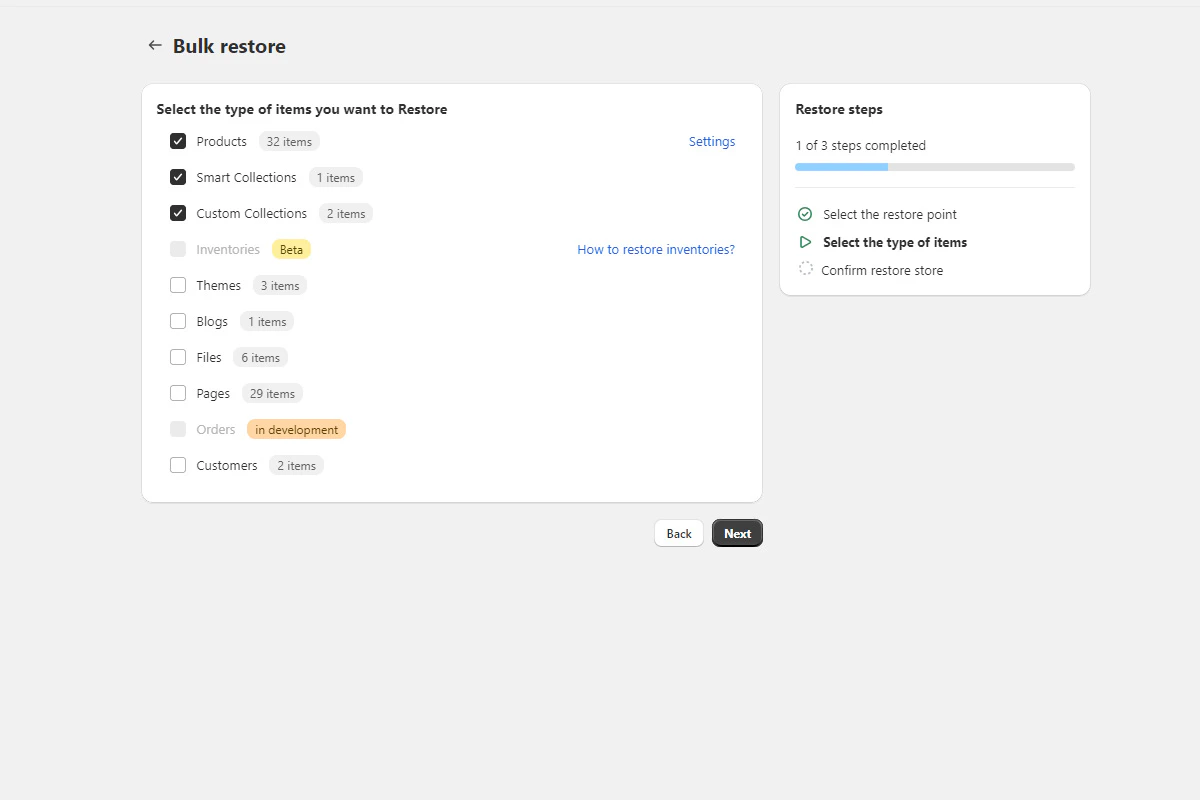
Select the item categories you want to restore. You can pick multiple categories at once.
Selecting item categories for bulk restore
4
Start the restore
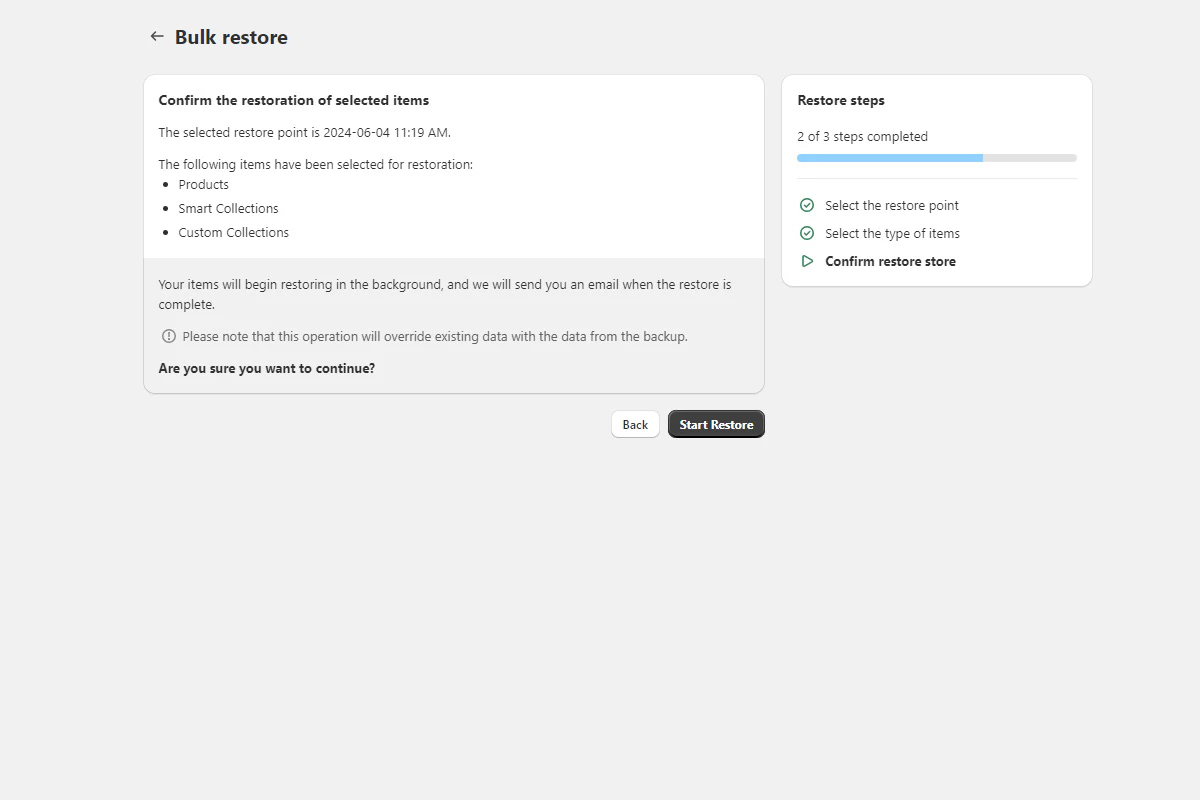
Select Start Restore to begin. You can close the browser — the restore continues in the background.
Confirm and start the bulk restore process
5
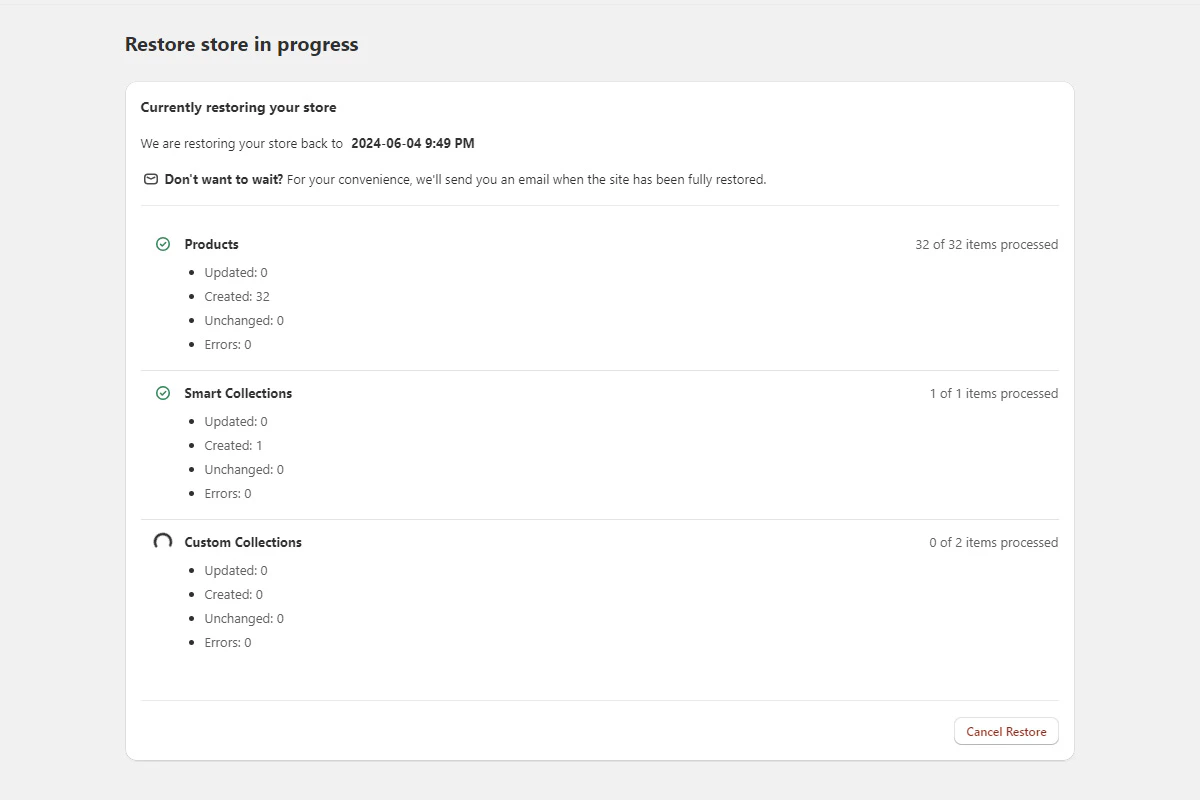
Monitor progress
BackupMaster shows restore progress on the dashboard and sends an email when it finishes. If any items fail, the details are shown in the app. Contact support at support@backupmaster.io if you need help resolving errors.
Bulk restore updates your store data to match the backed-up versions for every item in the selected categories. BackupMaster matches each item by ID first, then by handle.
If a matching item is found, it’s updated to the backed-up version. Changes made after the backup point are lost.
If no match is found (for example, the item was deleted), a new item is created from the backup.
Items that exist in your store but weren’t in the backup are left unchanged. Bulk restore doesn’t delete anything.
Check the restore notification email for details on items that failed. Retry those items individually using single-item restore.
Progress seems stuck
BigCommerce API rate limits can slow processing, especially for products with many images. The restore is still running — wait for the completion email. Contact support at support@backupmaster.io if no progress shows for more than 2 hours.
Wrong version restored
Run another bulk restore with the correct restore point. The newer restore overwrites the previous one.
Bulk restore button is greyed out
A bulk operation (restore, export, or backup) is probably running. Wait for it to finish, then try again.
Assistant
Responses are generated using AI and may contain mistakes.