

Before you start:
- An active BigCommerce store
- A BigCommerce account with permission to install apps
Step 1: Install BackupMaster
Open the BigCommerce App Store, search for BackupMaster, and select Install. BigCommerce shows a permissions screen that lists every data type BackupMaster needs to access — you grant all permissions at once as part of the install. BackupMaster uses these permissions to read your store data for backups and write to it during restores. After you approve, BigCommerce redirects you to the BackupMaster dashboard.Step 2: Choose a plan
Each plan tier supports a different order volume range and includes different features. Review the available plans, pick one that fits your order volume and feature needs, and complete checkout through Paddle.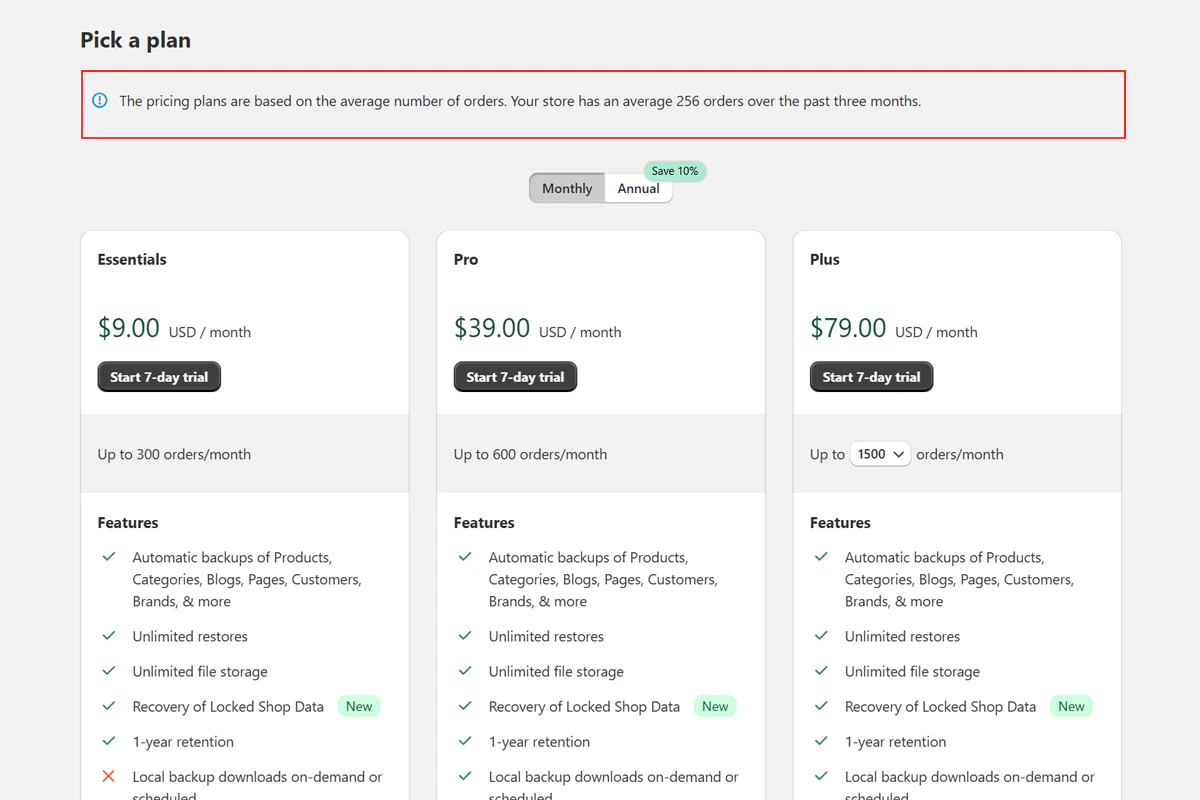
The plan selection screen shows your order volume alongside each plan tier.
Step 3: Run your first backup
BackupMaster starts pulling data from the BigCommerce API as soon as you activate a plan. Open the BackupMaster dashboard and check the progress indicator to track the backup.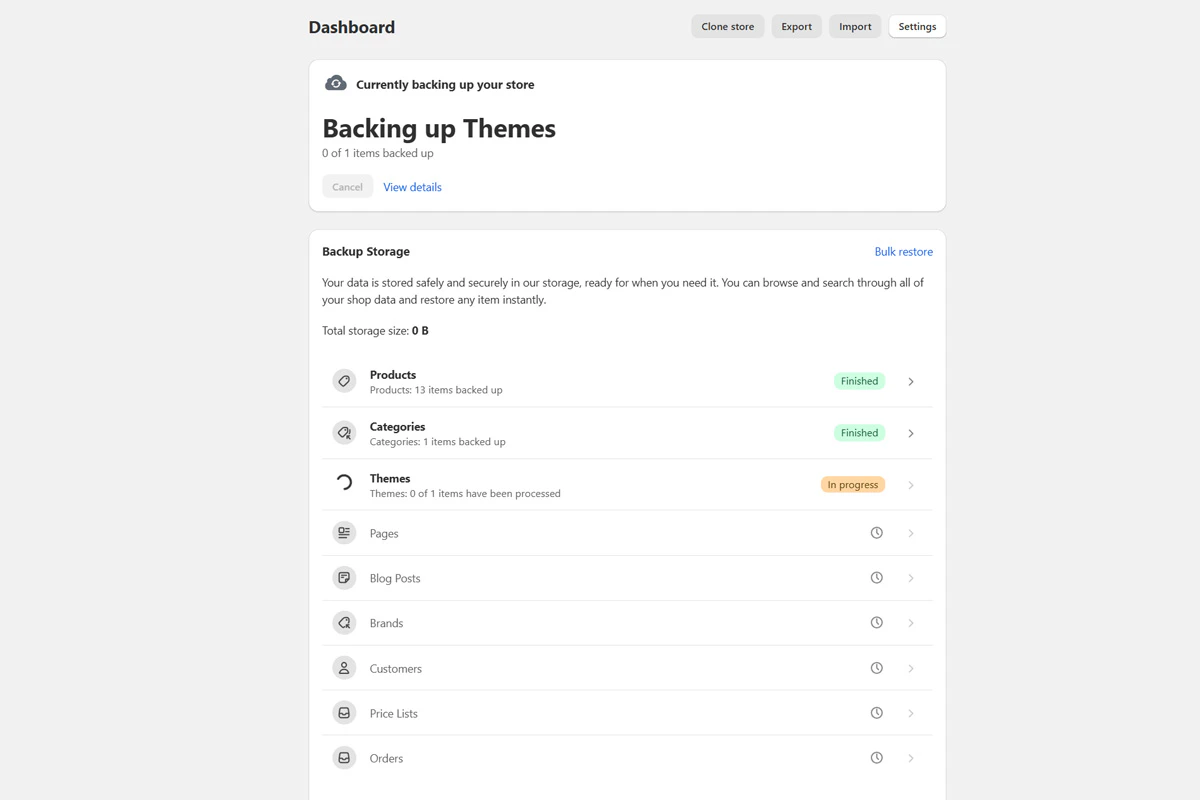
The dashboard shows a progress indicator during the initial backup.
Step 4: Browse your backed-up data
After the initial backup finishes, open the BackupMaster dashboard and select a data category such as Products.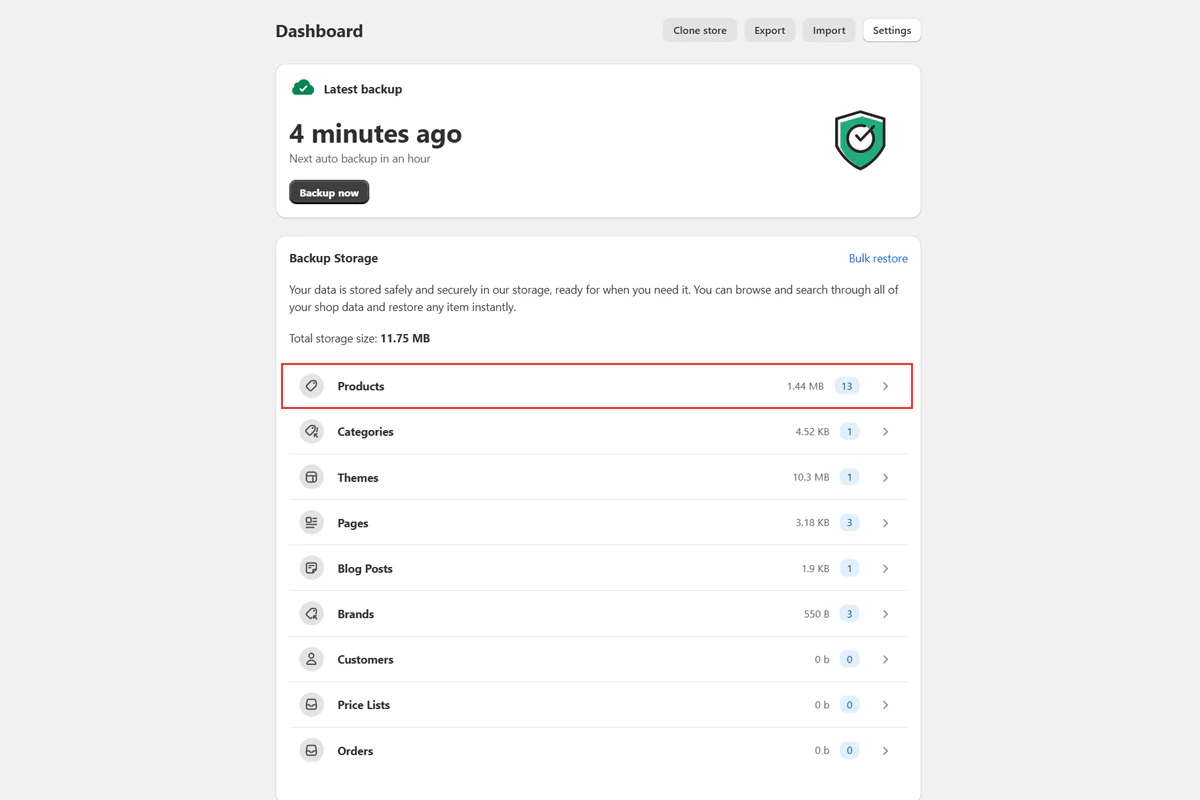
Backup storage dashboard showing data categories
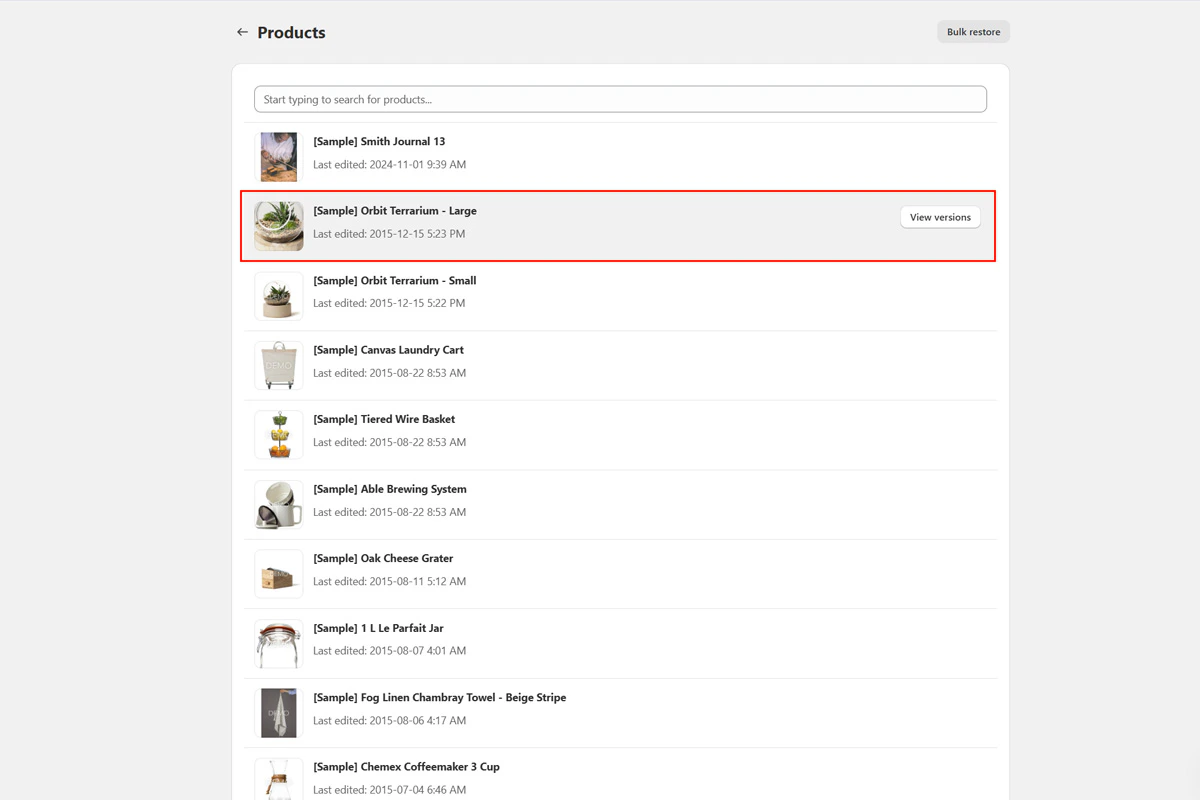
Selecting a product from the backed-up items list
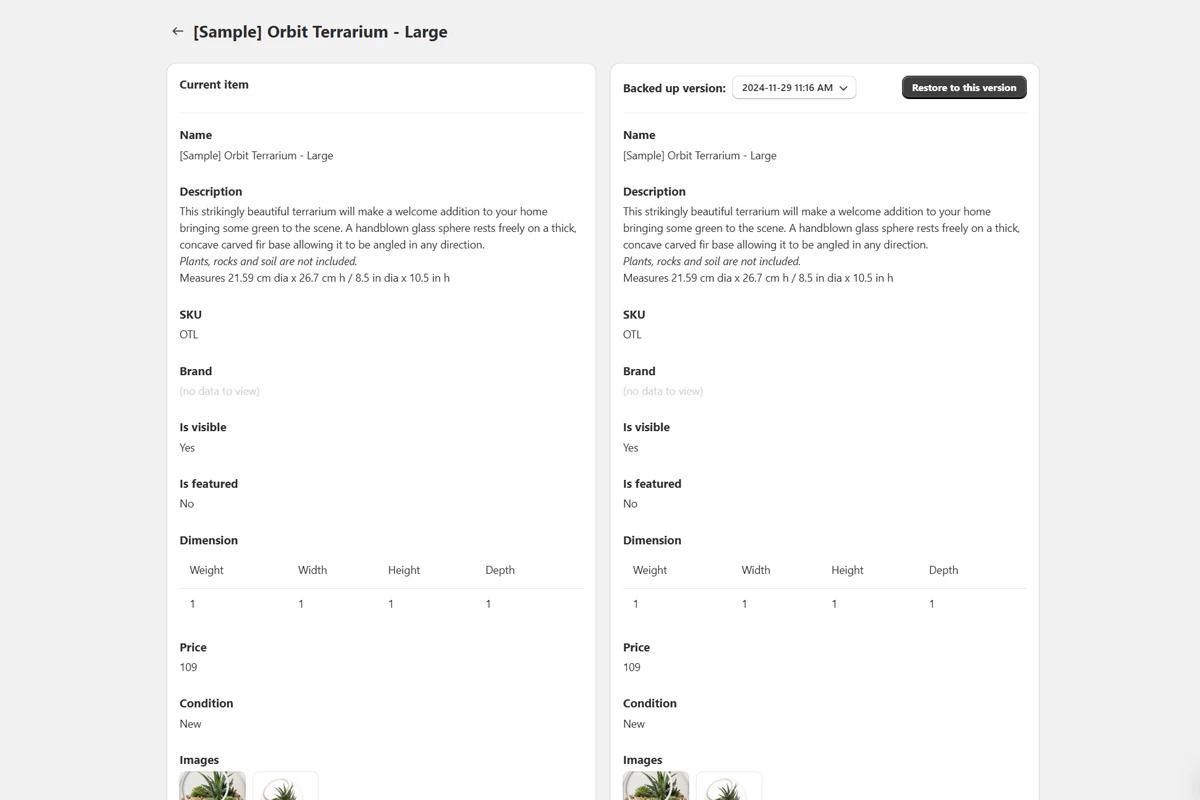
Version history showing each saved version of the item over time
Next steps
You’ve installed BackupMaster, chosen a plan, and completed your first backup. Your store is now backed up automatically every 24 hours.Restore individual items
Accidentally deleted a product or made unwanted changes to a theme? Roll back to a previous version.
Restore items in bulk
Recover from a bulk edit gone wrong or roll back an entire data category at once.
Export and download backups
Download your backup data to your device or upload it to Google Drive.
Clone data to another store
Set up a staging store, migrate to a new store, or copy data to another BigCommerce store.