

The initial backup
When you install BackupMaster and select a plan, the app runs an initial backup of your store. It pulls every supported item — products, categories, themes, pages, and more — and saves each one as its first version in backup storage. This creates a restore point for all your store data.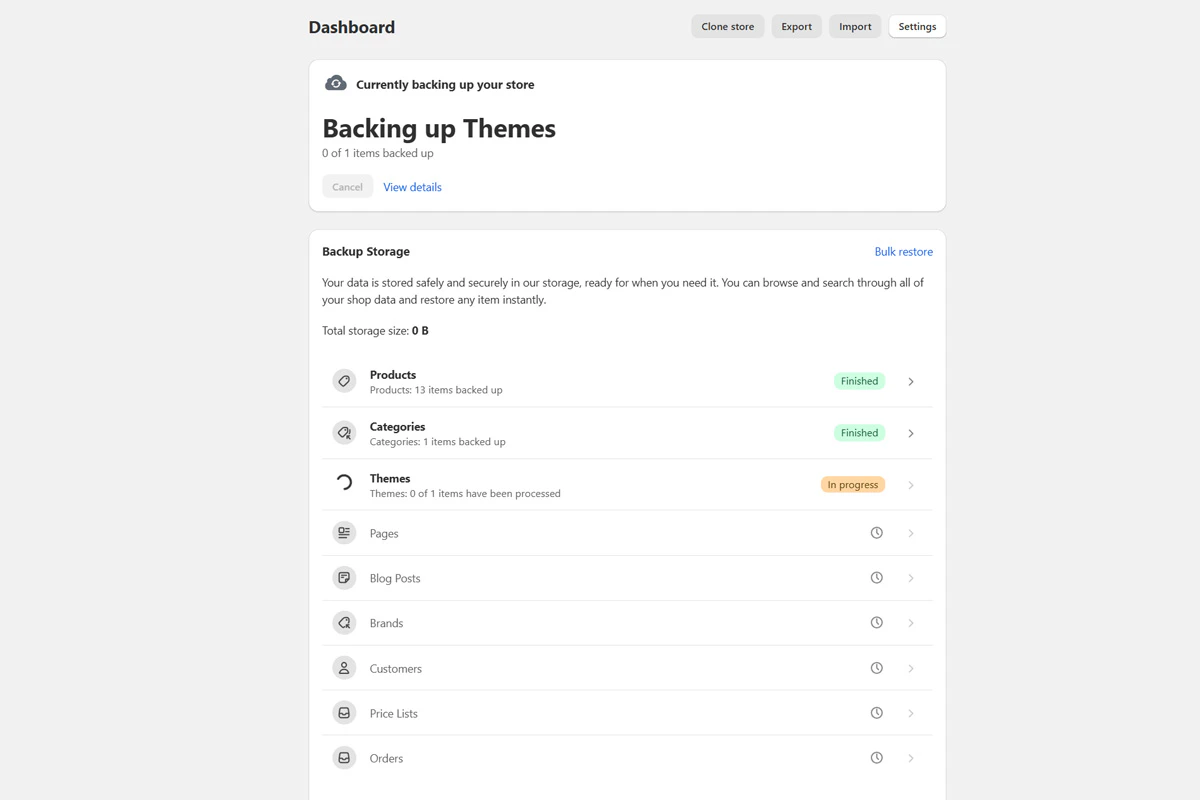
The initial backup processes each data category and shows progress on the dashboard.
BackupMaster can only back up data from the point of installation onward. Data that existed before installation but was changed or deleted before the initial backup completed cannot be recovered.
Automatic daily backups
After the initial backup finishes, BackupMaster runs an automatic daily backup. Instead of pulling your entire store again, it requests only the data that changed since the last backup. For each changed item, the app compares the BigCommerce version with the version already in storage. If the item is different, BackupMaster saves it as a new version. For example, if you update a product’s price, the next backup detects the change and saves the updated product as a new version. Over time, this builds a complete version history for each item. You can also run a backup manually at any time with the Backup Now button on the dashboard. Manual backups use the same change detection as automatic ones. Run one before a major change like an import or a bulk edit to give yourself a recent restore point to fall back on.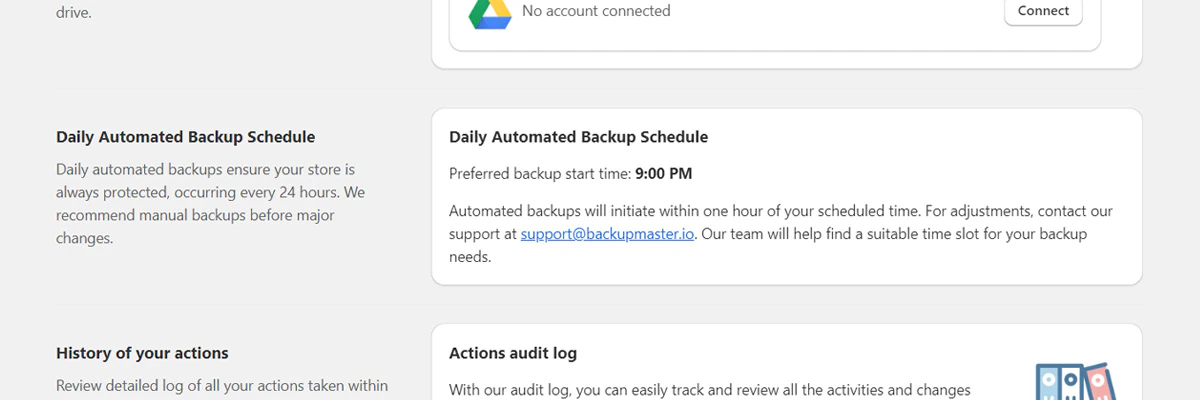
The dashboard shows when the last backup ran and when the next one starts.
Version history
Every item that BackupMaster backs up has its own version history. Each time a backup detects a change to an item, BackupMaster saves the item’s current state as a new version. If the item hasn’t changed, no new version is created. Over time, this builds a timeline of versions for each item individually. Backups run every day, but BackupMaster only saves a new version when something changed. Days without changes don’t add a version — this keeps version history clean, and each version represents an actual change. To view an item’s version history, open the BackupMaster app, go to Backup Storage, and select a category. Select any item to see its versions. The comparison view shows the current live data on the left and the backed-up version on the right, with a dropdown to switch between versions. You can restore a supported item to a previous version directly from this view.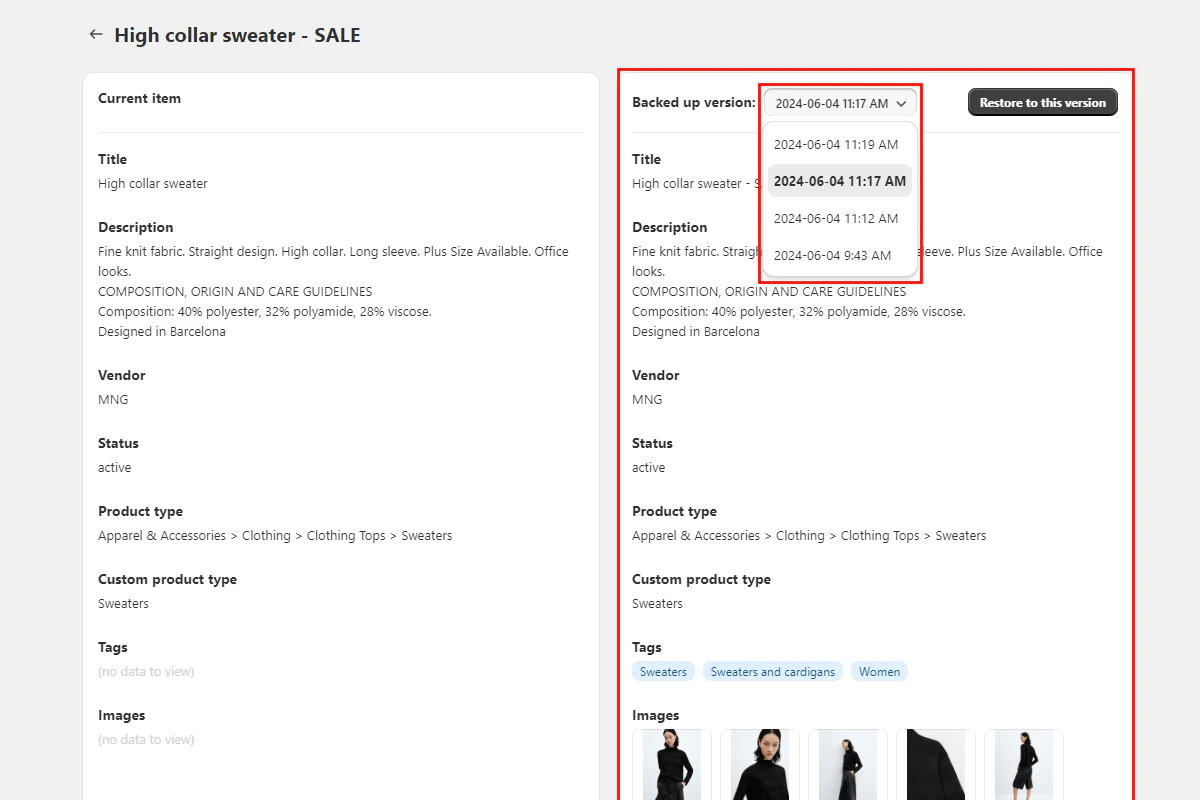
The comparison view shows the current live data on the left and a backed-up version on the right, with a dropdown to switch between versions.
Restore points
Each backup creates a restore point — a snapshot of your store data at that moment. You can restore any item to any captured version within the retention window. As backups accumulate, each item builds its own timeline of versions, so you have more points to choose from.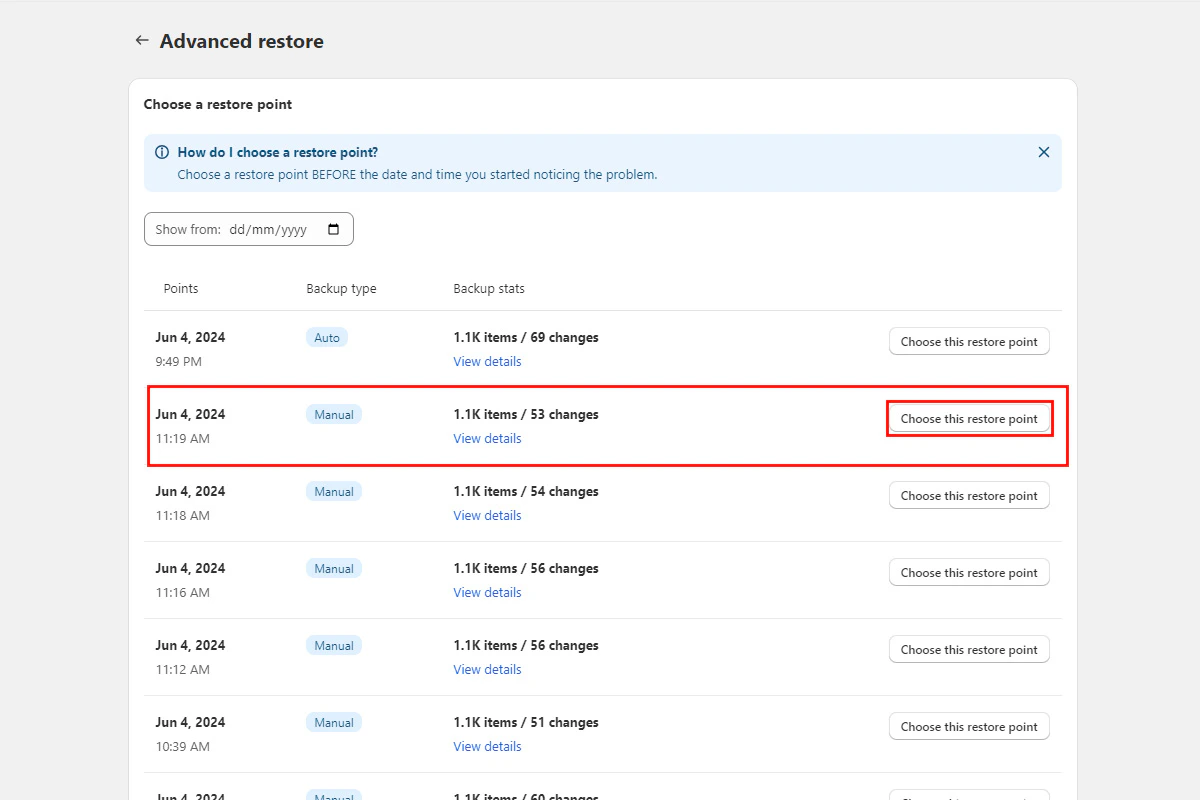
During a bulk restore, you choose which restore point to roll back to.
Data retention
All plans include one-year retention for backup versions. You can restore any item to any version captured within the past year. BackupMaster automatically removes versions older than one year. After you uninstall BackupMaster, your Paddle subscription is canceled automatically. Your backup data is kept for seven days and then permanently deleted from BackupMaster’s servers. Deleted data can’t be recovered.Store performance and API rate limits
BackupMaster connects to your store through the BigCommerce API only. It doesn’t inject any code into your storefront, so your page load times and customer experience aren’t affected. BigCommerce enforces API rate limits that control how frequently any app can send requests. BackupMaster stays within these limits automatically. A few factors affect how long backups and restores take:- Each item (product, page, category) requires one or more API calls.
- Products with many images need multiple calls each.
- Stores with thousands of items need thousands of API calls over time.