Restore a single item from any backed-up category to a previous version. BackupMaster shows a side-by-side comparison so you can verify the data before restoring.
Restore a single item from your backup storage to a previous version. A side-by-side comparison view shows exactly what changes before you confirm, so you can verify the data first.
Prerequisites
At least one completed backup in your backup storage
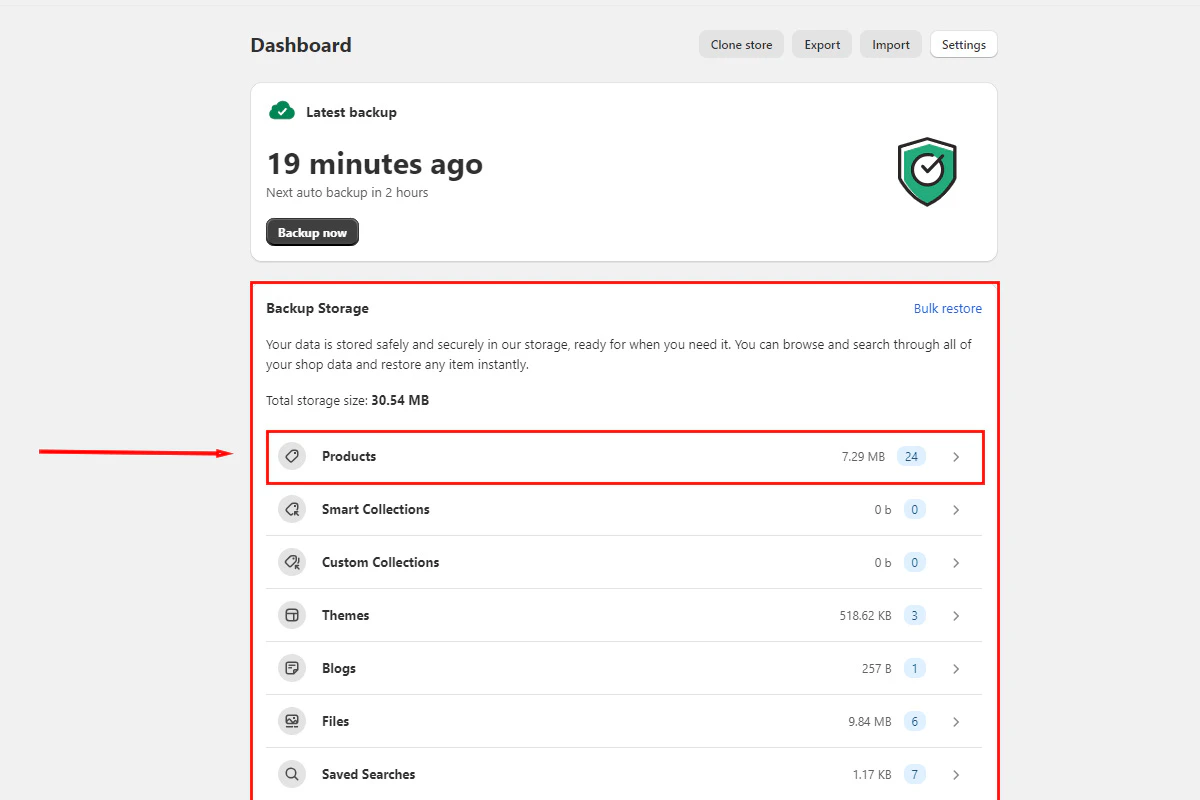
Open BackupMaster from your BigCommerce admin, select Backup Storage from the dashboard, and choose the data category that contains your item (for example, Products, Themes, or Customers).
Backup storage dashboard with data categories
2
Locate the item
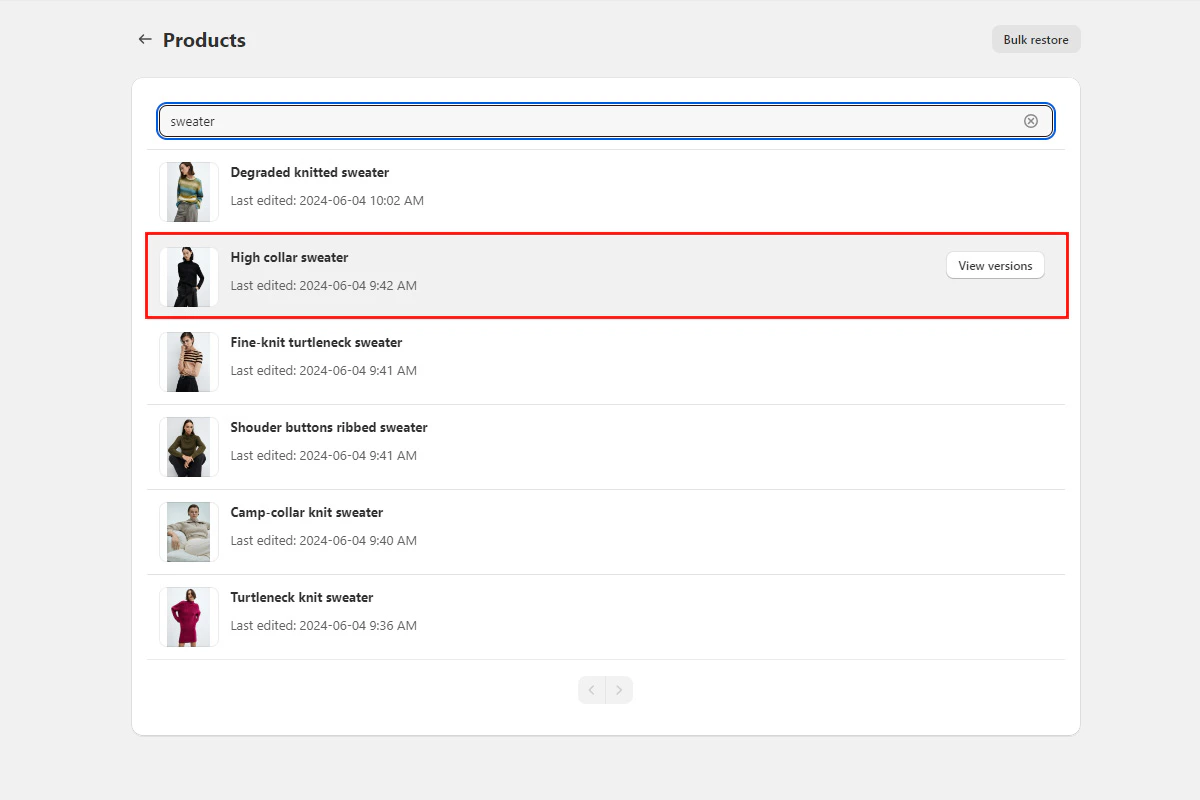
Search for the item by name, then select it to view its backed-up versions.
Selecting a specific product to restore
3
Review version differences
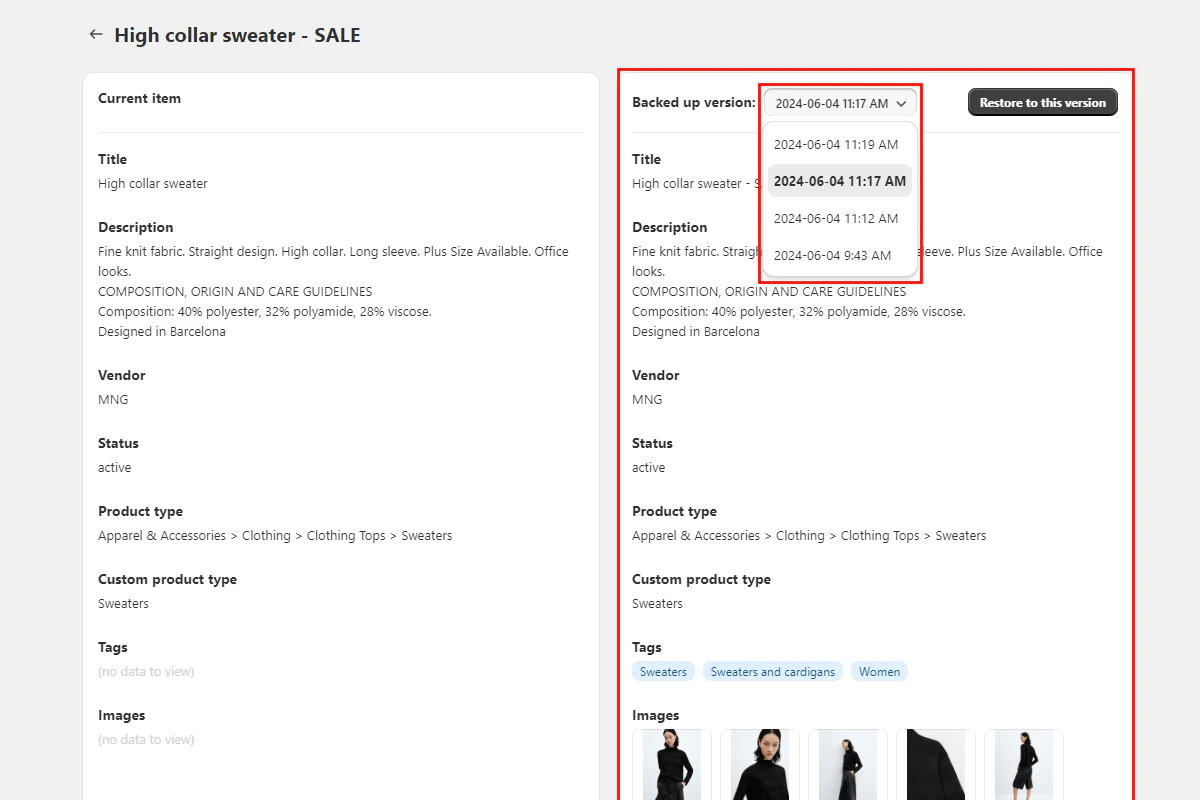
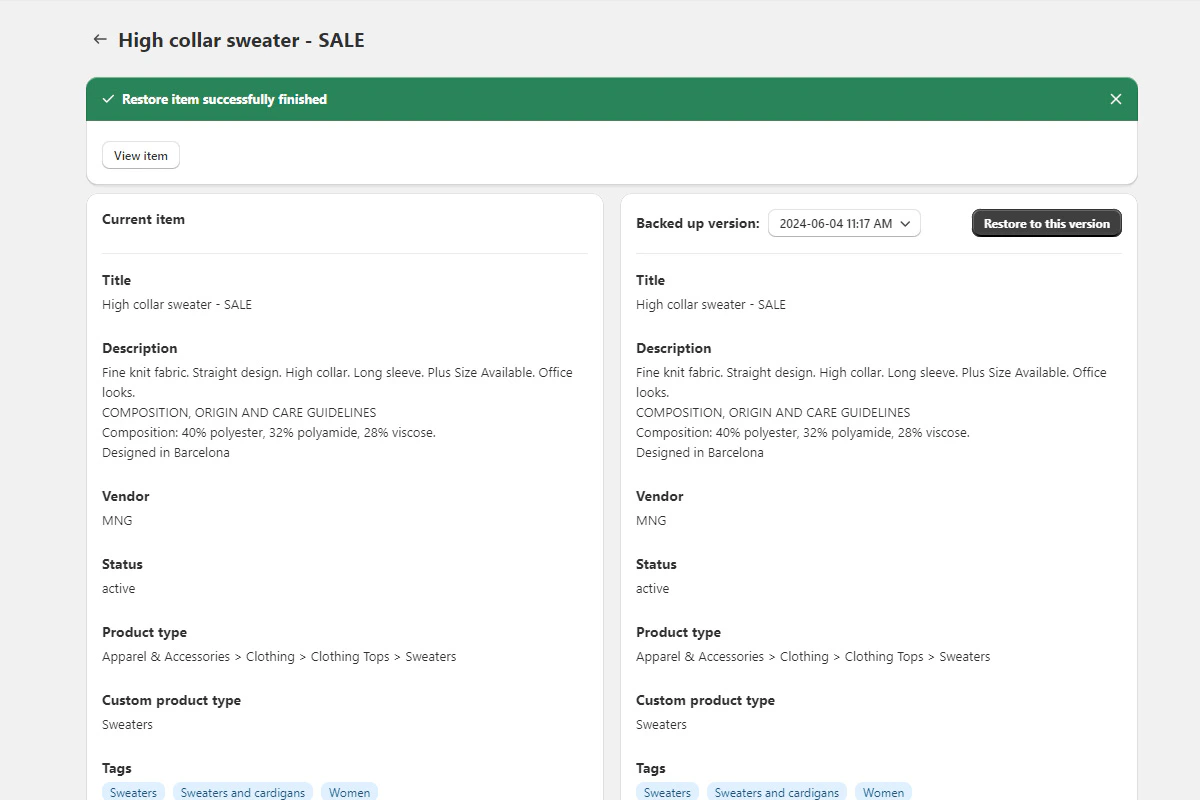
The comparison view shows your current live data on the left and the backed-up version on the right. Use the dropdown to switch between backup versions and find the one you need. Each version shows its capture date and time — pick the backup closest to (but before) the unwanted change.
Compare and restore interface showing version differences
4
Start the restore
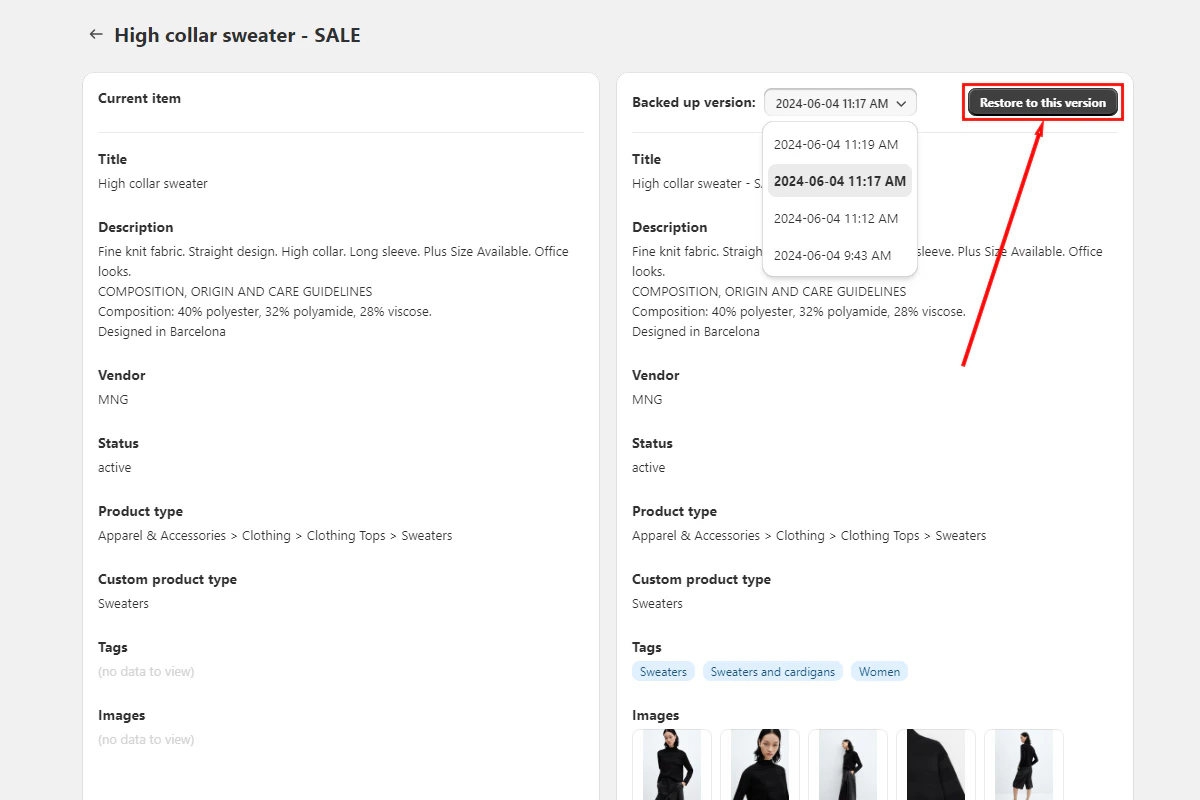
Select the version you want, then select Restore to this version.
Restore product button to initiate restoration
5
Confirm and verify
Confirm the restore in the dialog. BackupMaster shows a success message when it finishes. Individual restores typically complete in seconds.
Match by ID — BackupMaster looks for the item by its unique BigCommerce ID. If it finds one, it updates the existing item.
Match by handle — if no ID match exists (for example, the item was deleted and recreated), BackupMaster matches by handle (URL slug) and updates that item.
Create new — if neither ID nor handle matches, BackupMaster creates a new item from the backup.
Theme customizations made through the BigCommerce theme editor aren’t included in backups. This is a BigCommerce API limitation. Reapply customizations manually after restoring.
Assistant
Responses are generated using AI and may contain mistakes.