Browse, search, and compare backed-up versions of your BigCommerce store data.
BackupMaster stores every version of your backed-up items so you can browse, search, and compare them against your live store data. Use backup storage to track changes over time or find the right version before you restore.
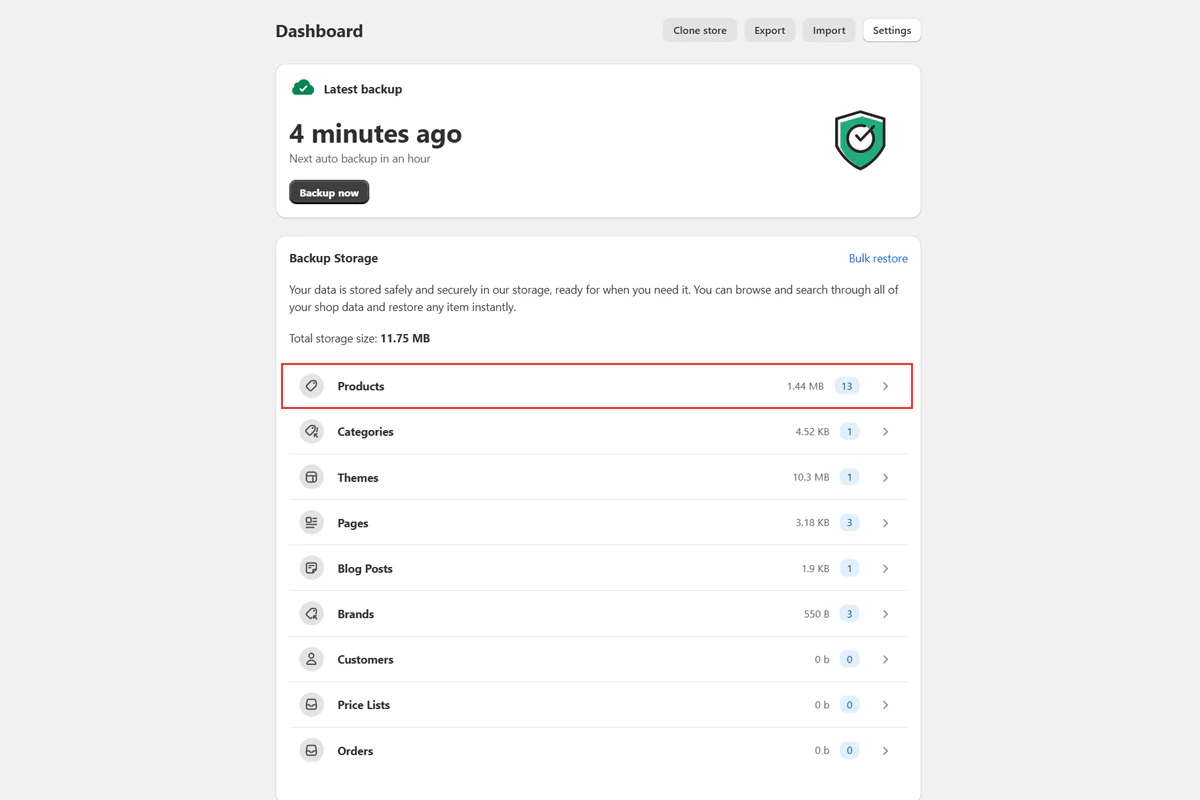
Open the BackupMaster app in your BigCommerce admin and find the Backup Storage section on the dashboard. The dashboard shows each data category with item counts.
Backup storage dashboard showing data categories
2
Search and browse items
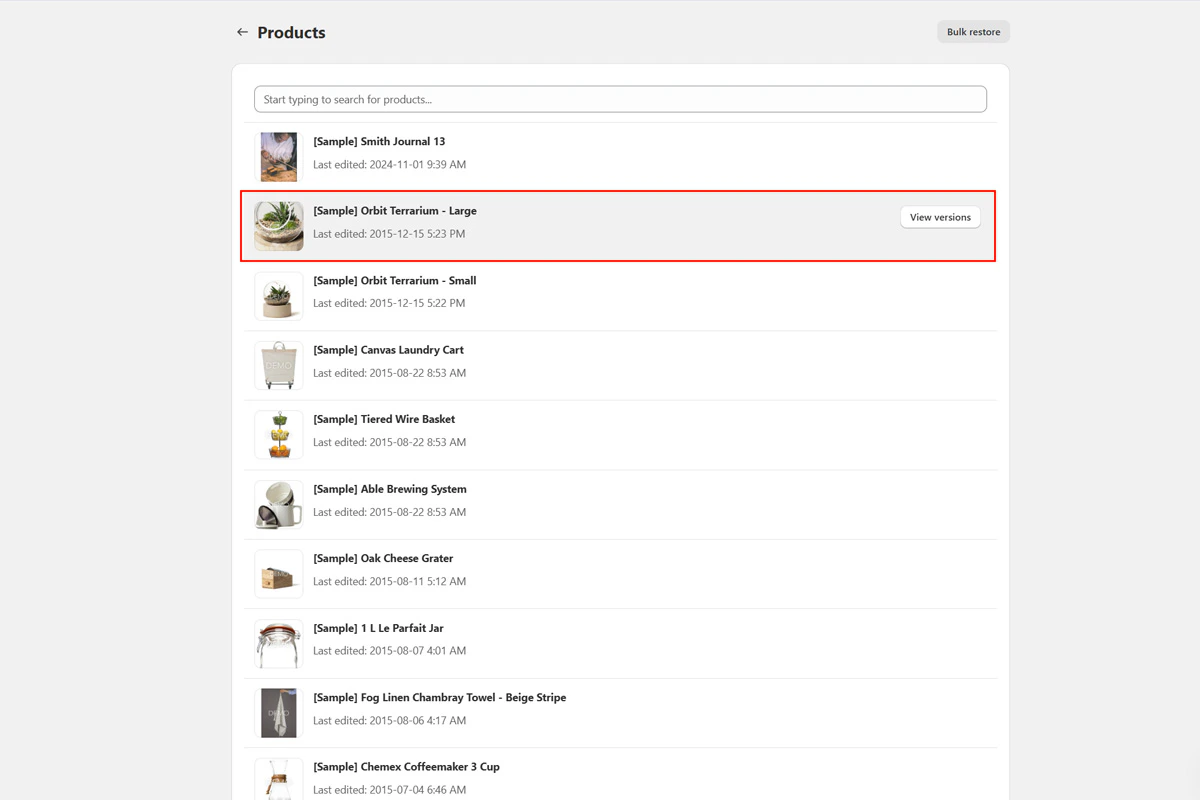
Select a category such as Products or Pages, then type a search term in the search bar to find a specific item. Select an item to view its backed-up versions.
Selecting a product from the backed-up items list
3
Compare versions
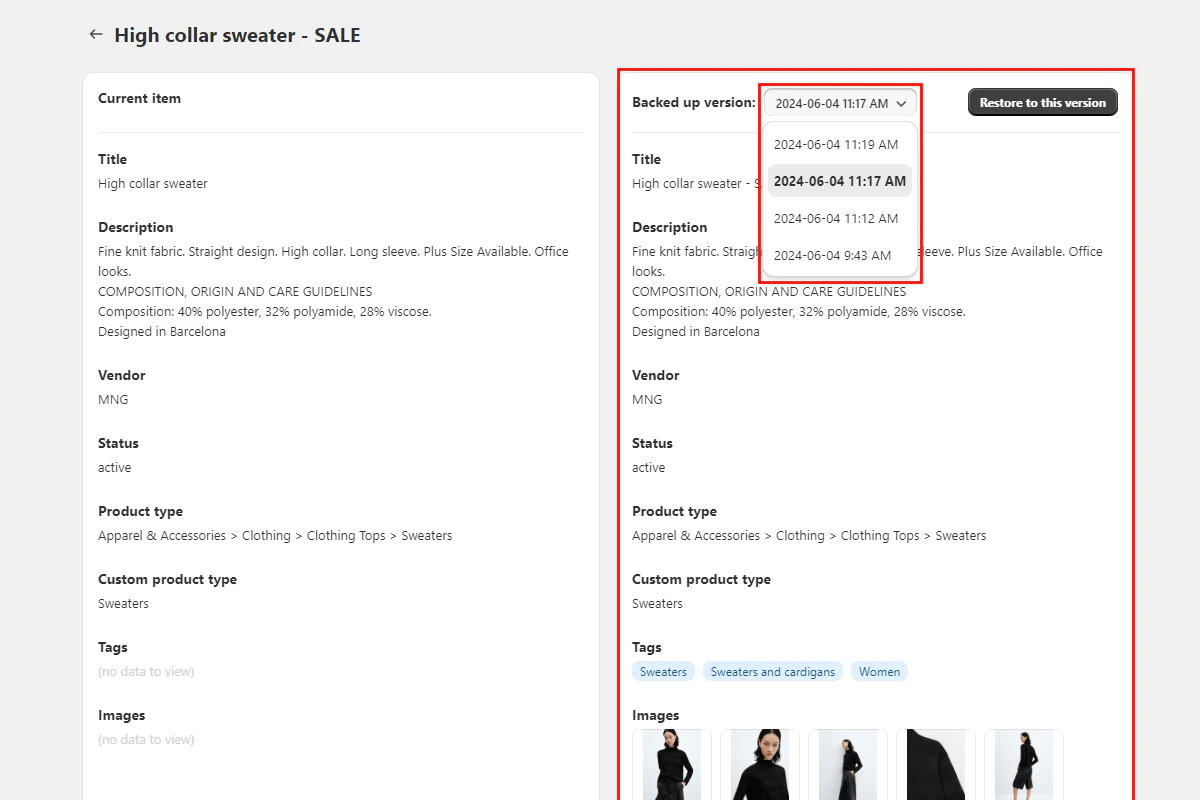
When you select an item, the comparison view opens. The live store version appears on the left and the backed-up version appears on the right. Review the differences between versions, select the version you want to restore, and select Restore to this version.
Comparison view showing differences between current and backed-up versions