> ## Documentation Index
> Fetch the complete documentation index at: https://docs.backupmaster.io/llms.txt
> Use this file to discover all available pages before exploring further.
# Restore Shopify inventory
> Download backed-up inventory quantities as a CSV file and import them into Shopify to restore inventory levels for a specific location.
Inventory restoration uses a CSV-based workflow. Shopify's inventory API has strict rate limits that make automated bulk updates unreliable, so the CSV approach gives you full control and lets you verify quantities before importing.
**Prerequisites**
* At least one inventory backup in your backup storage
* The inventory location must exist in your store (**Settings** > **Locations** in Shopify admin)
## Download and import inventory data
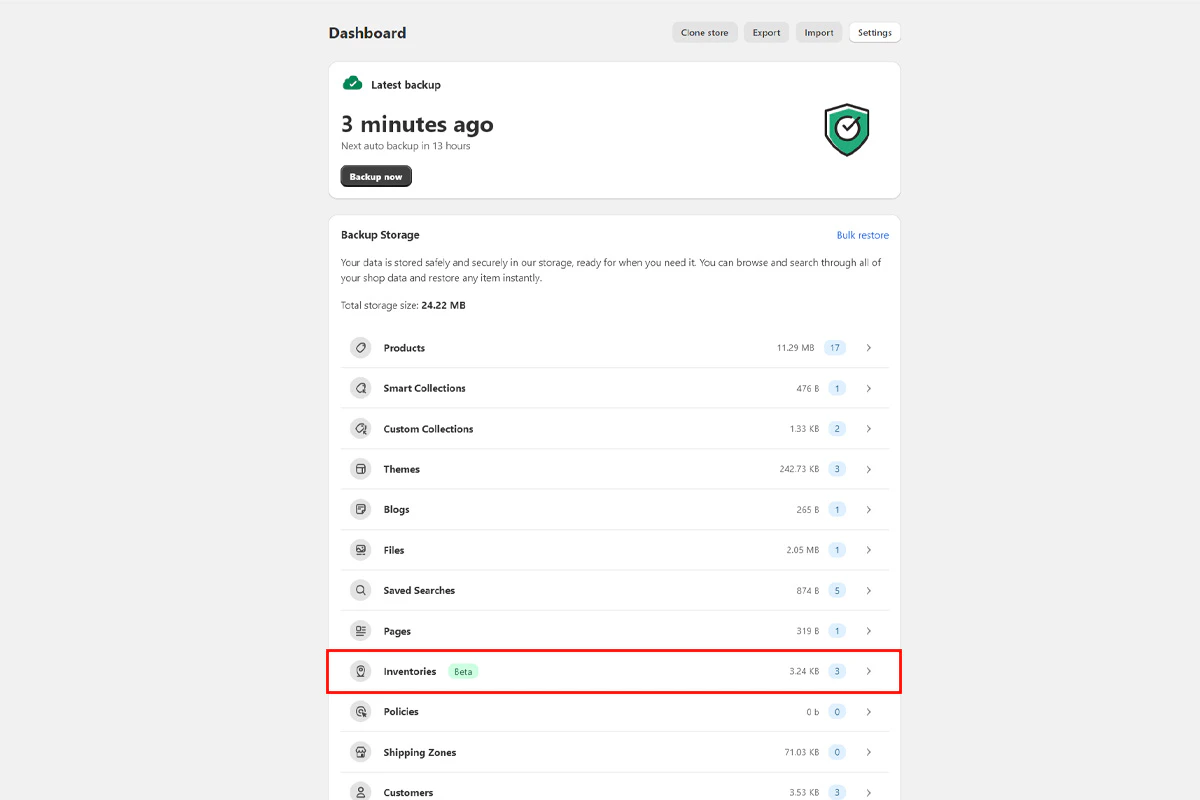
Open **BackupMaster** from your Shopify admin and go to **Backup Storage** > **Inventories**. A list of backed-up locations appears.
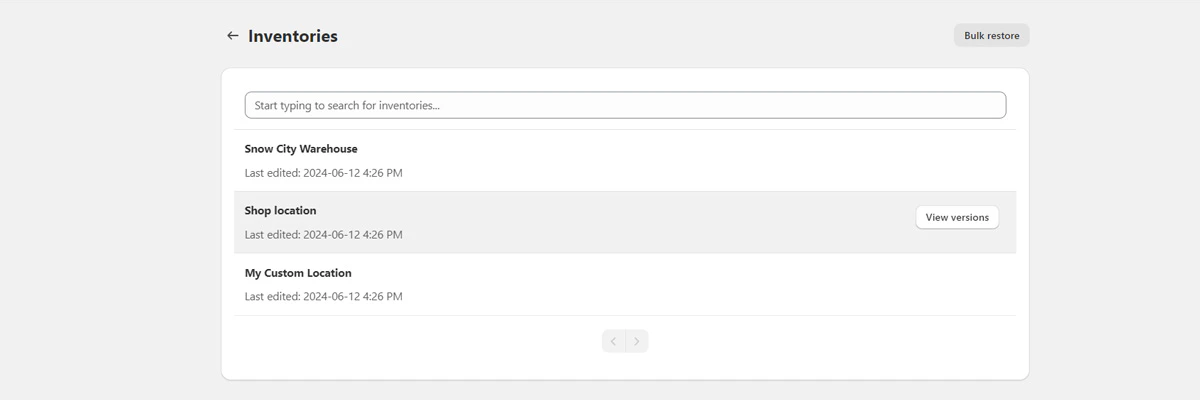 Select the location you want to restore, then pick a backup version. Each version shows its capture date and time.
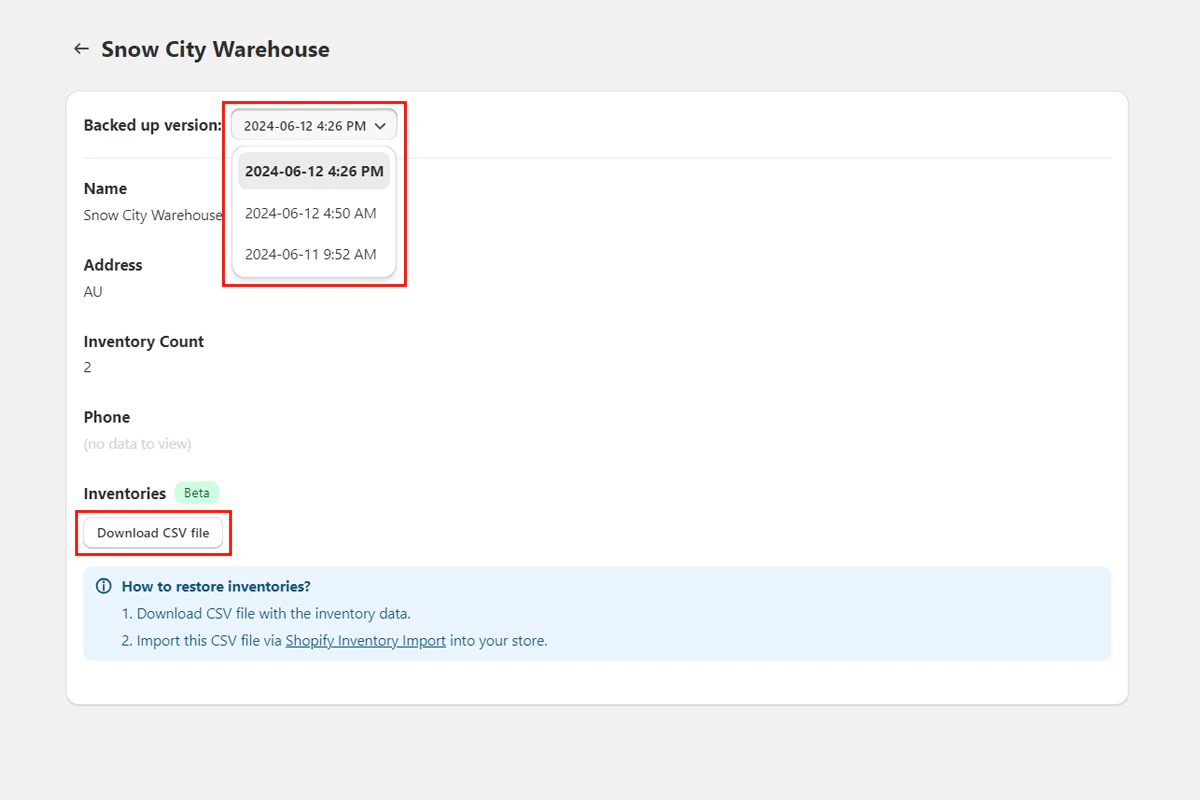 Click **Download CSV**. The file contains product SKUs, variant information, and quantities for the selected location and version.
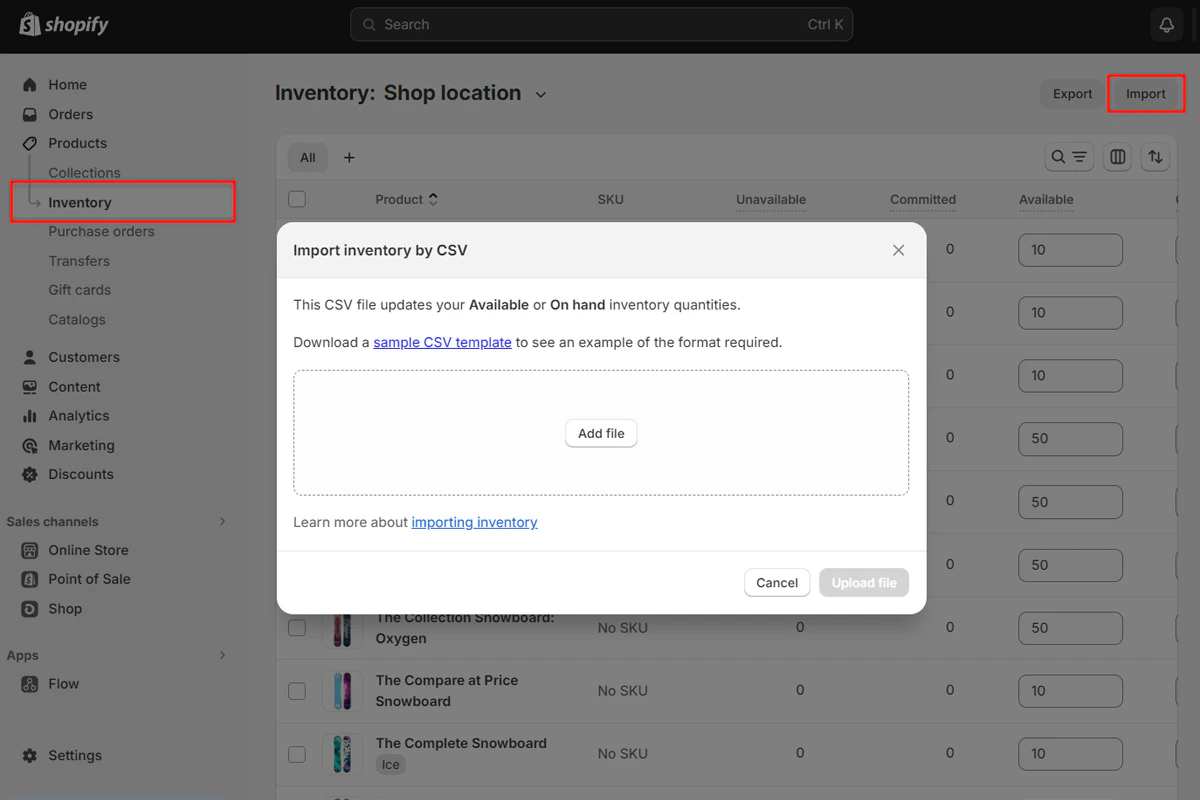
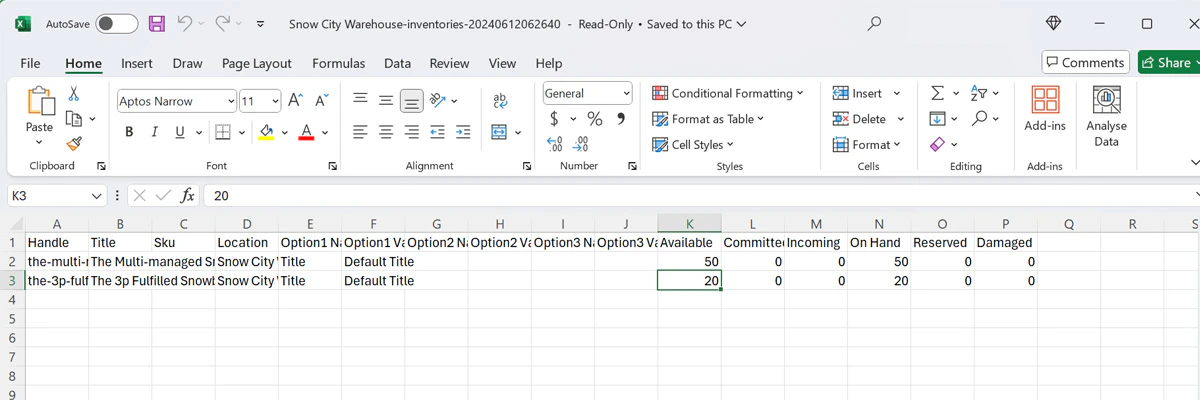 Open the CSV and verify the quantities. Confirm the location exists in **Settings** > **Locations**, then import the CSV into Shopify using the standard inventory import. For detailed instructions, visit the [Shopify Help Center](https://help.shopify.com/en/manual/products/inventory/getting-started-with-inventory/inventory-csv#import-inventory).
 ## Known limitations
* **One location at a time** — you can only download and import inventory for one location per operation. Repeat the process for each location.
* **No automated restore** — unlike other data types, inventory can't be restored with a single click. You need to download, review, and import the CSV manually.
* **Quantities only** — the CSV includes inventory quantities but not cost per item or tracking information.
* **Don't modify the CSV structure** — keep column headers and file format intact so Shopify accepts the import.
This feature is in beta. If you encounter issues or have feedback, contact support at [support@backupmaster.io](mailto:support@backupmaster.io).
## Troubleshooting
The location may not have been active when the backup ran. Only locations present during backup appear in the list.
Confirm the location in the CSV matches an existing location in **Settings** > **Locations**. Don't modify column headers or file structure before importing.
Verify you selected the correct backup version. Orders or manual adjustments between the backup and the import can also cause differences.
## Need help?
If you have questions or need assistance, the support team is here to help. Reach out at [support@backupmaster.io](mailto:support@backupmaster.io).
## Known limitations
* **One location at a time** — you can only download and import inventory for one location per operation. Repeat the process for each location.
* **No automated restore** — unlike other data types, inventory can't be restored with a single click. You need to download, review, and import the CSV manually.
* **Quantities only** — the CSV includes inventory quantities but not cost per item or tracking information.
* **Don't modify the CSV structure** — keep column headers and file format intact so Shopify accepts the import.
This feature is in beta. If you encounter issues or have feedback, contact support at [support@backupmaster.io](mailto:support@backupmaster.io).
## Troubleshooting
The location may not have been active when the backup ran. Only locations present during backup appear in the list.
Confirm the location in the CSV matches an existing location in **Settings** > **Locations**. Don't modify column headers or file structure before importing.
Verify you selected the correct backup version. Orders or manual adjustments between the backup and the import can also cause differences.
## Need help?
If you have questions or need assistance, the support team is here to help. Reach out at [support@backupmaster.io](mailto:support@backupmaster.io).