> ## Documentation Index
> Fetch the complete documentation index at: https://docs.backupmaster.io/llms.txt
> Use this file to discover all available pages before exploring further.
# Restore a Shopify theme asset
> Restore an individual theme asset file like a Liquid template, CSS file, or JSON settings without affecting the rest of your theme.
You can restore a single asset file without affecting the rest of your theme. This is useful when you need to undo changes to a specific template or configuration file.
**Prerequisites**
* At least one theme backup version in your backup storage
## Find the asset
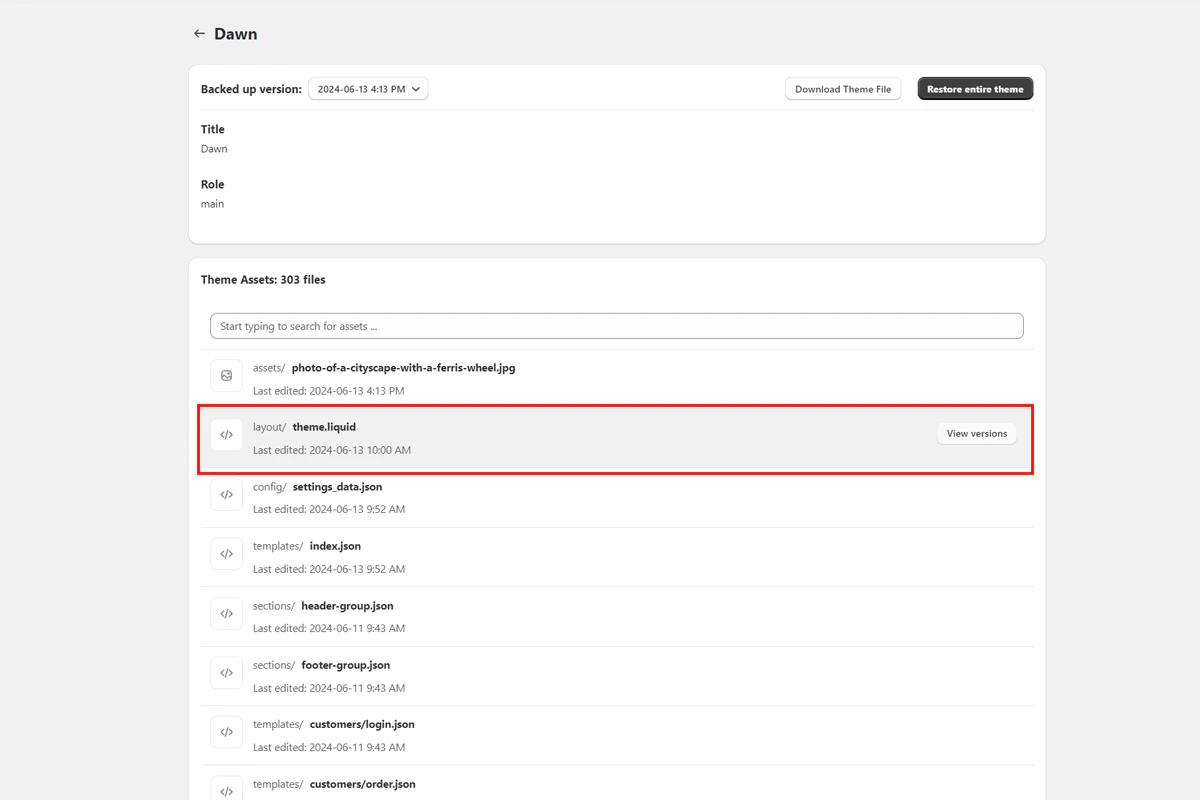
Open **BackupMaster** from your Shopify admin and go to **Backup Storage** > **Themes**. Select the theme that contains the asset. Scroll below the theme card to see individual assets, then click the one you want to restore.
 ## Compare and restore
BackupMaster shows all versions of the selected asset. For code files, it highlights the differences between versions so you can see exactly what changed.
## Compare and restore
BackupMaster shows all versions of the selected asset. For code files, it highlights the differences between versions so you can see exactly what changed.
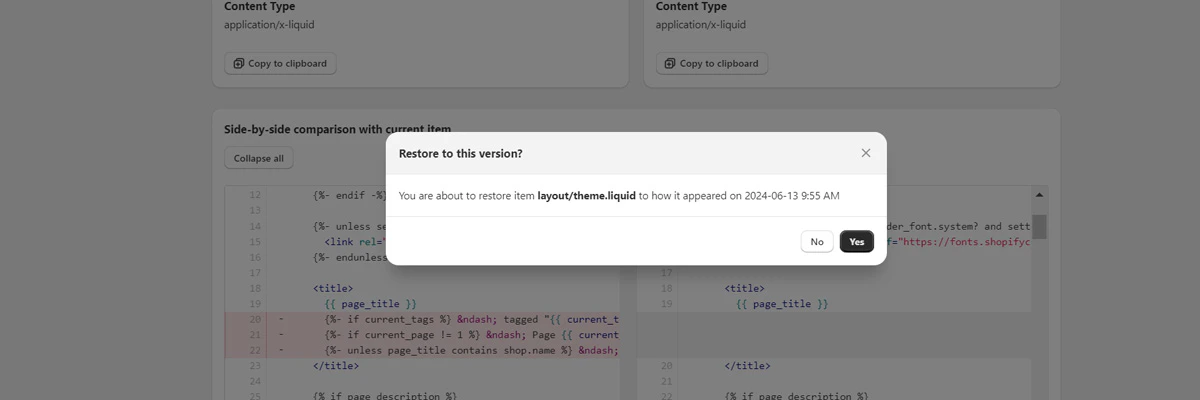
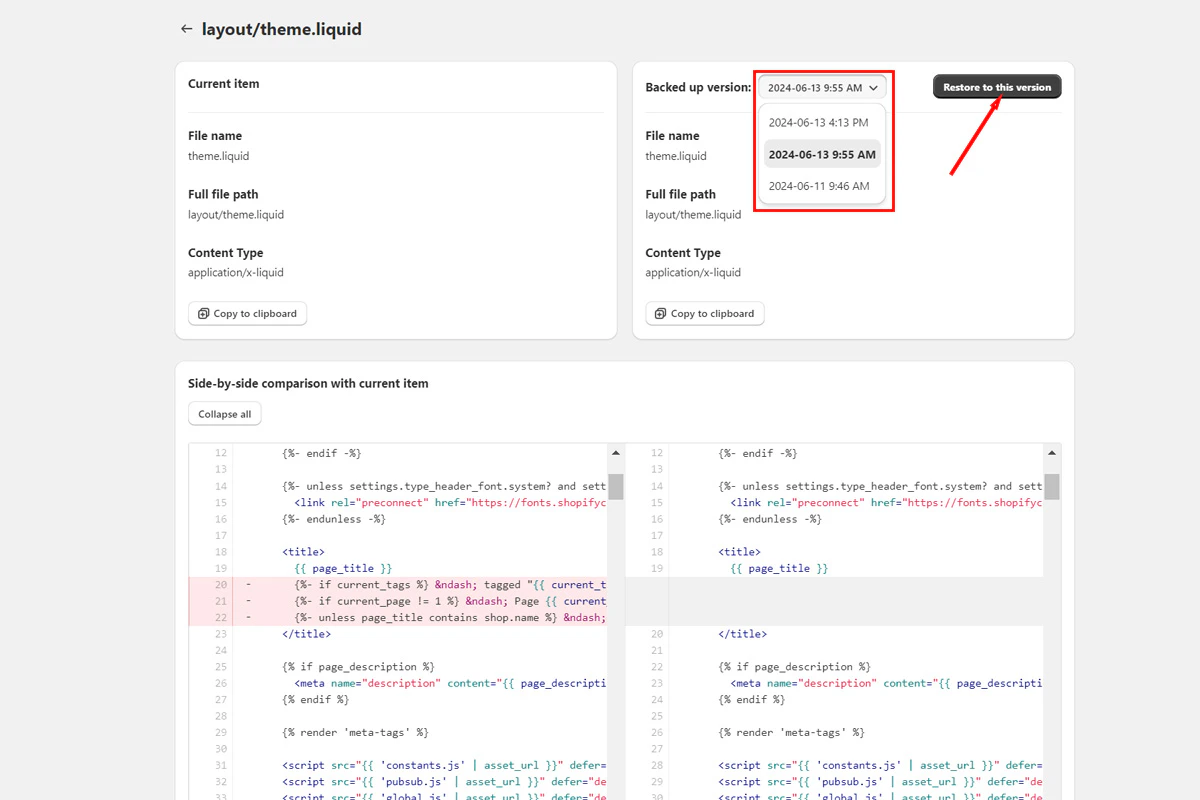 Select the version you want and click **Restore to this version**. Only the selected asset is updated — the rest of your theme stays unchanged.
 ## Troubleshooting
The asset may not have existed when the backup ran. Check whether it was added after the most recent backup.
## Need help?
If you have questions or need assistance, the support team is here to help. Reach out at [support@backupmaster.io](mailto:support@backupmaster.io).
## Troubleshooting
The asset may not have existed when the backup ran. Check whether it was added after the most recent backup.
## Need help?
If you have questions or need assistance, the support team is here to help. Reach out at [support@backupmaster.io](mailto:support@backupmaster.io).