> ## Documentation Index
> Fetch the complete documentation index at: https://docs.backupmaster.io/llms.txt
> Use this file to discover all available pages before exploring further.
# Import Shopify data from ZIP files
> Import store data into Shopify from a previously exported BackupMaster ZIP file when in-app restore or cloning isn't an option.
## Do you need clone, restore, or import?
If you want to **copy or move data between stores**, use the [clone feature](/shopify/cloning/clone-store-data-to-another-store) instead. Cloning transfers data directly between stores without downloading or uploading files.
If you need to **restore data within the same store** where BackupMaster is installed, you don't need a ZIP file — use [restore individual items](/shopify/restores/restore-a-single-item) or [bulk restore](/shopify/restores/restore-items-in-bulk) directly from the app.
**ZIP import** is only needed when neither option is available:
* **Lost store access** — You can't log into your Shopify admin or your store is inactive
* **Store was paused or closed** — You previously exported your data and need to restore it into a new or reopened store
## Import from a ZIP file
**Prerequisites**
* A ZIP file previously exported from BackupMaster
* The BackupMaster app installed on the target store
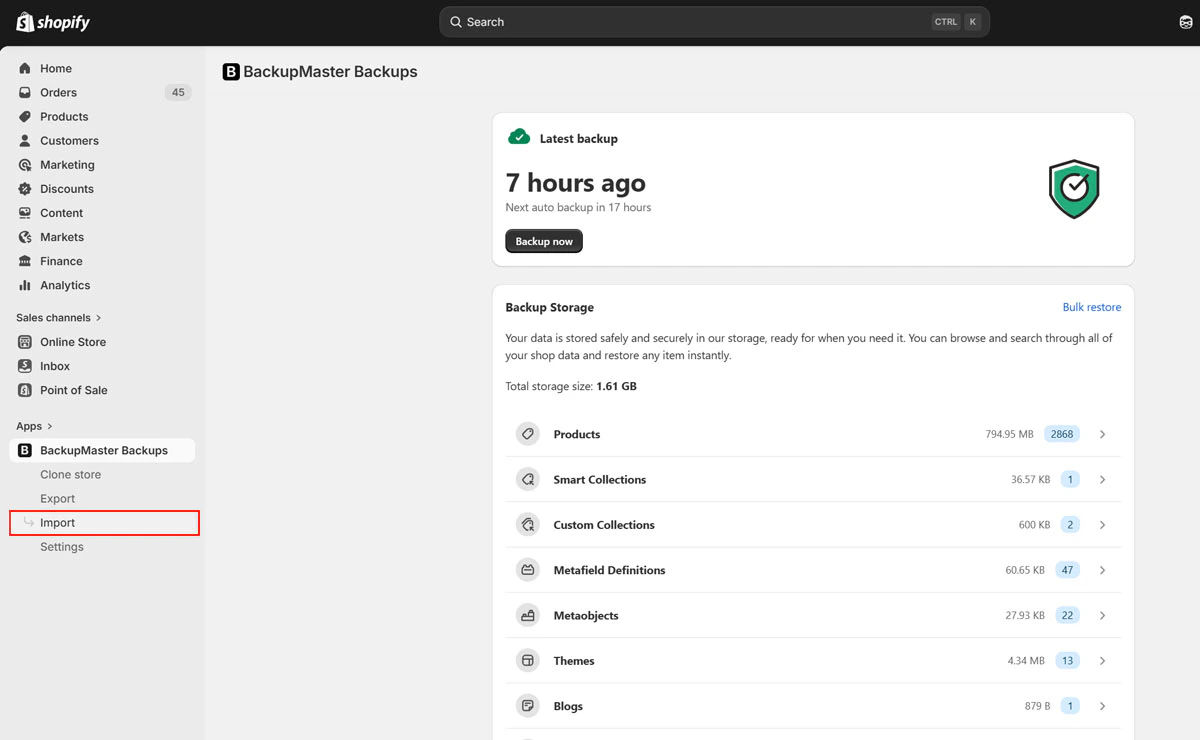
Open **BackupMaster** from your Shopify admin and click **Import** on the dashboard.
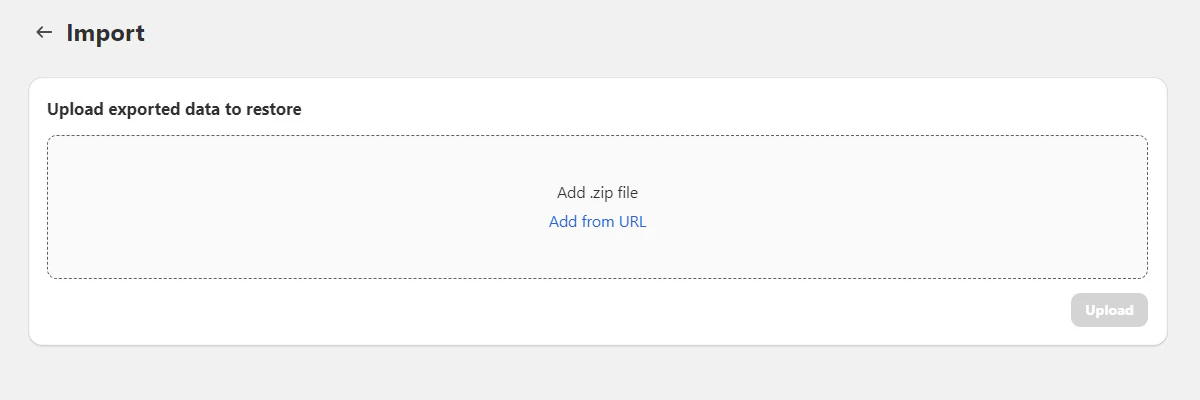
 Select the ZIP file to import. BackupMaster analyzes the file and displays the data categories and item counts it contains.
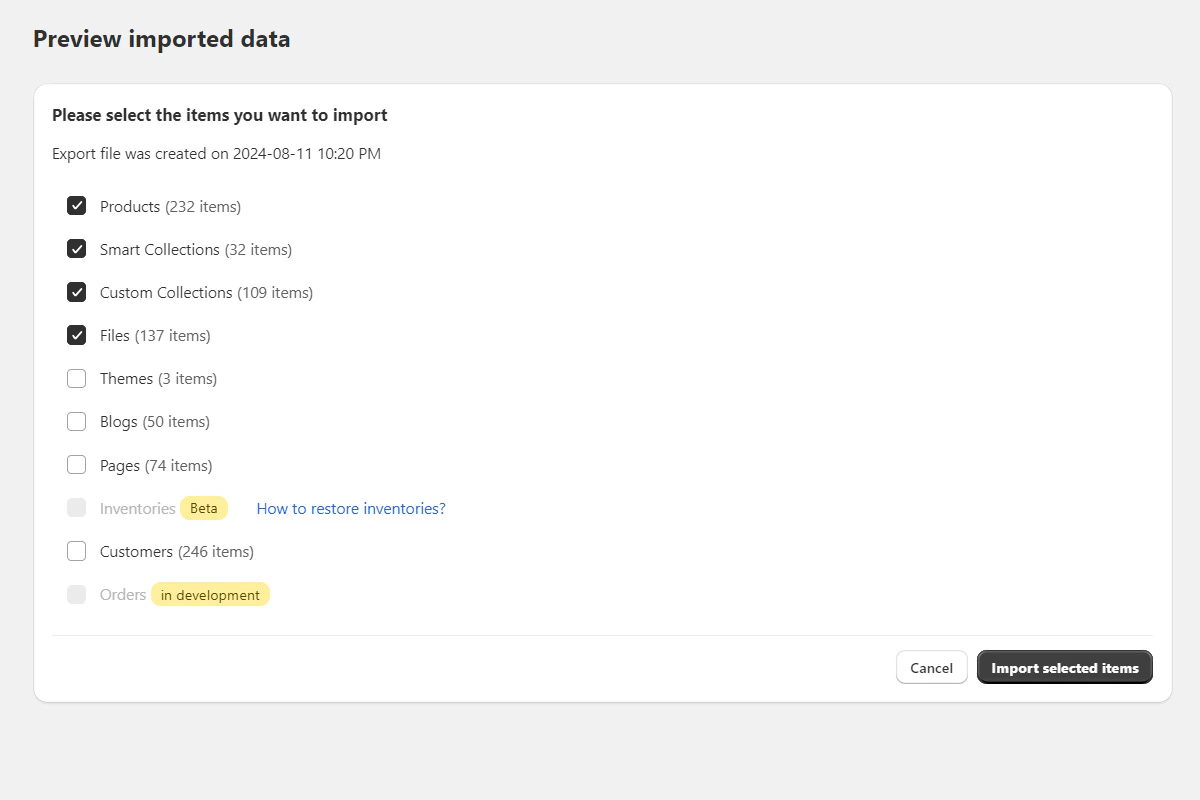
 Select the data categories you want to import and click **Confirm**.
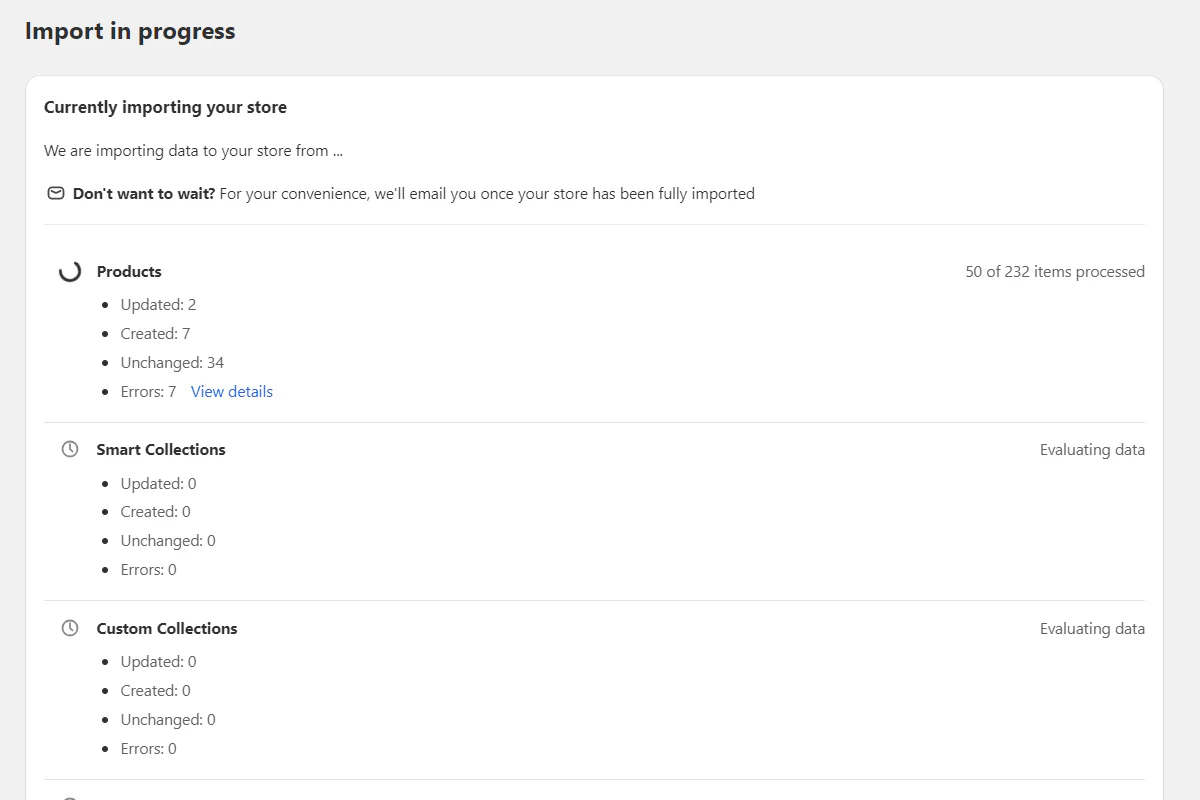
 BackupMaster displays real-time progress. You can close the browser — the import continues in the background and you'll receive a confirmation email when it finishes.
 ## Troubleshooting
Contact support at [support@backupmaster.io](mailto:support@backupmaster.io) so the team can review the logs.
The file must have been exported from BackupMaster. ZIP files from other sources aren't compatible.
Individual item errors are usually caused by Shopify API restrictions. Contact support to identify which items failed and why.
## Frequently asked questions
Yes. You can import a ZIP file exported from any BackupMaster-connected store into a different store.
BackupMaster matches each item by ID first, then by handle. If a match is found, the existing item is updated. If no match is found, a new item is created.
## Need help?
If you have questions or need assistance, the support team is here to help. Reach out at [support@backupmaster.io](mailto:support@backupmaster.io).
## Troubleshooting
Contact support at [support@backupmaster.io](mailto:support@backupmaster.io) so the team can review the logs.
The file must have been exported from BackupMaster. ZIP files from other sources aren't compatible.
Individual item errors are usually caused by Shopify API restrictions. Contact support to identify which items failed and why.
## Frequently asked questions
Yes. You can import a ZIP file exported from any BackupMaster-connected store into a different store.
BackupMaster matches each item by ID first, then by handle. If a match is found, the existing item is updated. If no match is found, a new item is created.
## Need help?
If you have questions or need assistance, the support team is here to help. Reach out at [support@backupmaster.io](mailto:support@backupmaster.io).