> ## Documentation Index
> Fetch the complete documentation index at: https://docs.backupmaster.io/llms.txt
> Use this file to discover all available pages before exploring further.
# View and browse backed-up Shopify data
> Browse, search, and compare backed-up versions of your Shopify store data.
BackupMaster stores every version of your backed-up items so you can browse, search, and compare them against your live store data. Use backup storage to track changes over time or find the right version before restoring.
**Prerequisites**
* At least one completed backup
## Browse and compare versions
Open the BackupMaster app in your Shopify admin and locate the **Backup Storage** section on the dashboard. Your dashboard displays each data category with item counts.
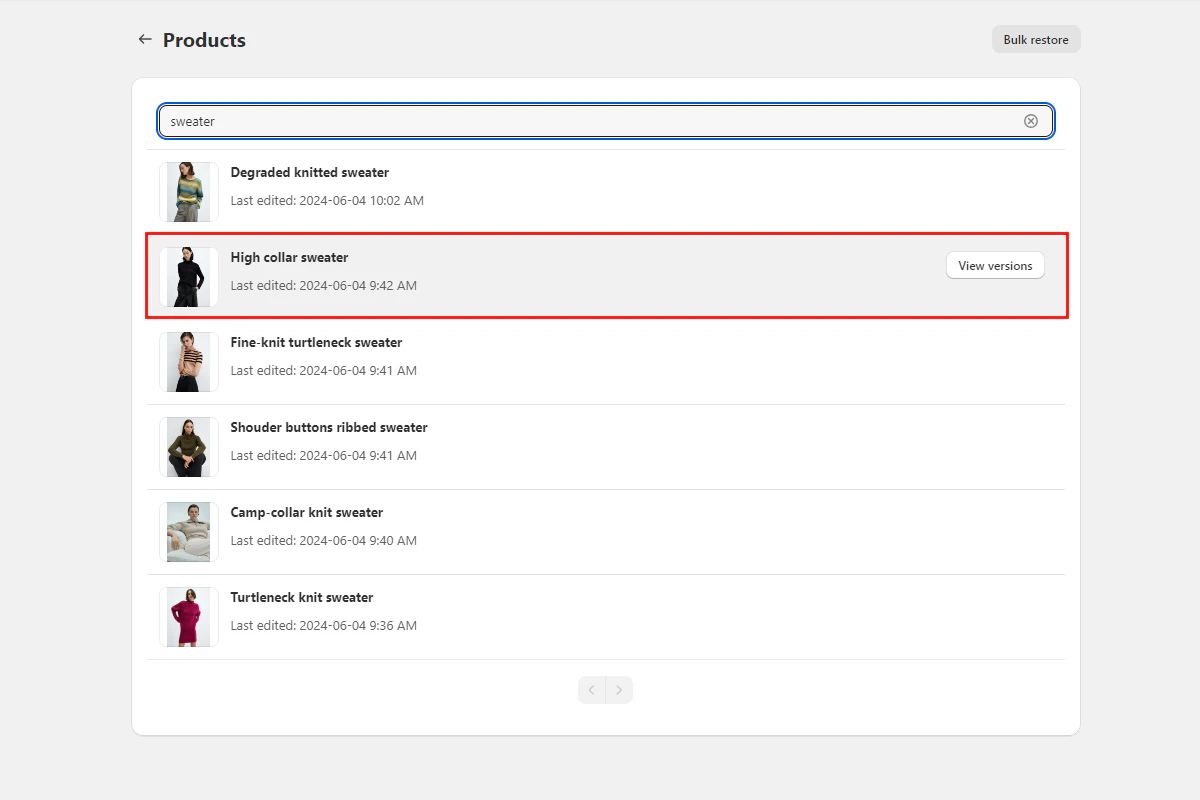
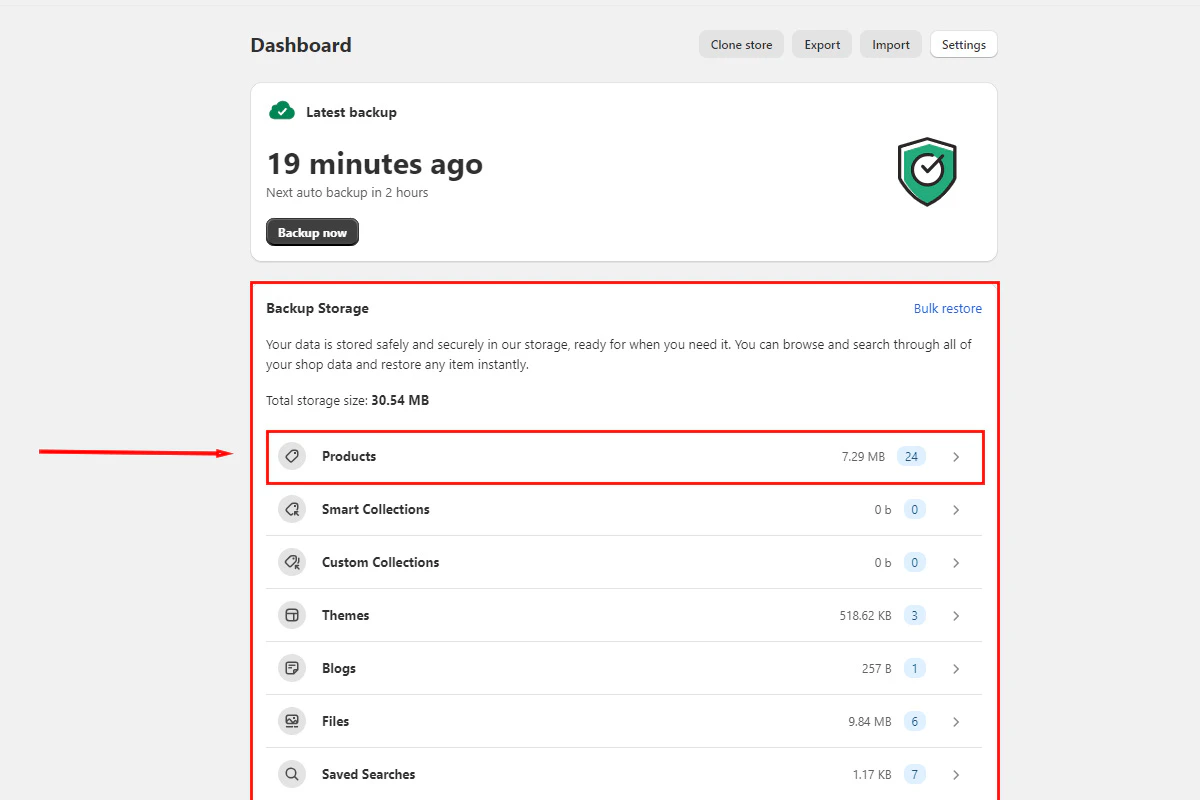 Select a category such as products or themes, then type a search term in the search bar to find a specific item. Click an item to view its backed-up versions.
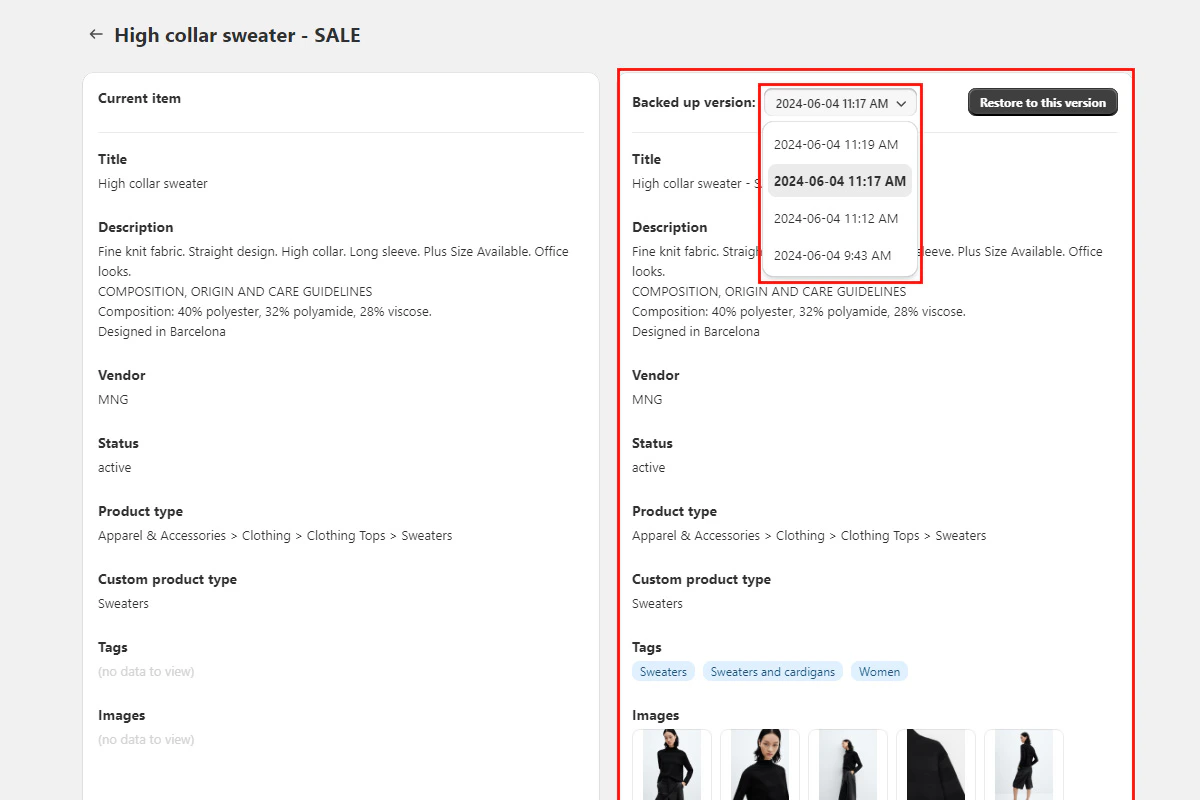
 When you click an item, the comparison view opens. The live store version appears on the left and the backed-up version appears on the right. Review the differences between versions, select the version you want to restore, and click **Restore to this version**.
 ## Need help?
If you have questions or need assistance, the support team is here to help. Reach out at [support@backupmaster.io](mailto:support@backupmaster.io).
## Next steps
* [Restore individual items](/shopify/restores/restore-a-single-item)
* [Restore items in bulk](/shopify/restores/restore-items-in-bulk)
* [Export and download backups](/shopify/exports-and-imports/export-and-download-a-backup)
## Need help?
If you have questions or need assistance, the support team is here to help. Reach out at [support@backupmaster.io](mailto:support@backupmaster.io).
## Next steps
* [Restore individual items](/shopify/restores/restore-a-single-item)
* [Restore items in bulk](/shopify/restores/restore-items-in-bulk)
* [Export and download backups](/shopify/exports-and-imports/export-and-download-a-backup)