> ## Documentation Index
> Fetch the complete documentation index at: https://docs.backupmaster.io/llms.txt
> Use this file to discover all available pages before exploring further.
# How Shopify backups work
> Learn how BackupMaster protects your Shopify store by tracking changes, saving versions, and retaining your data.
BackupMaster backs up your Shopify store by pulling data through the Shopify API, saving each item individually, and tracking changes over time. Every backed-up item gets its own version history, so you can see what changed, when it changed, and restore a previous version if needed.
## The initial backup
When you install BackupMaster and select a plan, the app runs an initial backup of your store. This pulls every [supported item](/shopify/coverage/what-backupmaster-backs-up-restores-and-clones) — products, collections, themes, pages, and more — and saves each one as its first version in backup storage. This creates a restore point for all your store data.
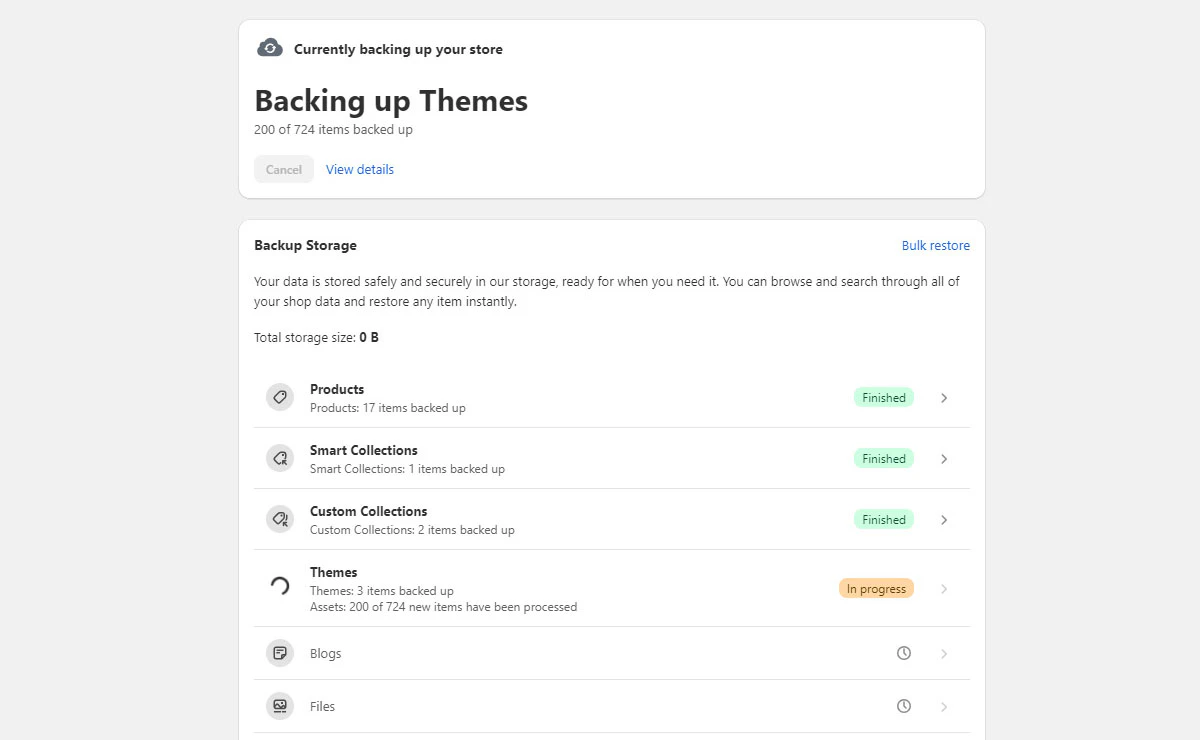 It's important to wait for the initial backup to complete before you try to [clone data to another store](/shopify/cloning/clone-store-data-to-another-store) or restore to that point — those features depend on having a finished backup to work from.
How long this takes depends on your store's size and Shopify's API rate limits. A small store may finish in minutes, while a large store with thousands of products can take up to several days. Backups run in the background and don't affect your store's performance. You can close the browser tab while it runs — an email notification arrives when the backup is complete. The initial backup establishes a baseline — from this point on, BackupMaster only needs to track what changed.
BackupMaster can only back up data from the point of installation onward. Data that existed before installation but was changed or deleted before the initial backup completed cannot be recovered.
## Automatic daily backups
Once the initial backup completes, BackupMaster runs an automatic daily backup. Instead of pulling your entire store again, it requests only the data that changed since the last backup. For each changed item, the app compares the Shopify version with the version already in storage. If the item is different, BackupMaster saves it as a new version.
For example, if you update a product's price, the next backup detects that change and saves the updated product as a new version. Over time, this builds a complete version history for each item.
You can also run a backup manually at any time using the **Backup Now** button on the dashboard. Manual backups use the same change detection as automatic daily backups. They're useful before major changes like imports or bulk edits — they give you a recent restore point to fall back on.
It's important to wait for the initial backup to complete before you try to [clone data to another store](/shopify/cloning/clone-store-data-to-another-store) or restore to that point — those features depend on having a finished backup to work from.
How long this takes depends on your store's size and Shopify's API rate limits. A small store may finish in minutes, while a large store with thousands of products can take up to several days. Backups run in the background and don't affect your store's performance. You can close the browser tab while it runs — an email notification arrives when the backup is complete. The initial backup establishes a baseline — from this point on, BackupMaster only needs to track what changed.
BackupMaster can only back up data from the point of installation onward. Data that existed before installation but was changed or deleted before the initial backup completed cannot be recovered.
## Automatic daily backups
Once the initial backup completes, BackupMaster runs an automatic daily backup. Instead of pulling your entire store again, it requests only the data that changed since the last backup. For each changed item, the app compares the Shopify version with the version already in storage. If the item is different, BackupMaster saves it as a new version.
For example, if you update a product's price, the next backup detects that change and saves the updated product as a new version. Over time, this builds a complete version history for each item.
You can also run a backup manually at any time using the **Backup Now** button on the dashboard. Manual backups use the same change detection as automatic daily backups. They're useful before major changes like imports or bulk edits — they give you a recent restore point to fall back on.
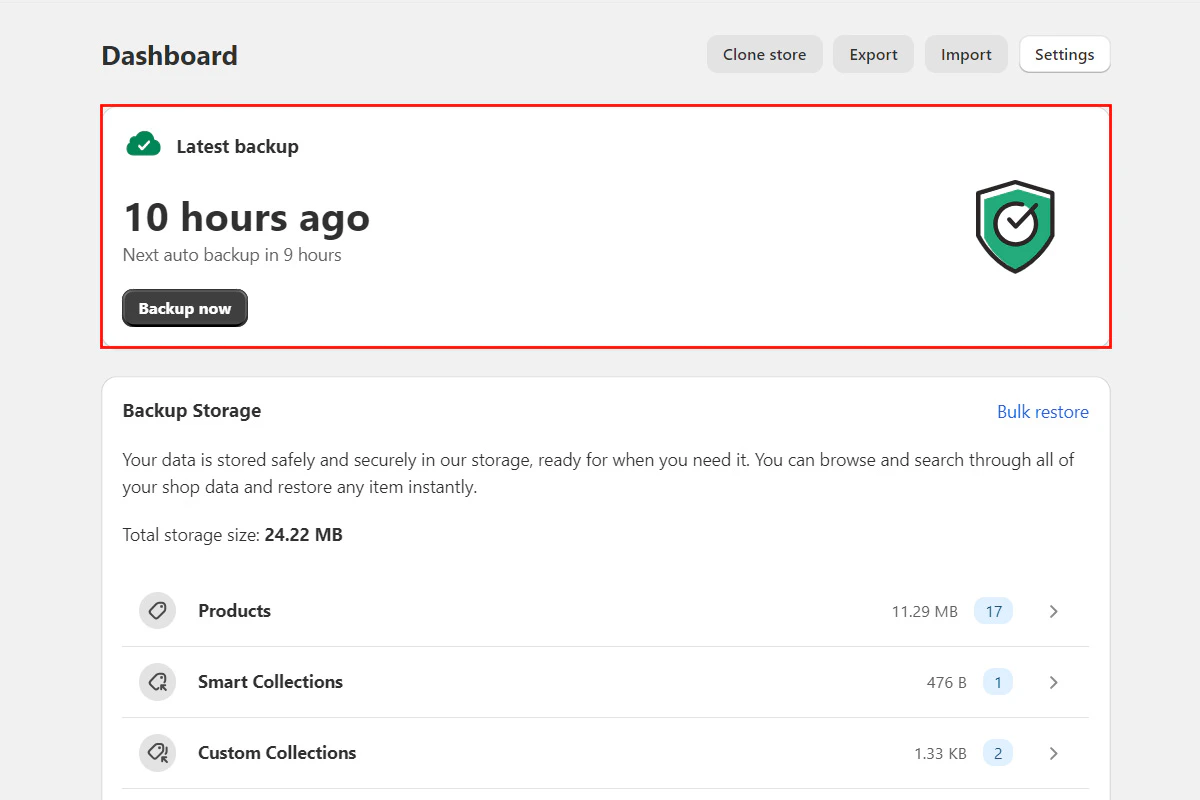 BackupMaster assigns a daily backup time when you install the app. To change it, contact the support team at [support@backupmaster.io](mailto:support@backupmaster.io).
## Version history
Every item that BackupMaster backs up gets its own version history. Each time a backup detects a change to an item, it saves that item's current state as a new version. If the item hasn't changed, no new version is created. Over time, this builds a timeline of versions for each item individually.
```mermaid theme={null}
flowchart LR
A["Day 1
BackupMaster assigns a daily backup time when you install the app. To change it, contact the support team at [support@backupmaster.io](mailto:support@backupmaster.io).
## Version history
Every item that BackupMaster backs up gets its own version history. Each time a backup detects a change to an item, it saves that item's current state as a new version. If the item hasn't changed, no new version is created. Over time, this builds a timeline of versions for each item individually.
```mermaid theme={null}
flowchart LR
A["Day 1
Product created
Version 1"] --> B["Day 2
No changes"] --> C["Day 3
Price changed
Version 2"] --> D["Day 4
No changes"]
```
Backups run every day, but a new version is only saved when something changed. Days without changes don't create a new version — this keeps version history clean and each version represents an actual change.
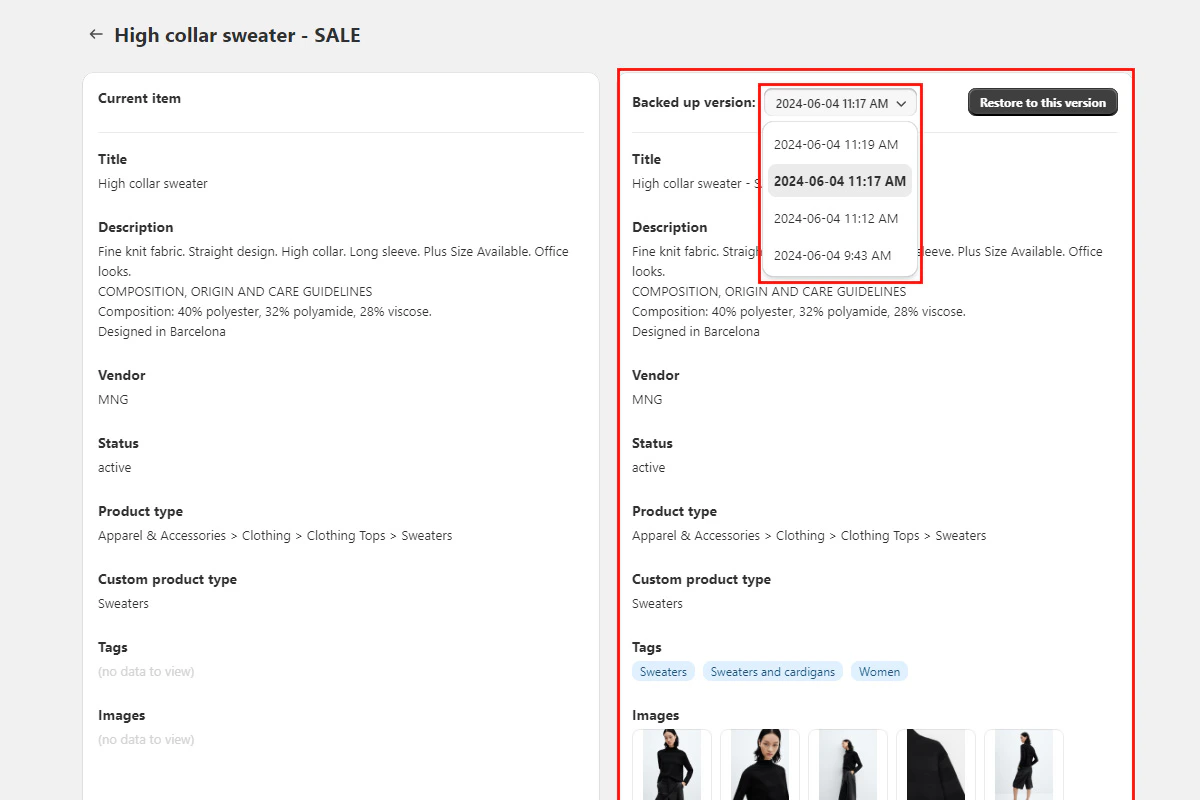
To view an item's version history, open the BackupMaster app, go to **Backup Storage**, and select a category. Click any item to see its versions. The comparison view shows the current live data on the left and the backed-up version on the right, with a dropdown to switch between versions. You can [restore a supported item](/shopify/restores/restore-a-single-item) to a previous version directly from this view.
 For step-by-step instructions on browsing and comparing versions, see [View and browse backed-up Shopify data](/shopify/backups/view-and-browse-backed-up-data). You can also [export your backups](/shopify/exports-and-imports/export-and-download-a-backup) or [clone data to another store](/shopify/cloning/clone-store-data-to-another-store) for staging or migration.
## Restore points
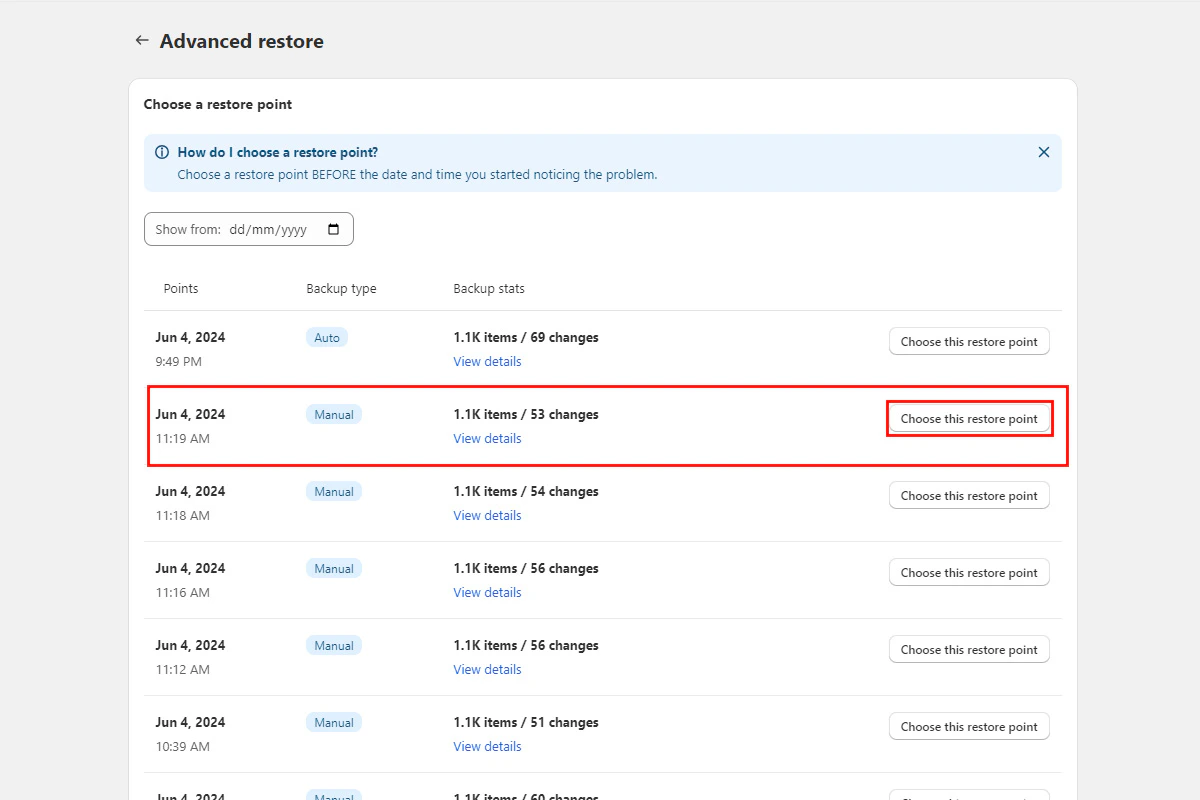
Each backup creates a restore point — a snapshot of your store data at that moment. You can restore any item to any captured version within the retention window. As backups accumulate, each item builds its own timeline of versions, giving you more points to choose from.
For step-by-step instructions on browsing and comparing versions, see [View and browse backed-up Shopify data](/shopify/backups/view-and-browse-backed-up-data). You can also [export your backups](/shopify/exports-and-imports/export-and-download-a-backup) or [clone data to another store](/shopify/cloning/clone-store-data-to-another-store) for staging or migration.
## Restore points
Each backup creates a restore point — a snapshot of your store data at that moment. You can restore any item to any captured version within the retention window. As backups accumulate, each item builds its own timeline of versions, giving you more points to choose from.
 ## Data retention
All plans include 1-year retention for backup versions. You can restore any item to any version captured within the past year. Versions older than 1 year are automatically removed.
After uninstalling BackupMaster, your backup data is retained for 7 days and then permanently deleted from BackupMaster's servers. This data can't be recovered after deletion.
## Store performance and API rate limits
BackupMaster connects to your store through the Shopify API only. It doesn't inject any code into your storefront — your page load times and customer experience are not affected.
Shopify enforces [API rate limits](https://shopify.dev/docs/api/usage/rate-limits) that control how frequently any app can send requests. BackupMaster stays within these limits automatically. Several factors influence how long backups and restores take:
* Each item (product, page, theme file) requires one or more API calls
* Products with many images, variants, or metafields need multiple calls each
* Stores with thousands of items require thousands of API calls over time
If backup progress appears stuck, it's most likely processing items that require many API calls (like products with hundreds of variants). Wait for the completion email before assuming there's an issue. Contact support at [support@backupmaster.io](mailto:support@backupmaster.io) if no progress shows for more than 2 hours.
## Need help?
If you have questions or need assistance, the support team is here to help. Reach out at [support@backupmaster.io](mailto:support@backupmaster.io).
## Data retention
All plans include 1-year retention for backup versions. You can restore any item to any version captured within the past year. Versions older than 1 year are automatically removed.
After uninstalling BackupMaster, your backup data is retained for 7 days and then permanently deleted from BackupMaster's servers. This data can't be recovered after deletion.
## Store performance and API rate limits
BackupMaster connects to your store through the Shopify API only. It doesn't inject any code into your storefront — your page load times and customer experience are not affected.
Shopify enforces [API rate limits](https://shopify.dev/docs/api/usage/rate-limits) that control how frequently any app can send requests. BackupMaster stays within these limits automatically. Several factors influence how long backups and restores take:
* Each item (product, page, theme file) requires one or more API calls
* Products with many images, variants, or metafields need multiple calls each
* Stores with thousands of items require thousands of API calls over time
If backup progress appears stuck, it's most likely processing items that require many API calls (like products with hundreds of variants). Wait for the completion email before assuming there's an issue. Contact support at [support@backupmaster.io](mailto:support@backupmaster.io) if no progress shows for more than 2 hours.
## Need help?
If you have questions or need assistance, the support team is here to help. Reach out at [support@backupmaster.io](mailto:support@backupmaster.io).