> ## Documentation Index
> Fetch the complete documentation index at: https://docs.backupmaster.io/llms.txt
> Use this file to discover all available pages before exploring further.
# Set up alternative access for Shopify
> Set up BackupMaster's external portal so you can access your backed-up data even if you lose access to your Shopify admin.
Alternative access gives you a way to browse your backed-up data outside of Shopify. It's an external portal with its own login, completely independent of your Shopify admin. You must set it up while you still have access to BackupMaster in your Shopify admin.
## When you need it
* **Store suspended or closed** — Your backed-up data stays accessible through the portal.
* **Locked out of Shopify** — Password issues, account disputes, or admin access revoked.
* **Team transitions** — A store owner leaves and admin access needs to be sorted out.
## Activate the portal
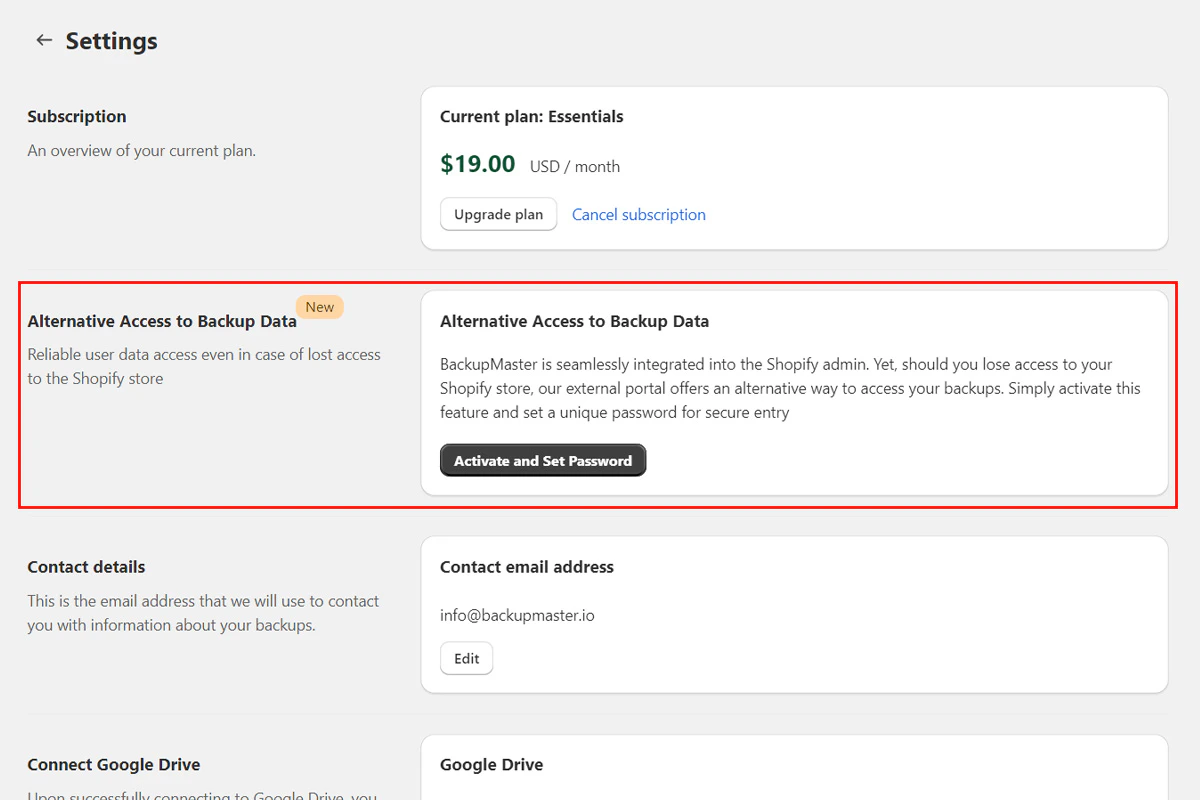
Go to **Settings**.
Click **Activate and Set Password**.
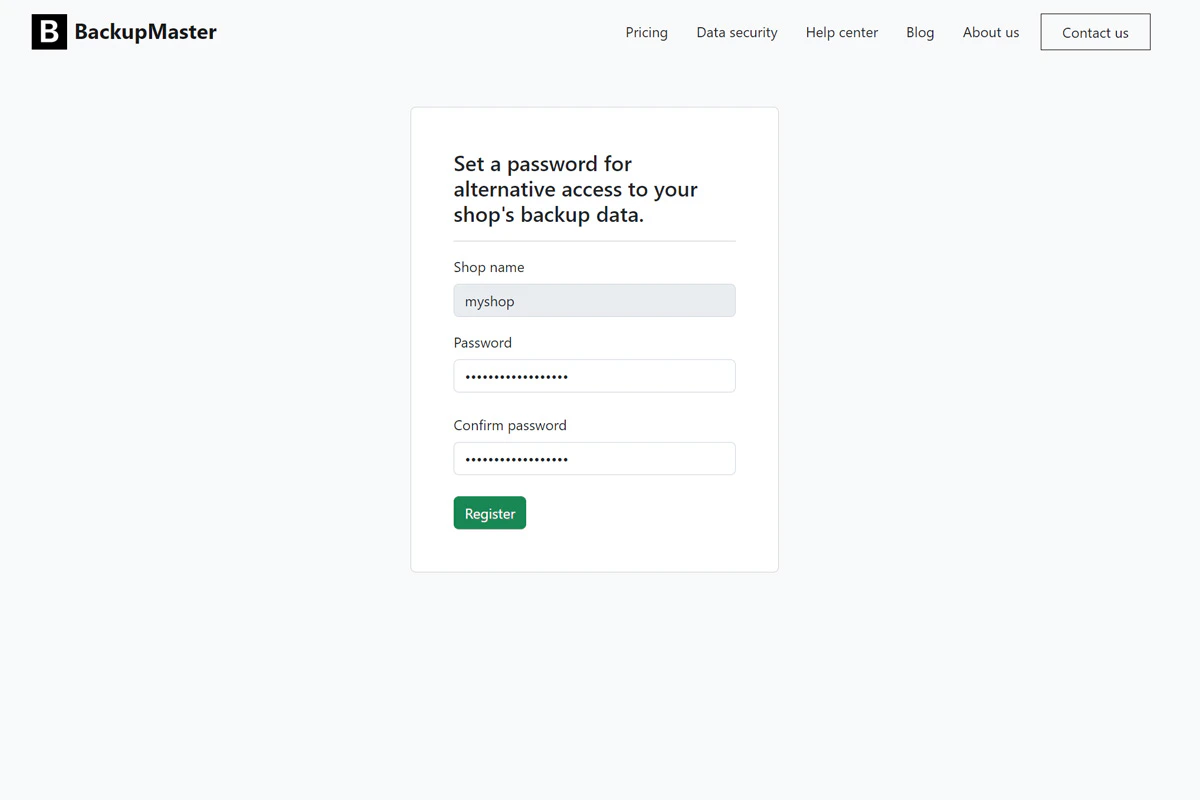
 Click **Send** to receive a registration email. Open the email and click the registration link to create a password for the portal.
 Return to **Settings** in BackupMaster. Copy your data access link and save it somewhere secure.
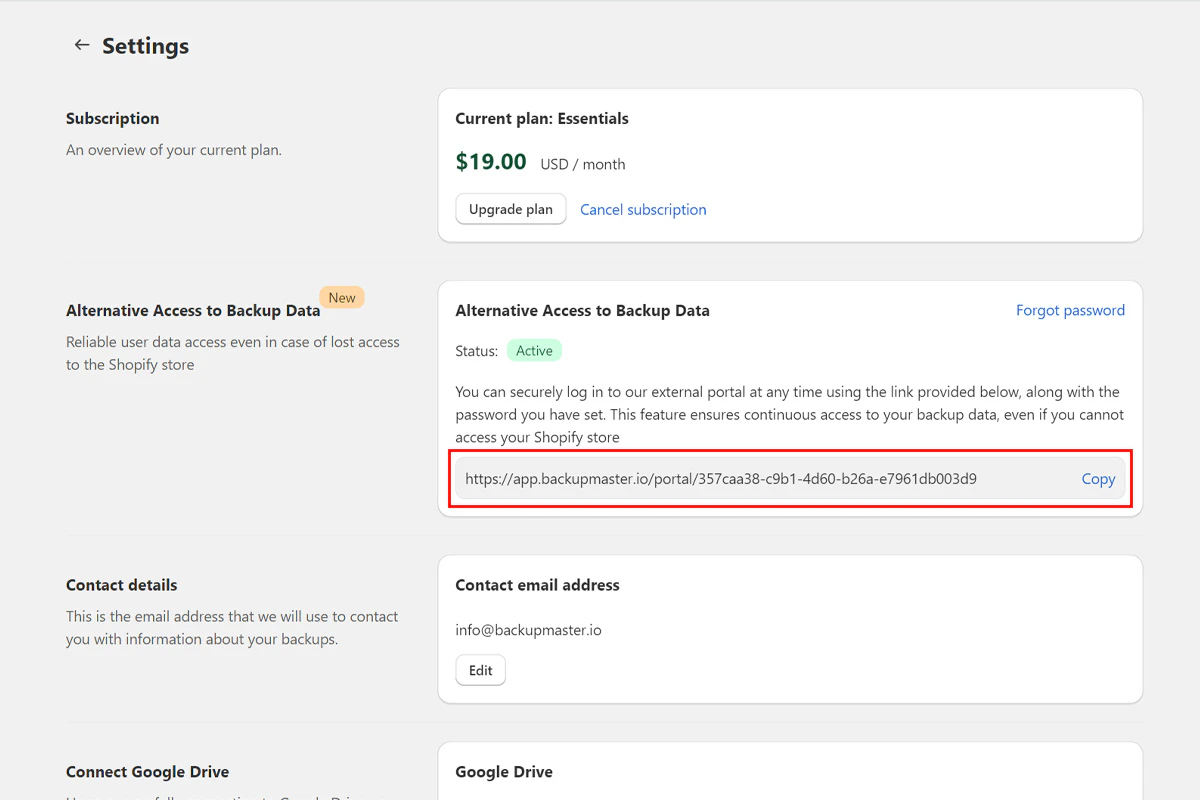 You'll also receive the link by email.
The portal uses encrypted data transmission, email verification, and a password you set during activation.
If you uninstall BackupMaster, portal access continues only while your backup data exists. See [Data retention](/shopify/backups/how-backups-work#data-retention) for details on how long data is kept after uninstalling.
## Need help?
If you have questions or need assistance, the support team is here to help. Reach out at [support@backupmaster.io](mailto:support@backupmaster.io).
You'll also receive the link by email.
The portal uses encrypted data transmission, email verification, and a password you set during activation.
If you uninstall BackupMaster, portal access continues only while your backup data exists. See [Data retention](/shopify/backups/how-backups-work#data-retention) for details on how long data is kept after uninstalling.
## Need help?
If you have questions or need assistance, the support team is here to help. Reach out at [support@backupmaster.io](mailto:support@backupmaster.io).