> ## Documentation Index
> Fetch the complete documentation index at: https://docs.backupmaster.io/llms.txt
> Use this file to discover all available pages before exploring further.
# Restore a single BigCommerce item
> Restore a single item from any backed-up category to a previous version. BackupMaster shows a side-by-side comparison so you can verify the data before restoring.
BackupMaster lets you restore supported items from your backup storage to a previous version. A side-by-side comparison view shows exactly what will change before you confirm, so you can verify the data first.
**Prerequisites**
* At least one completed backup in your backup storage
* The item must belong to a [restorable category](/bigcommerce/coverage/what-backupmaster-backs-up-restores-and-clones)
## Restore a single item
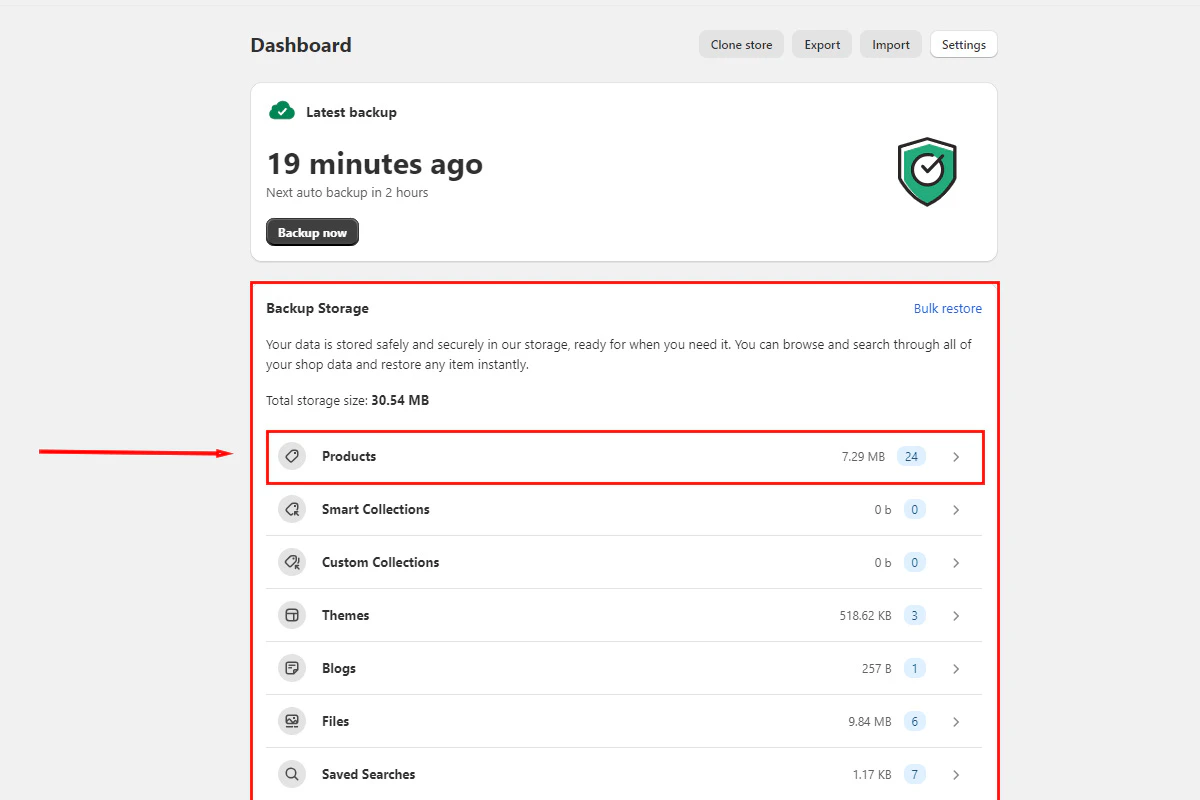
Open **BackupMaster** from your BigCommerce admin, select **Backup Storage** from the dashboard, and choose the data category that contains your item (for example, **Products**, **Themes**, or **Customers**).
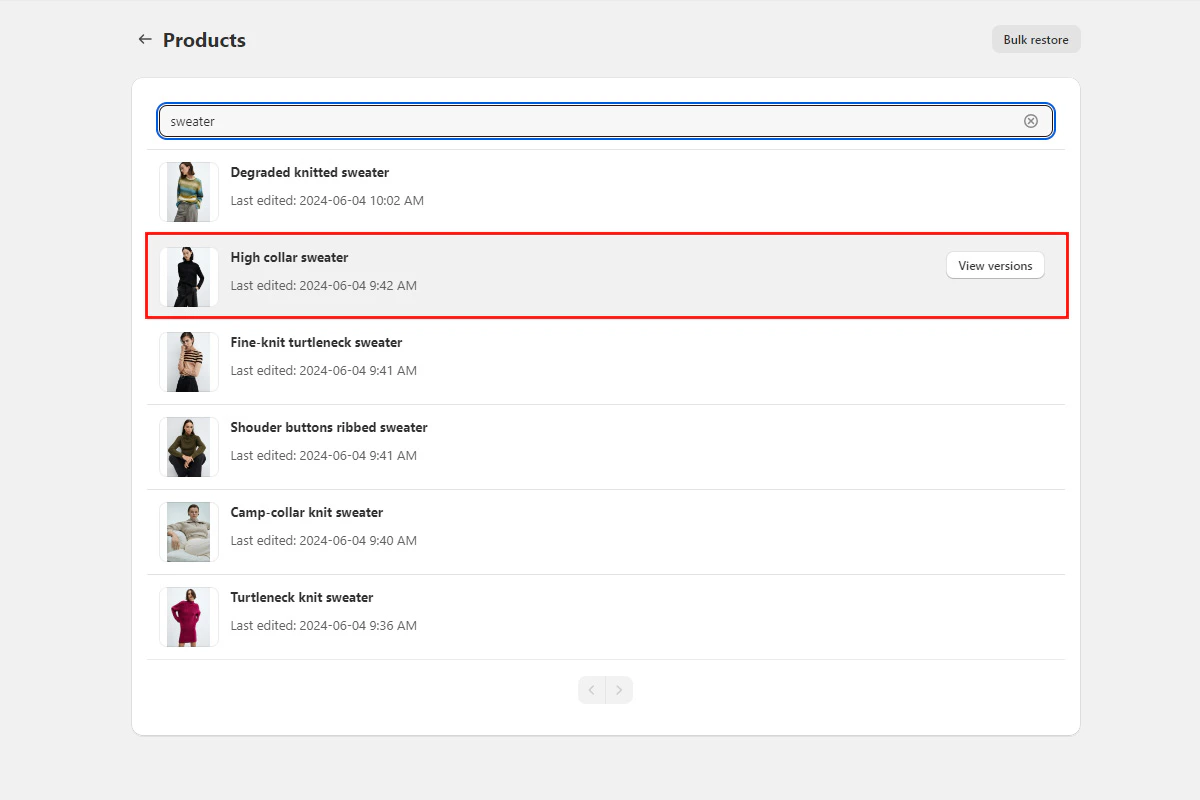
 Search for the item by name, then click it to view its backed-up versions.
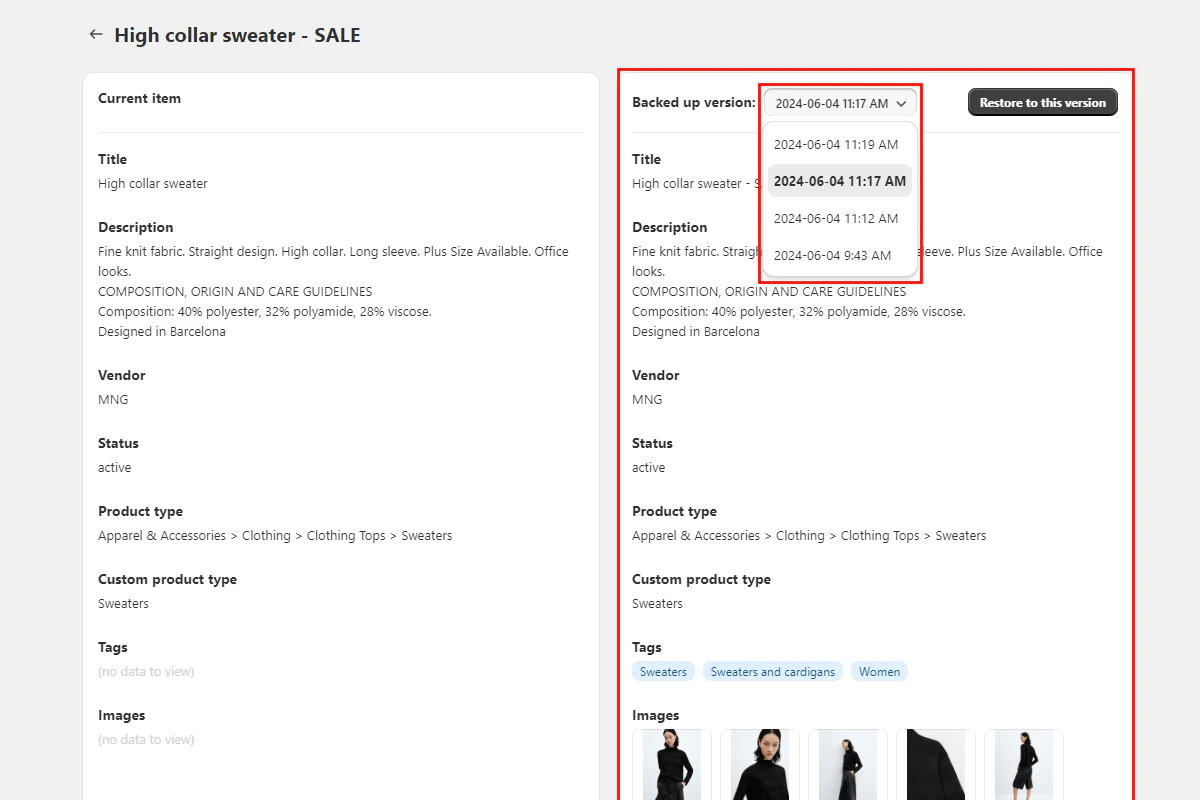
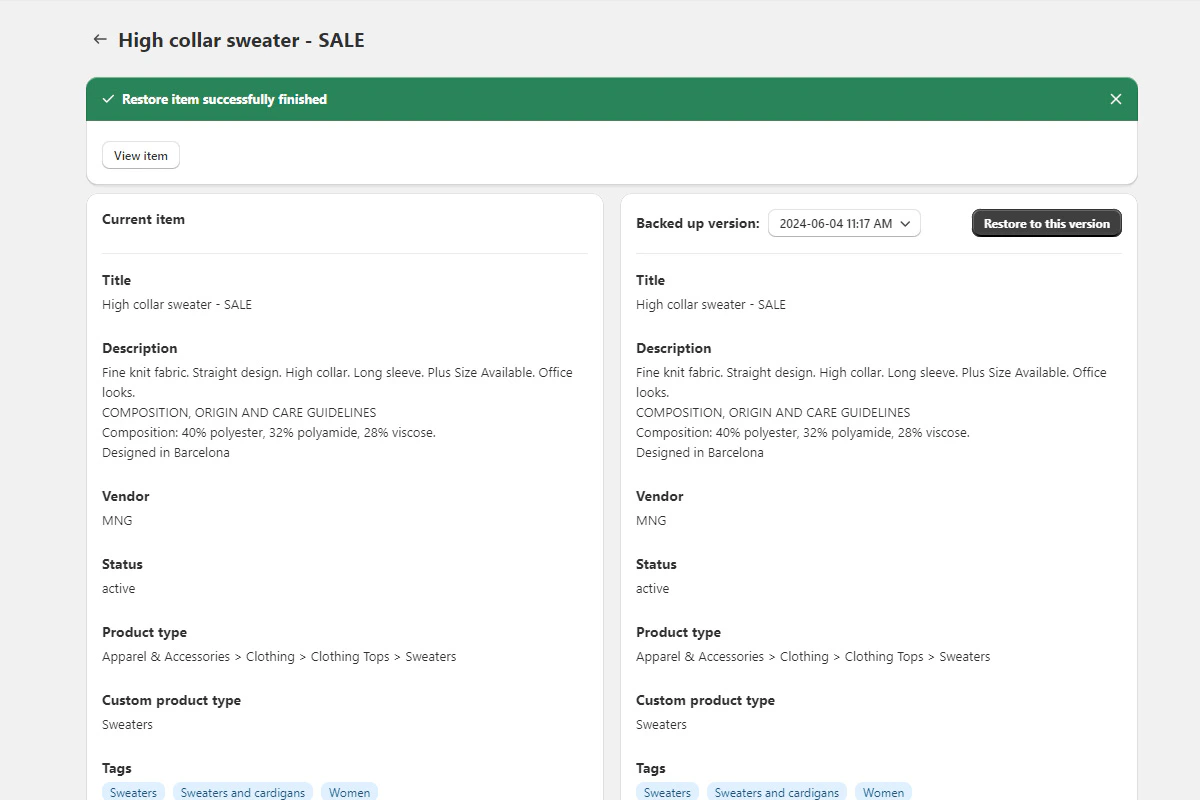
 The comparison view displays your current live data on the left and the backed-up version on the right. Use the dropdown to switch between backup versions and find the one you need. Each version shows its capture date and time — pick the backup closest to (but before) the unwanted change.
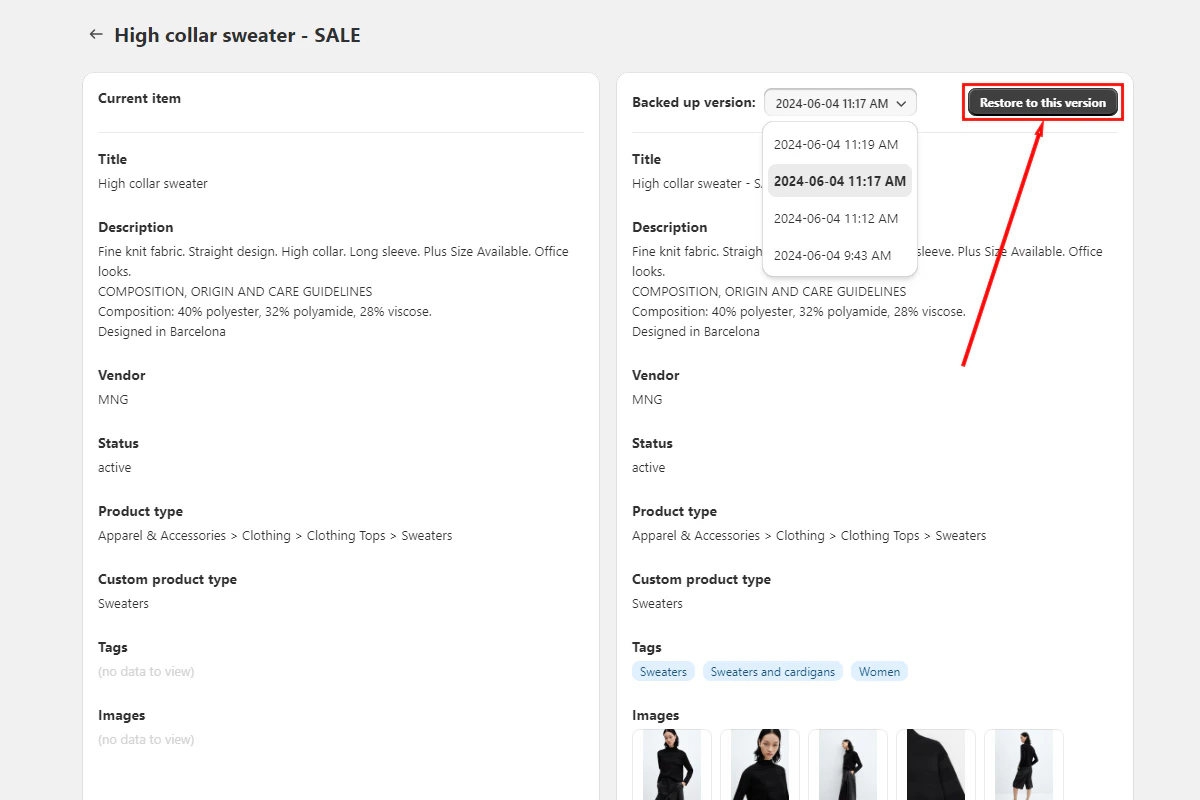
 Select the version you want and click **Restore to this version**.
 Confirm the restore in the dialog. BackupMaster displays a success message once it completes. Individual restores typically finish in seconds.
 ## How restoring affects your live data
BackupMaster uses a matching process for each item:
1. **Match by ID** — looks for the item using its unique BigCommerce ID. If found, it updates the existing item.
2. **Match by handle** — if no ID match exists (for example, the item was deleted and recreated), matches by the handle (URL slug) and updates that item.
3. **Create new** — if neither ID nor handle matches, creates a new item from the backup.
## Troubleshooting
A bulk operation (restore, export, or backup) is likely running. Wait for it to finish, then try again.
Retry the restore. If the problem continues, contact support at [support@backupmaster.io](mailto:support@backupmaster.io).
Theme customizations made through the BigCommerce theme editor aren't included in backups. This is a BigCommerce API limitation. Reapply customizations manually after restoring.
## Need help?
If you have questions or need assistance, the support team is here to help. Reach out at [support@backupmaster.io](mailto:support@backupmaster.io).
## How restoring affects your live data
BackupMaster uses a matching process for each item:
1. **Match by ID** — looks for the item using its unique BigCommerce ID. If found, it updates the existing item.
2. **Match by handle** — if no ID match exists (for example, the item was deleted and recreated), matches by the handle (URL slug) and updates that item.
3. **Create new** — if neither ID nor handle matches, creates a new item from the backup.
## Troubleshooting
A bulk operation (restore, export, or backup) is likely running. Wait for it to finish, then try again.
Retry the restore. If the problem continues, contact support at [support@backupmaster.io](mailto:support@backupmaster.io).
Theme customizations made through the BigCommerce theme editor aren't included in backups. This is a BigCommerce API limitation. Reapply customizations manually after restoring.
## Need help?
If you have questions or need assistance, the support team is here to help. Reach out at [support@backupmaster.io](mailto:support@backupmaster.io).