> ## Documentation Index
> Fetch the complete documentation index at: https://docs.backupmaster.io/llms.txt
> Use this file to discover all available pages before exploring further.
# Clone your BigCommerce store data to another store
> Transfer your BigCommerce store data to another store for staging, migration, expansion, or development.
BackupMaster lets you clone data from one BigCommerce store to another — including products, categories, pages, and more. The source store's backup is used as the basis for the transfer, so both stores need BackupMaster installed with a completed backup.
## When to use cloning
* **Staging or development** — clone production data to a test store to safely try theme changes, app integrations, or bulk edits.
* **Regional expansion** — duplicate your catalog and content to a store targeting a different market or currency.
* **New brand setup** — use an existing store as a template for a new brand.
## Supported data types
| Data type | Supported |
| ----------- | ---------------------------- |
| Products | |
| Categories | |
| Brands | |
| Pages | |
| Blog posts | |
| Customers | |
| Price lists | |
Orders, gift certificates, store settings, themes, redirects, widgets, scripts, and third-party app data are not transferred.
## Clone your store
**Prerequisites**
* BackupMaster installed on both stores
* A Pro plan or higher on the source store (the destination can be on any plan)
* A completed initial backup on both stores
The steps below use "store-us" as the source and "store-eu" as the destination. Replace these with your actual store names.
```mermaid theme={null}
flowchart LR
A["store-us (source)
store-us.mybigcommerce.com"] --> B[("store-us
backup storage")] -- "Clone data" --> C["store-eu (destination)
store-eu.mybigcommerce.com"]
```
### On the source store
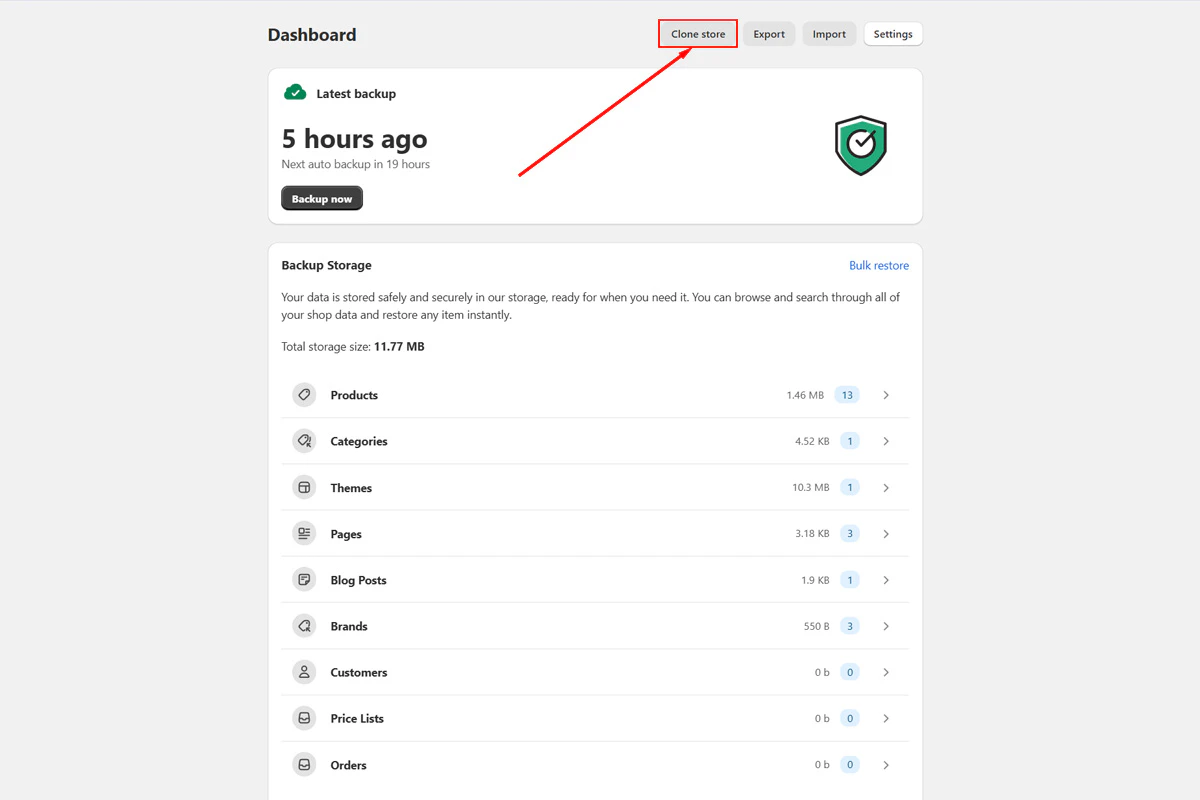
In the source store's BigCommerce admin, go to **Apps** > **BackupMaster** and click **Clone store**.
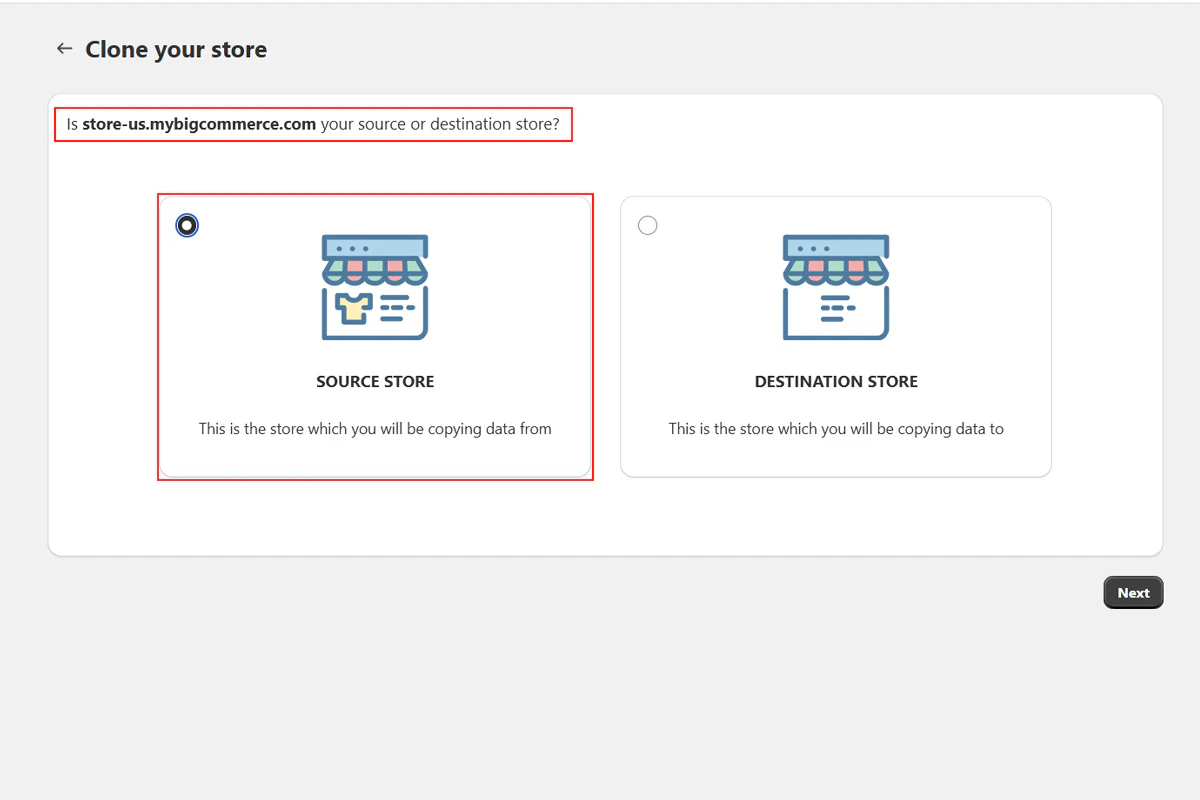
 Confirm that you're in the source store (store-us).
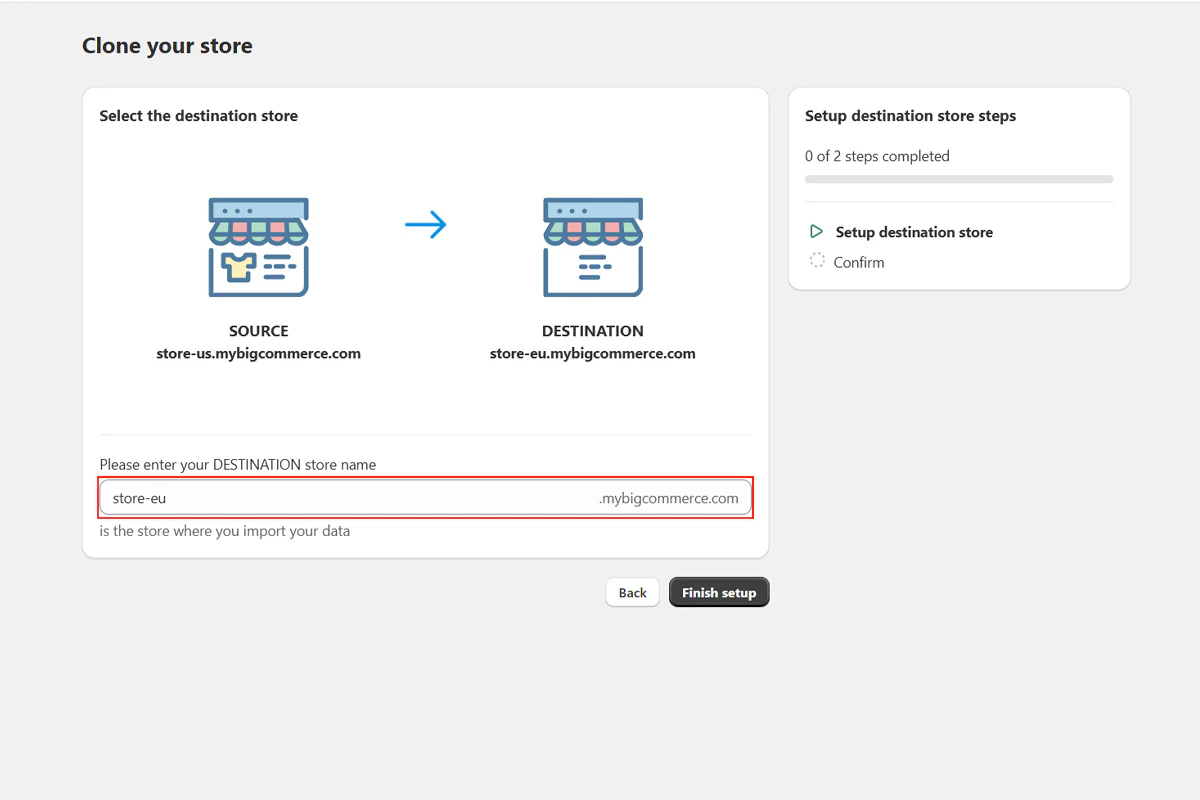
 Enter the destination store name (store-eu).
Enter only the store name, not the full URL. For example, enter **store-eu** — not store-eu.mybigcommerce.com.
Enter the destination store name (store-eu).
Enter only the store name, not the full URL. For example, enter **store-eu** — not store-eu.mybigcommerce.com.
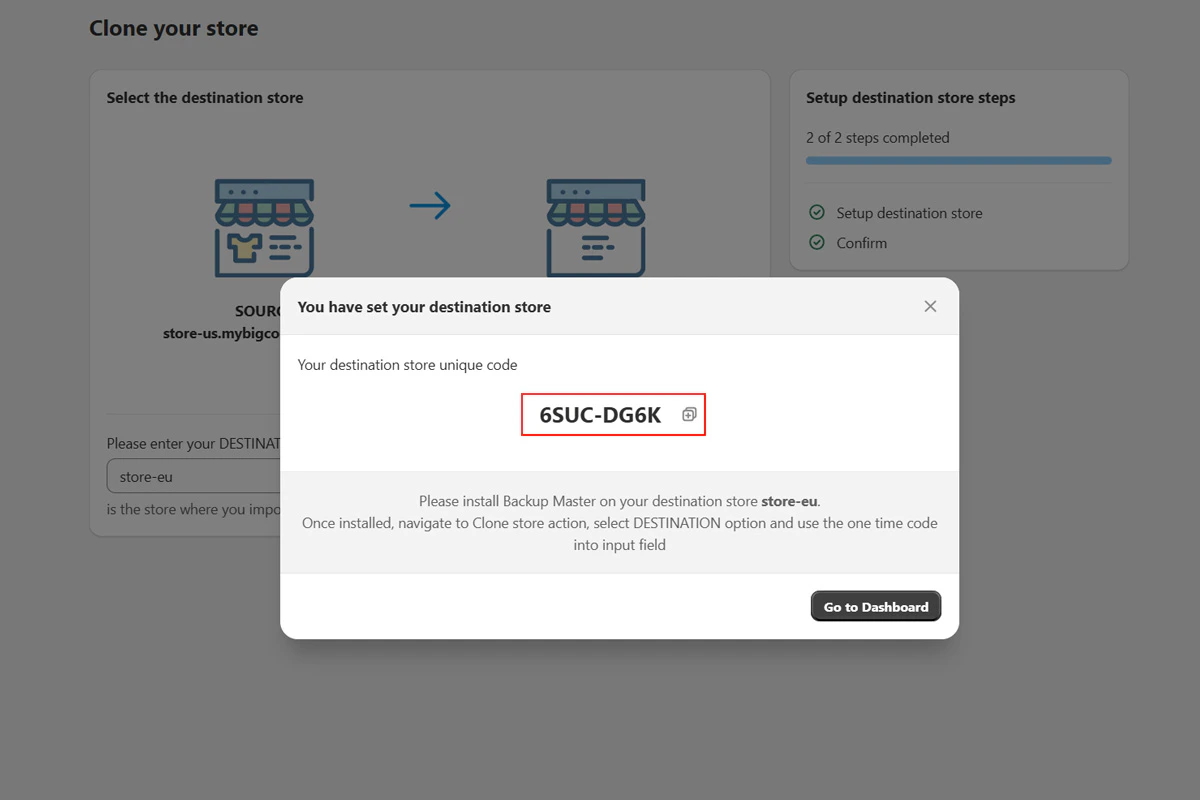
 Copy the unique code that BackupMaster generates. You'll enter this on the destination store.
 ### On the destination store
In the destination store's BigCommerce admin, go to **Apps** > **BackupMaster** and click **Clone store**.
Confirm that you're in the destination store (store-eu).
### On the destination store
In the destination store's BigCommerce admin, go to **Apps** > **BackupMaster** and click **Clone store**.
Confirm that you're in the destination store (store-eu).
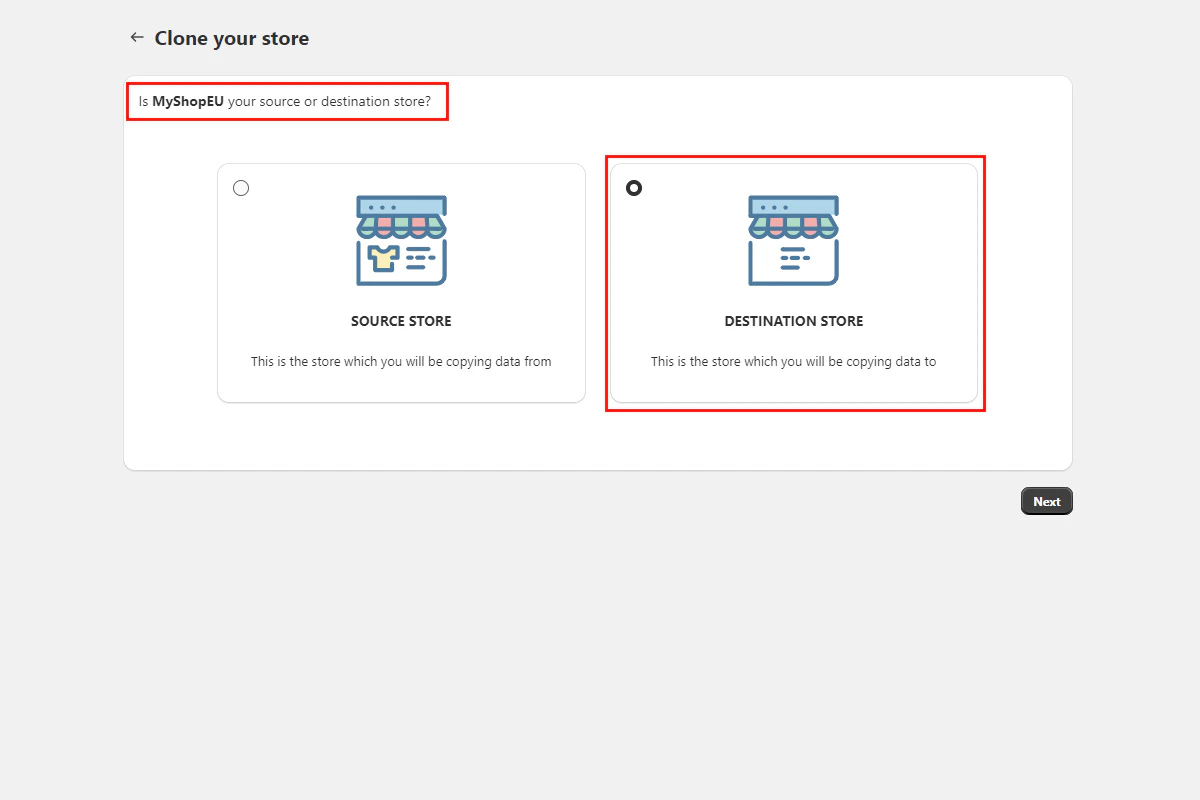 Paste the code from the source store and click **Activate**.
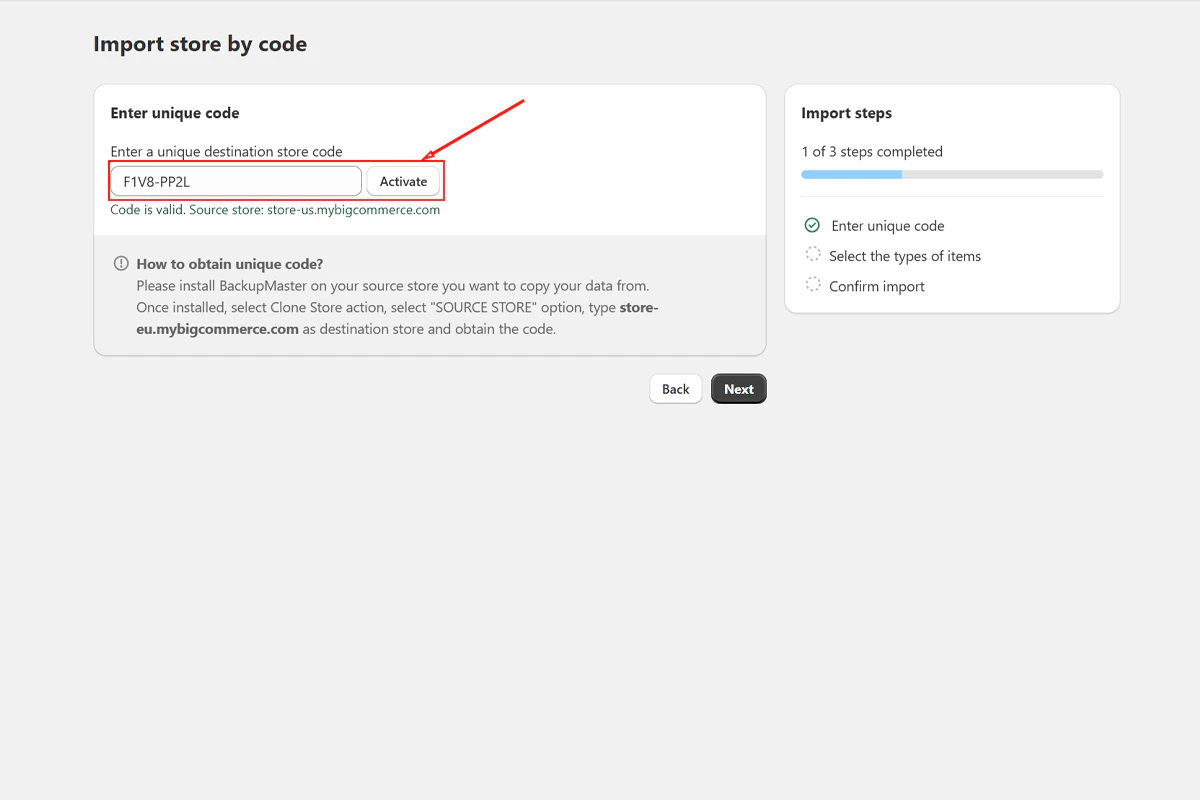 Select the data types you want to clone and click **Next**.
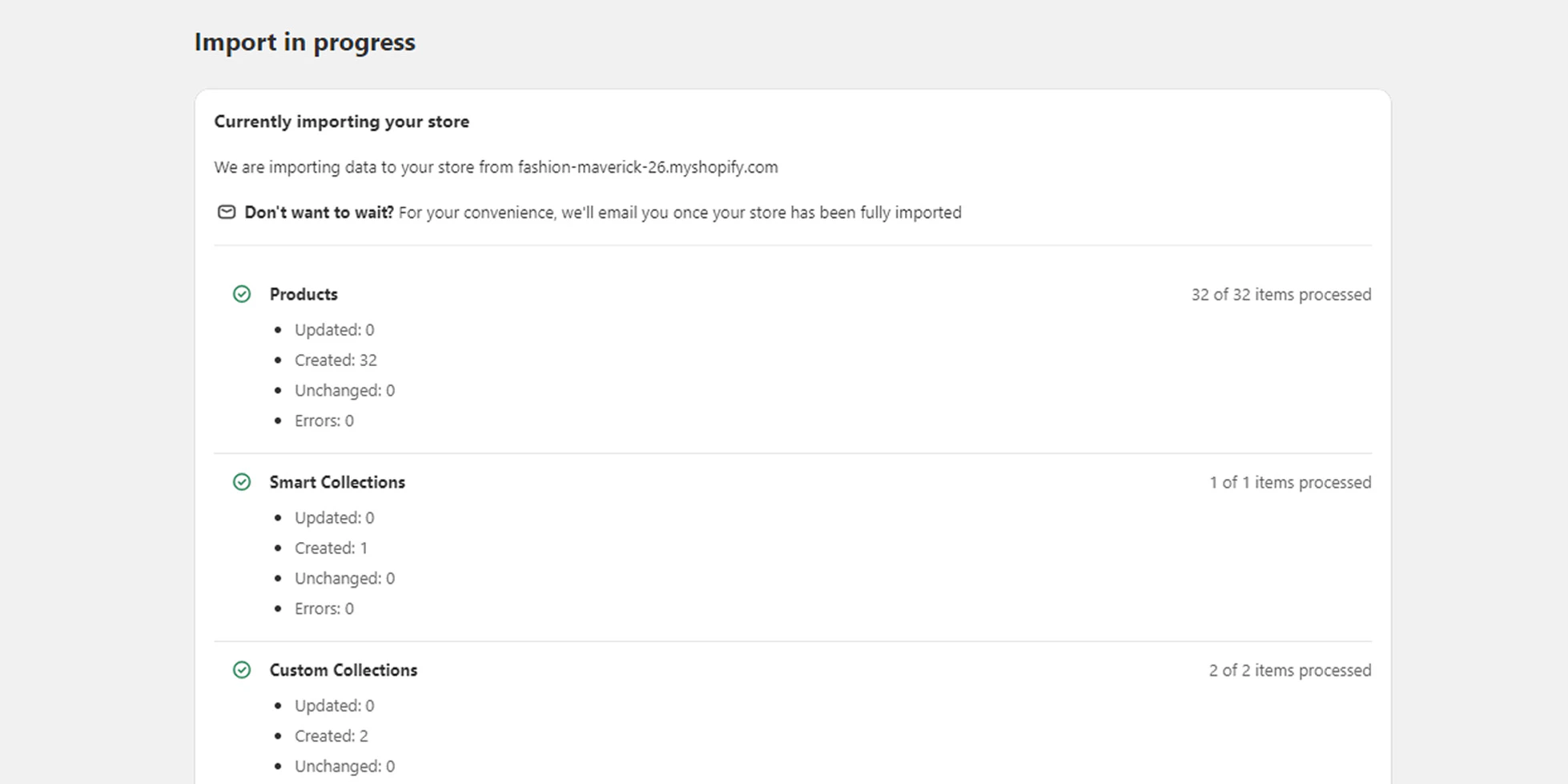
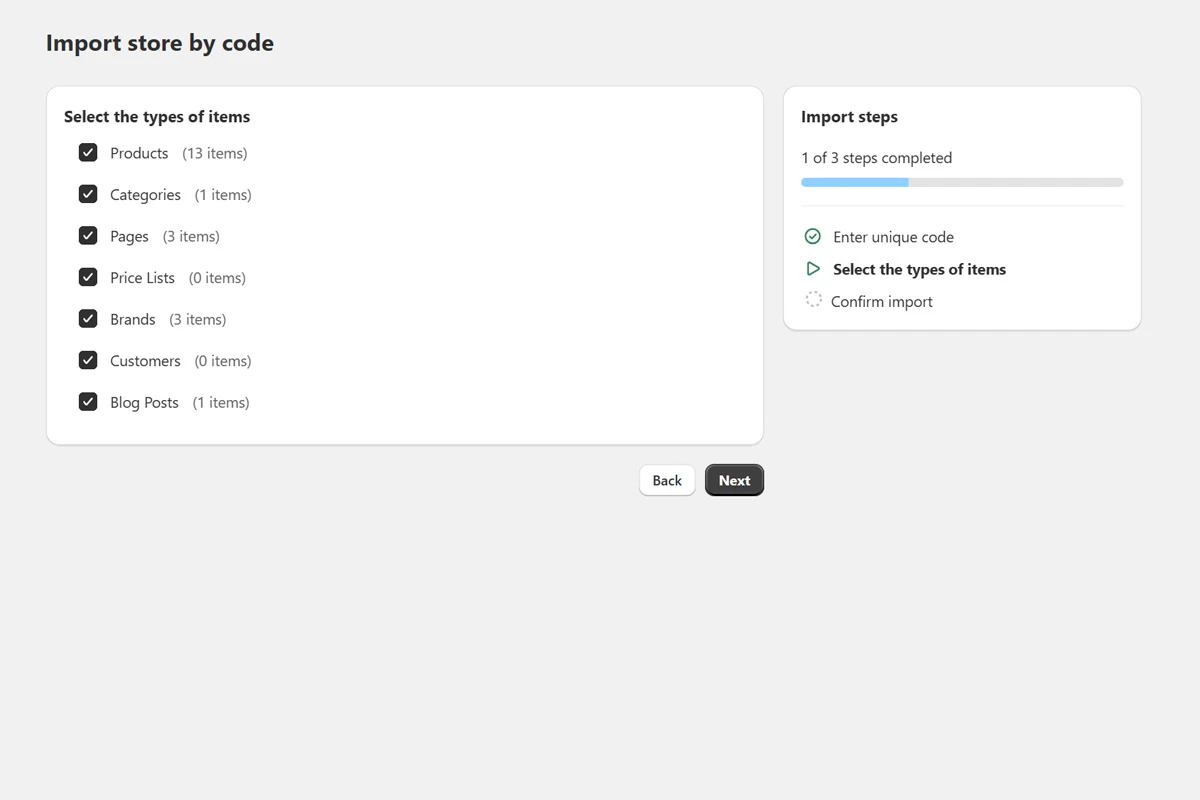 Click **Start import** to begin the transfer. You can close the browser — BackupMaster sends an email when it finishes.
 ## How items are matched
BackupMaster matches each item by ID first, then by handle in the destination store. If a match exists, the destination item is updated with the source version. If no match is found, a new item is created. Cloning the same data twice won't create duplicates. Items that exist only on the destination are left untouched.
## Errors during cloning
Errors can occur for a variety of reasons — temporary BigCommerce outages, store plan limits, missing data types, or edge cases. BackupMaster shows error details next to any affected item so you can see what went wrong.
After resolving the issue, you can re-run the clone for any missed categories — everything that already transferred successfully is skipped.
If you need help, contact us at [support@backupmaster.io](mailto:support@backupmaster.io) with the error details.
## Troubleshooting
Verify that both stores have BackupMaster installed and that the source store is on the Pro plan or higher. Enter the store name only (for example, "store-eu"), not the full URL.
You can run the clone again for any missed categories. BackupMaster matches items by ID and handle, so cloning the same data again updates existing items instead of creating duplicates.
BigCommerce API rate limits can slow processing. Large stores may take several hours. Check your email for a completion notification before retrying.
## Frequently asked questions
No. Items that exist only on the destination are left untouched. Cloning only updates items that match by ID or handle and creates new items for anything that doesn't exist yet.
Yes. BackupMaster matches items by ID and handle, so cloning the same data again updates existing items instead of creating duplicates.
No. Orders, gift certificates, store settings, and third-party app data are not transferred.
Yes. Repeat the process for each destination store using a new clone code.
No. You can close the browser after starting the import. BackupMaster sends an email when the process finishes.
## Need help?
If you have questions or need assistance, the support team is here to help. Reach out at [support@backupmaster.io](mailto:support@backupmaster.io).
## How items are matched
BackupMaster matches each item by ID first, then by handle in the destination store. If a match exists, the destination item is updated with the source version. If no match is found, a new item is created. Cloning the same data twice won't create duplicates. Items that exist only on the destination are left untouched.
## Errors during cloning
Errors can occur for a variety of reasons — temporary BigCommerce outages, store plan limits, missing data types, or edge cases. BackupMaster shows error details next to any affected item so you can see what went wrong.
After resolving the issue, you can re-run the clone for any missed categories — everything that already transferred successfully is skipped.
If you need help, contact us at [support@backupmaster.io](mailto:support@backupmaster.io) with the error details.
## Troubleshooting
Verify that both stores have BackupMaster installed and that the source store is on the Pro plan or higher. Enter the store name only (for example, "store-eu"), not the full URL.
You can run the clone again for any missed categories. BackupMaster matches items by ID and handle, so cloning the same data again updates existing items instead of creating duplicates.
BigCommerce API rate limits can slow processing. Large stores may take several hours. Check your email for a completion notification before retrying.
## Frequently asked questions
No. Items that exist only on the destination are left untouched. Cloning only updates items that match by ID or handle and creates new items for anything that doesn't exist yet.
Yes. BackupMaster matches items by ID and handle, so cloning the same data again updates existing items instead of creating duplicates.
No. Orders, gift certificates, store settings, and third-party app data are not transferred.
Yes. Repeat the process for each destination store using a new clone code.
No. You can close the browser after starting the import. BackupMaster sends an email when the process finishes.
## Need help?
If you have questions or need assistance, the support team is here to help. Reach out at [support@backupmaster.io](mailto:support@backupmaster.io).